01
Click the biggest thing
The biggest block is the biggest folder. Click it to go inside, and keep going until you find what’s taking the room.
 Diskaroo: See where your space went —
 Scan a drive and see what is actually filling it, folder by folder, then clear out what you do not need.
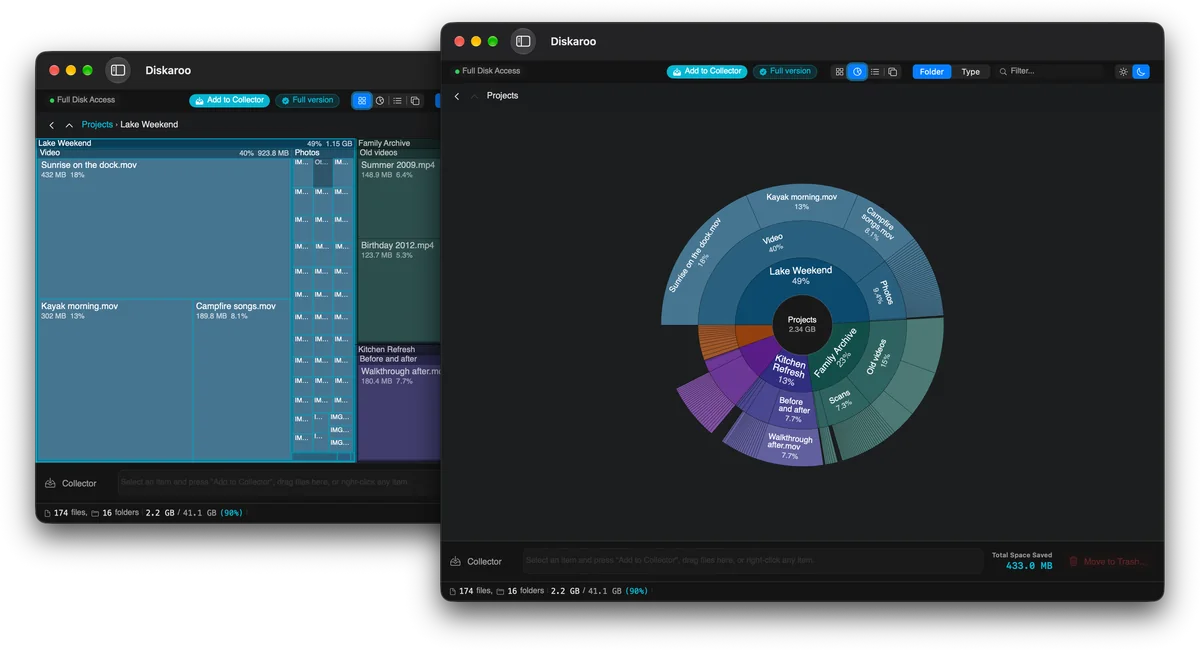
Your whole disk as one picture. The biggest files and folders jump out at a glance, sized by the space they take.
Every folder is a block sized by the space it takes, so the biggest files and folders jump out at a glance.
Click any block to zoom into that folder and see what’s inside it. Breadcrumbs walk you back out.
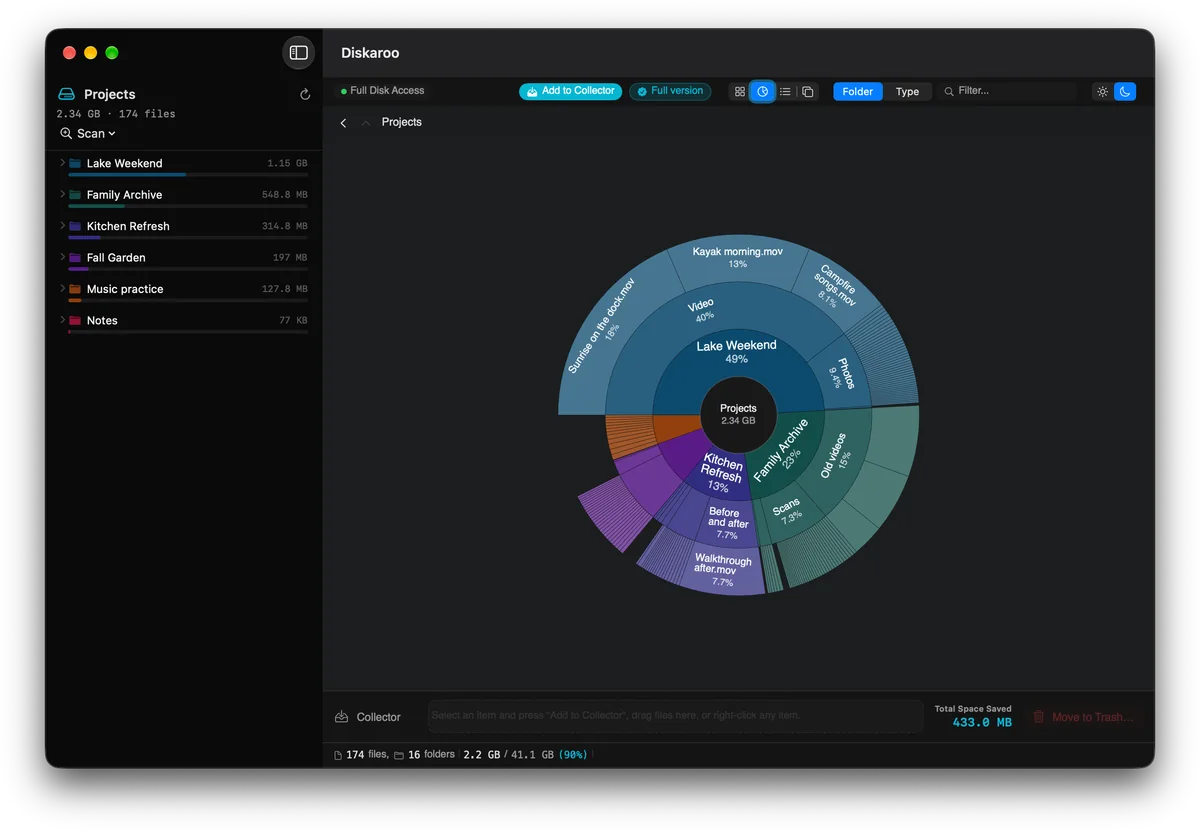
Prefer circles? Switch to the sunburst: the same disk, drawn as rings from the middle out.
A sortable list of the largest files and folders in what you scanned.
Colour the map by folder, or by file type to see which kinds of files take the most room.
Type part of a name or an extension to light up just the matching blocks.
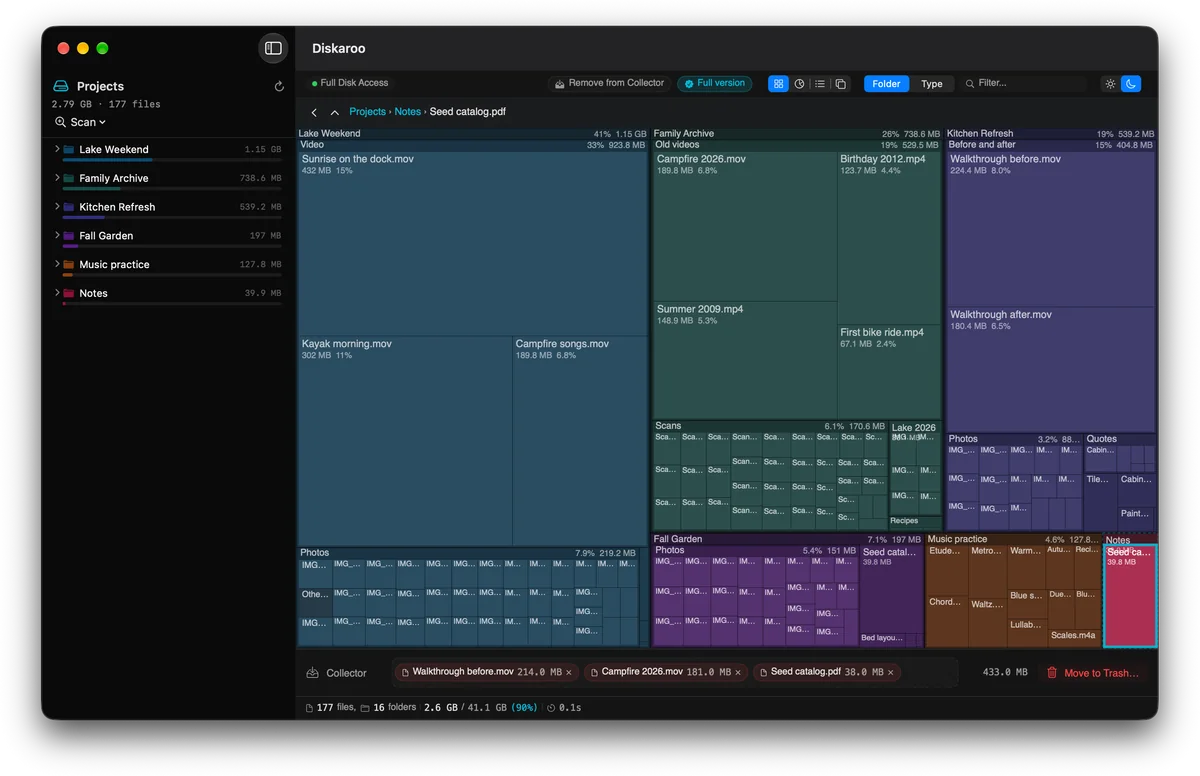
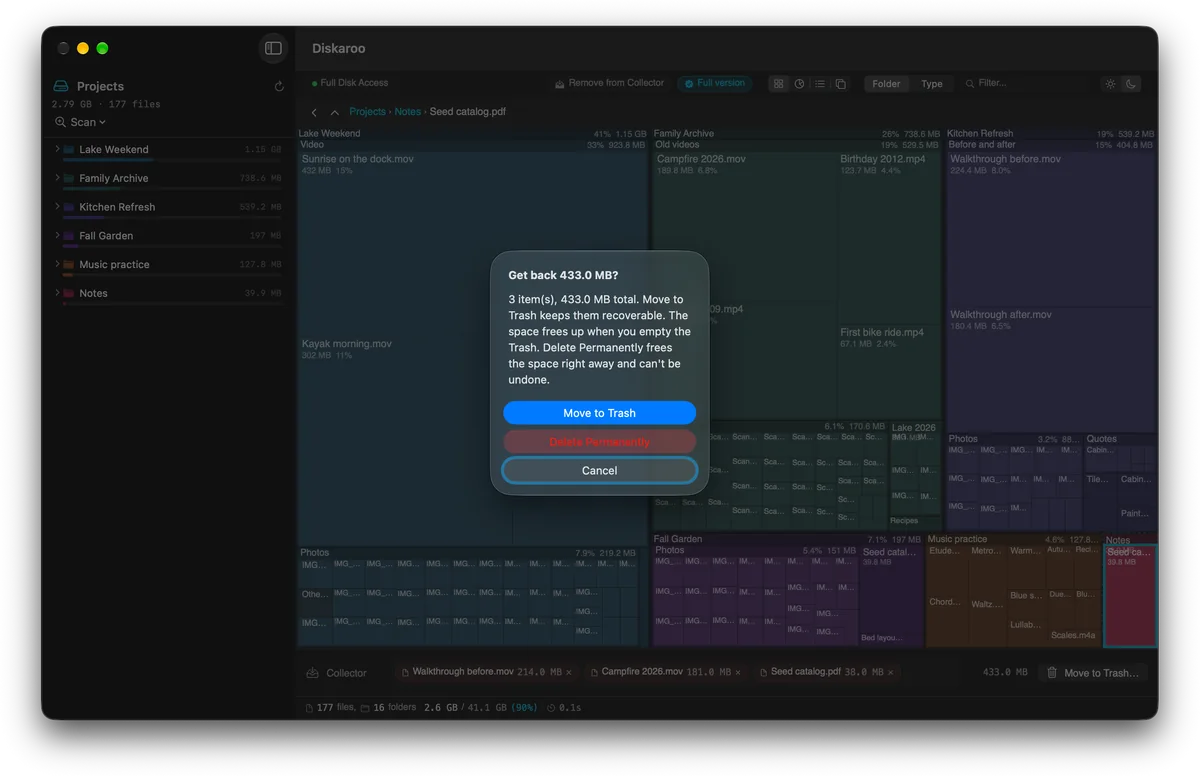
Add what you want gone to the Collector while you explore, review the batch, then move it all to the Trash (the Recycle Bin on Windows) in one go, or delete it for good if you mean it. Nothing is deleted until you confirm.
The Collector keeps a running total of the space you’ve won back.
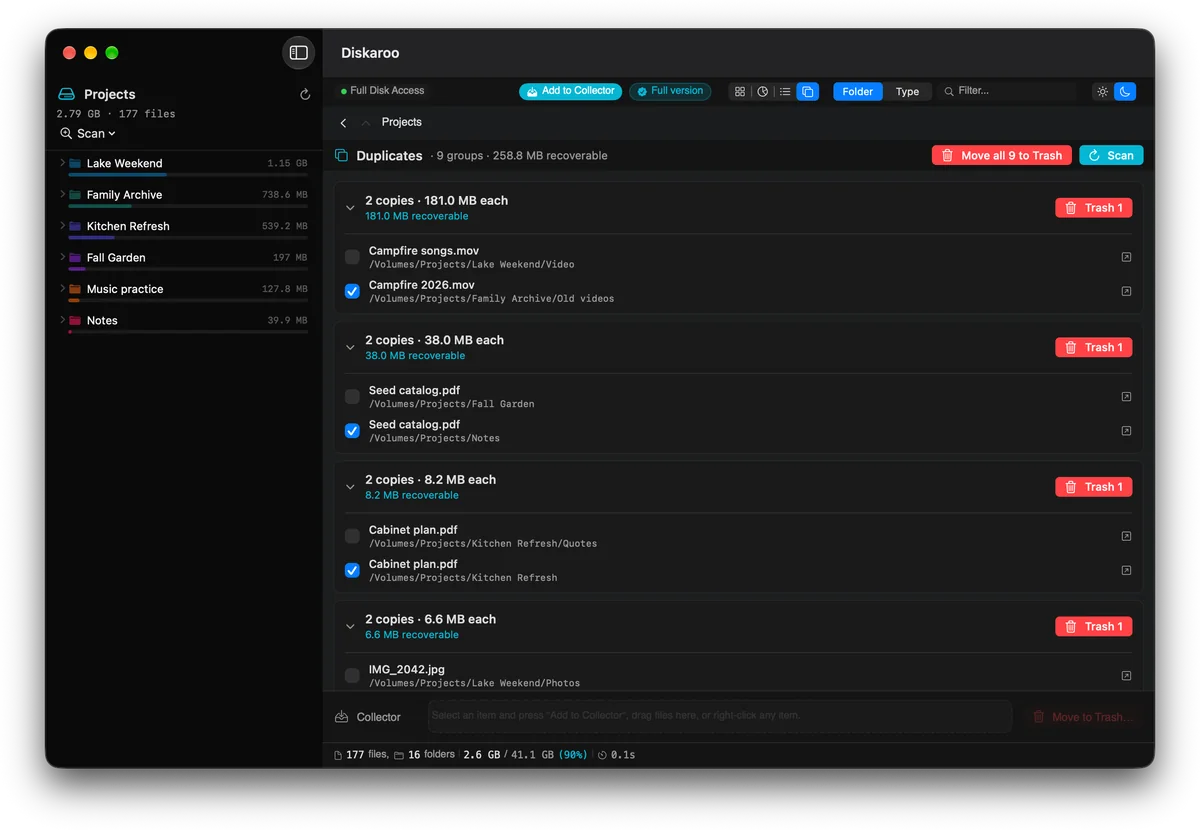
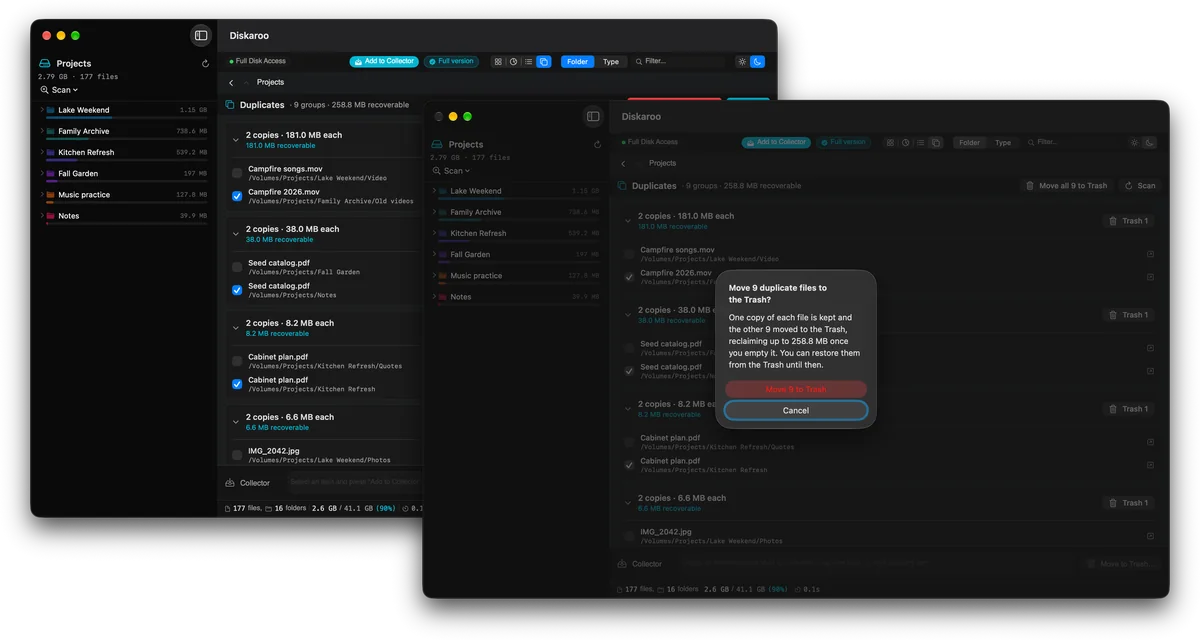
Finds exact duplicates by comparing file contents in whatever you scanned. One copy of each stays, and the extras go to the Trash or Recycle Bin.
Scan a folder you pick, your home folder, a whole drive or another drive. On a Mac, scanning the whole Mac needs Full Disk Access.
Your last folders and drives are one click away, so a weekly cleanup starts where you left off.
Point at a block to see what it is and how much space it takes.
Reveal anything in Finder, File Explorer or your file manager, or copy its path.
Critical system folders stay hidden from the map until you choose to show them.
On a Mac, preview a file with Quick Look right from the map or the list.
On Windows, hide a block from the map, then bring it back with Show hidden blocks.
On Windows and Linux, narrow the duplicate results by kind of file, with system and developer files left out.
Diskaroo updates itself, and you can opt in to beta updates in Settings.
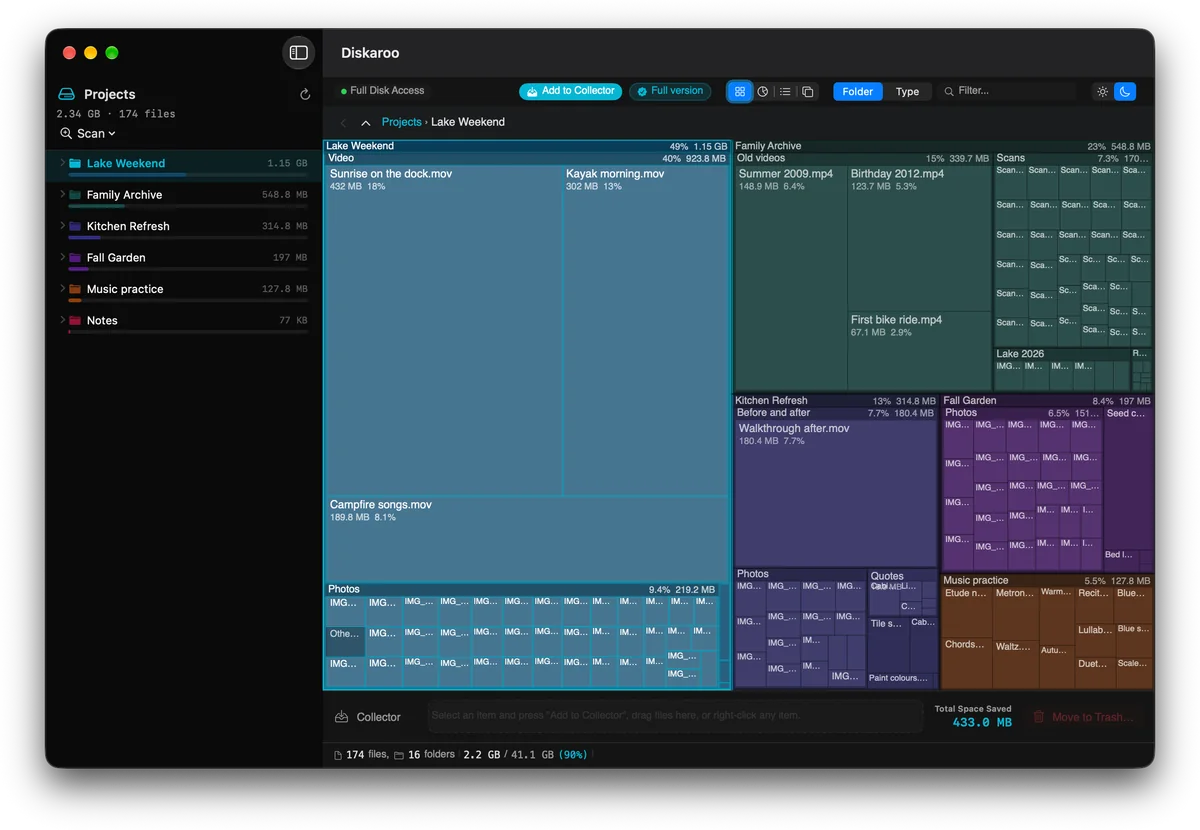
Click any block to zoom into that folder and see what’s inside it. Breadcrumbs walk you back out.
Prefer circles? Switch to the sunburst: the same disk, drawn as rings from the middle out.
A sortable list of the largest files and folders in what you scanned.
Colour the map by folder, or by file type to see which kinds of files take the most room.
DiskarooThe Collector
Add what you want gone to the Collector while you explore. Review the batch, then move it all to the Trash (the Recycle Bin on Windows) in one go, or delete it for good if you mean it. Diskaroo keeps a running total of the space you’ve won back.
01
The biggest block is the biggest folder. Click it to go inside, and keep going until you find what’s taking the room.
02
Switch to the sunburst for the same disk drawn from the middle out, or to a sortable list of the largest items.
03
Diskaroo finds exact duplicates by comparing file contents. Send the extras to the Trash or Recycle Bin, and one copy of each stays.
04
Collect what you want gone, review the batch, then choose Move to Trash, or Delete Permanently if you mean it. Nothing goes until you confirm.
Diskaroo compares file contents, not just names: first the size, then the start of each file, then the whole file. One copy of each stays, and the extras go to the Trash or Recycle Bin, where you can still get them back until you empty it.
Sign in with the same Bravely Account on each computer, and the Diskaroo Pro you claimed is yours on every one.

DiskarooFree
A lifetime copy of Diskaroo Pro, on the house.
No card, no trial clock, no subscription.
Download Diskaroo and sign in with a free Bravely Account.
Map your first folder and click the biggest block.
Choose Claim Diskaroo Pro. It’s yours for life, on every Mac, PC and Linux machine you sign in on.
Free
Diskaroo unlocked on every computer you sign in on
Freewith a Bravely Account
no card · no subscription
Annual + Bonus
All 8 other Bravely apps for a year.
$0.00for 7 days
then $95.99/yr · cancel anytime
30-Day Money-Back Guarantee
Full access to the 8 other premium utilities








Lifetime + Bonus
All 8 other Bravely apps, forever.
$399once
no subscription · all updates included
30-Day Money-Back Guarantee
Full access to the 8 other premium utilities
One sign-in unlocks your plan. Secure checkout opens right here.
Yes. Download it, sign in with a free Bravely Account, map your first folder, and claim Diskaroo Pro right in the app. It’s a lifetime copy on every Mac, PC and Linux machine you sign in on, with no card and nothing to cancel.
Yes. Diskaroo asks you to sign in with a Bravely Account (Apple, Google or email) before your first scan. That account is what holds your copy of Diskaroo Pro, on every computer you sign in on.
Only to scan the whole Mac. Your home folder and any folder you pick scan without it. When you choose Scan This Mac, Diskaroo explains why and shows you where to turn it on: System Settings, then Privacy & Security, then Full Disk Access.
No. Nothing is deleted until you confirm. The Collector moves what you picked to the Trash (the Recycle Bin on Windows), where you can still get it back, or deletes it permanently if you choose that instead. Duplicates only ever go to the Trash or Recycle Bin.
By content, not by name. Files of the same size are compared by the start of each file, then by the whole file. It looks through whatever you scanned and skips files smaller than 1 KB.
No. Diskaroo maps your disk on your computer and never uploads your files. To draw the map it looks at names and sizes; the duplicate finder compares file contents, also on your computer.
A Mac with macOS 14 Sonoma or later, a Windows 10 or 11 PC (x64), or a 64-bit (x64) Linux computer with GTK 4. On Linux, use the .deb or the AppImage.
Compared to