01
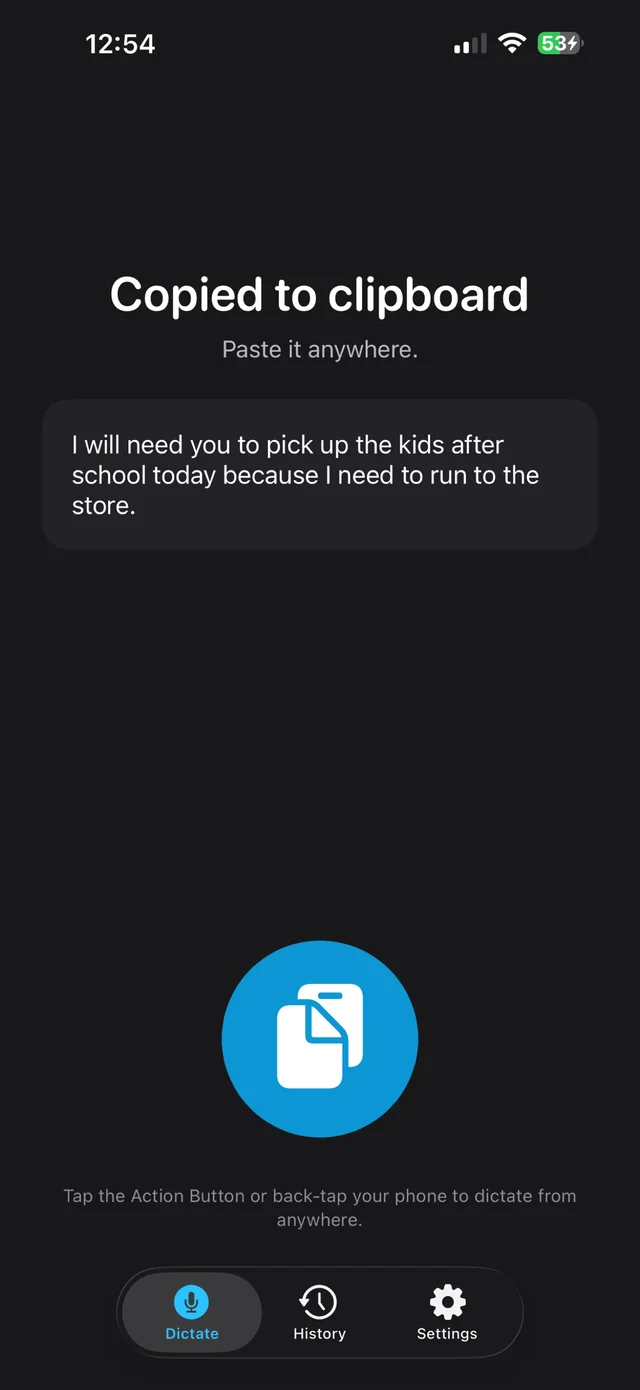
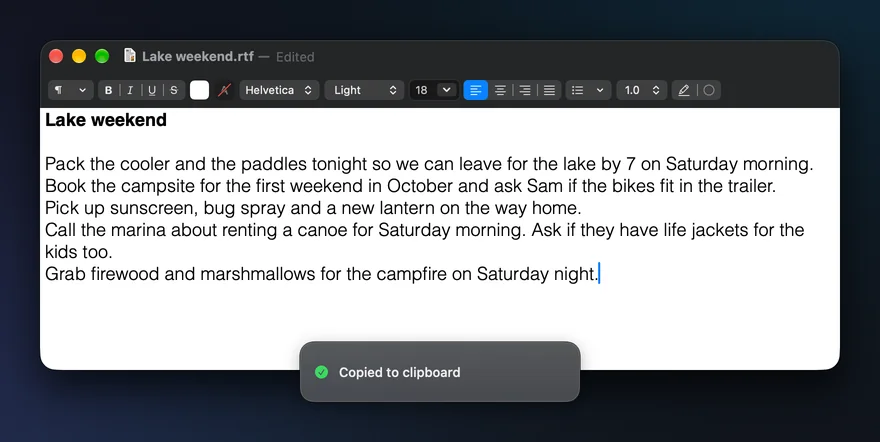
Copied to clipboard
Stop talking and your words are on the clipboard. Paste them into Messages, Mail, Notes, Slack or any app that takes text.
 SayCopyPaste: Talk. Paste. That’s it.
Dictation that lands on your clipboard, on your Mac, PC, Linux machine, iPhone, iPad and Android phone.
We keep the text, never the audio.
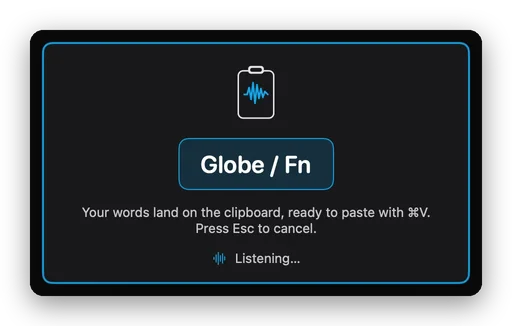
Talk. Your words land on the clipboard, ready to paste anywhere.
Your words land on the clipboard, ready to paste anywhere. Nothing is auto-pasted; you decide when and where the words go.
On a Mac, Windows PC or Linux machine, hold your key and talk. Let go, and a moment later your words are on the clipboard.
Tap once to talk hands-free and tap again to stop. On iPhone, iPad and Android, that is how every dictation works.
Globe / Fn on a Mac, Right Alt on Windows and Linux, or another key from the list. On a Mac you can also record any key, like F13 on a programmable keyboard.
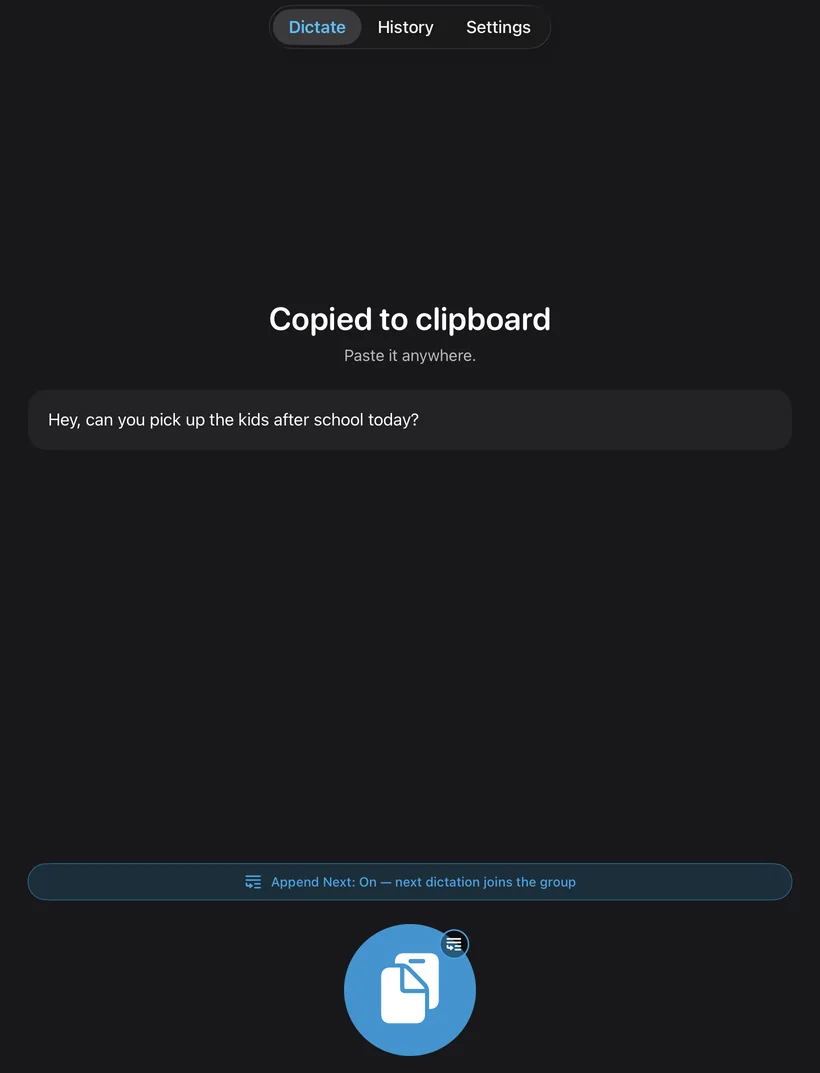
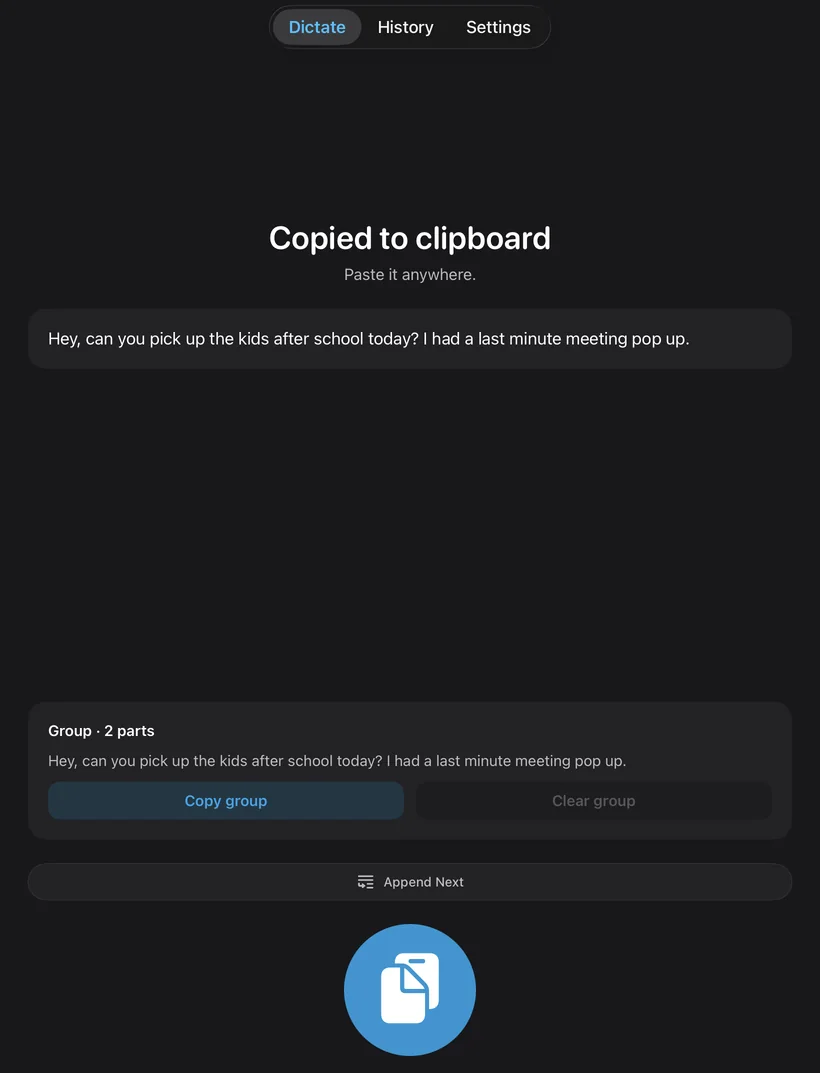
Hold ⌘ on a Mac (Ctrl on Windows and Linux) as you start, and your next words join the last ones on the clipboard. On iPhone, iPad and Android, switch on Append Next.
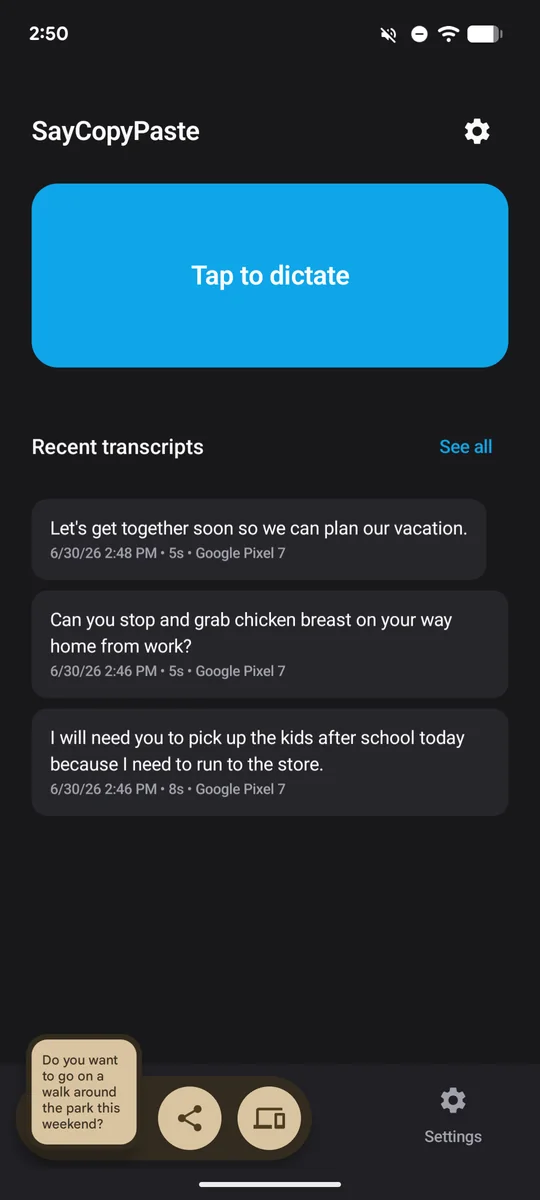
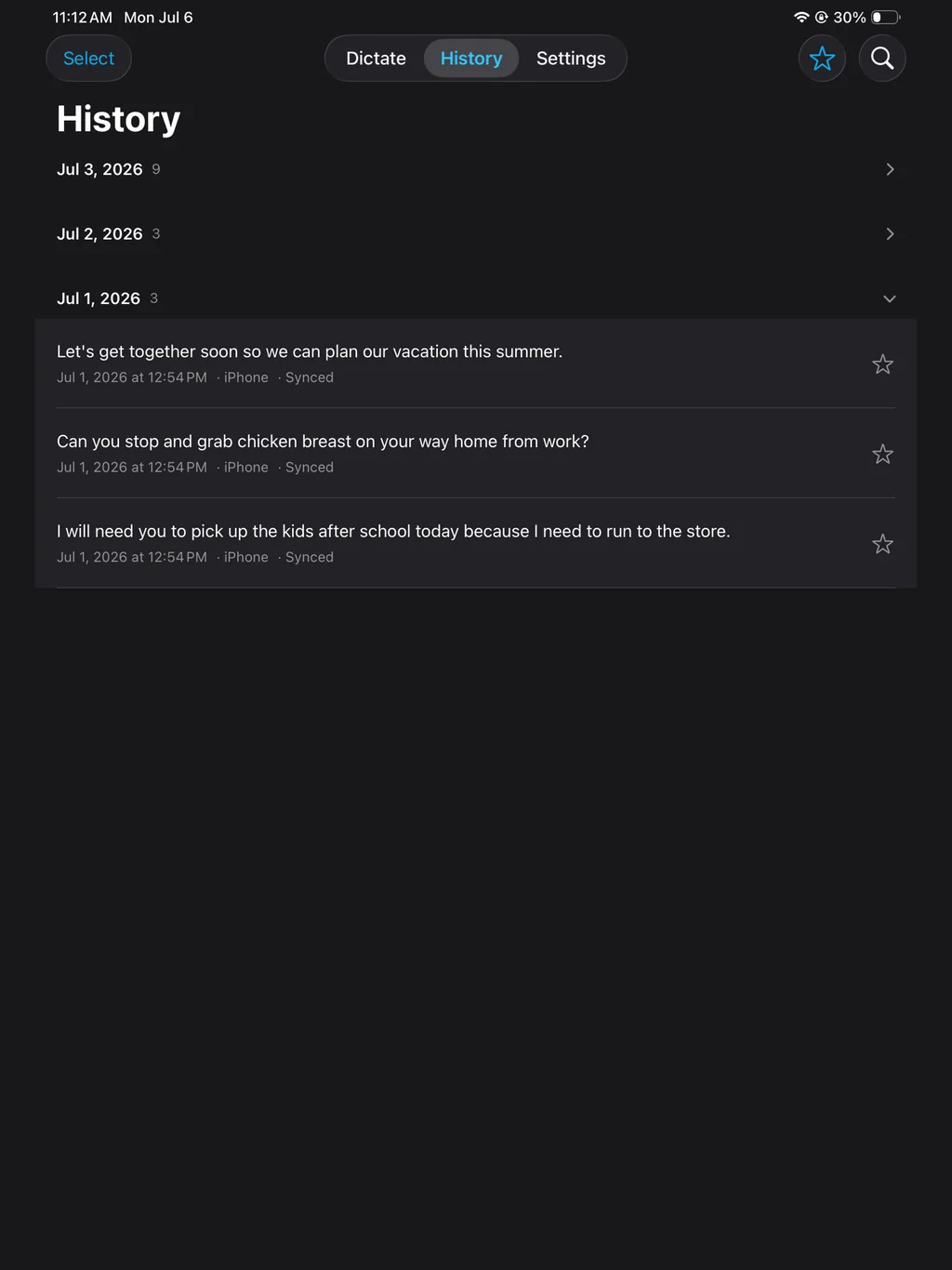
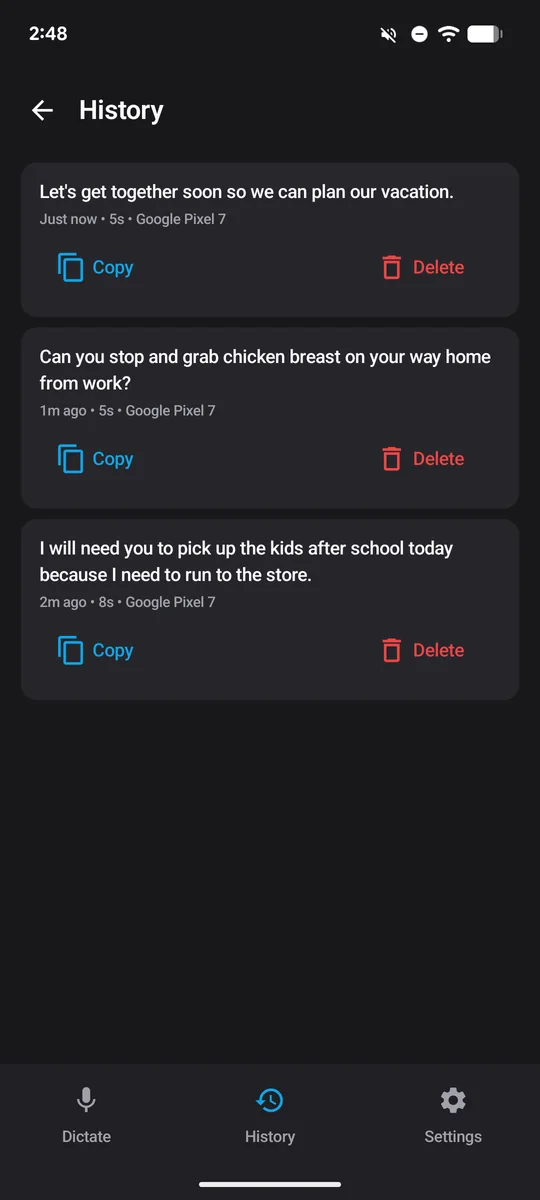
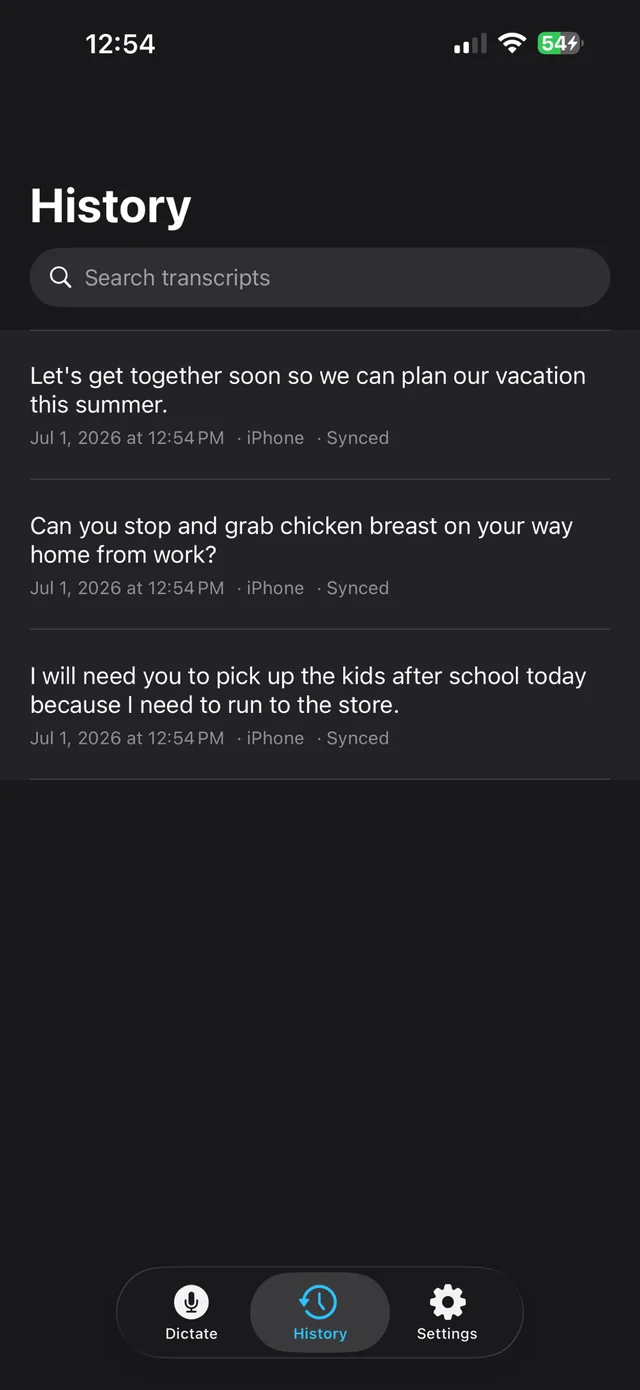
Every dictation is saved and searchable, grouped by day. Copy any of them again with one tap.
Star the dictations worth coming back to. The Favorites filter in History pulls up your keepers in one tap, on every device.
Your dictations sync to your Bravely Account and show up on your other devices and on the web: the text, never the audio. It’s on from the start; turn saving off in Settings if you’d rather keep nothing.
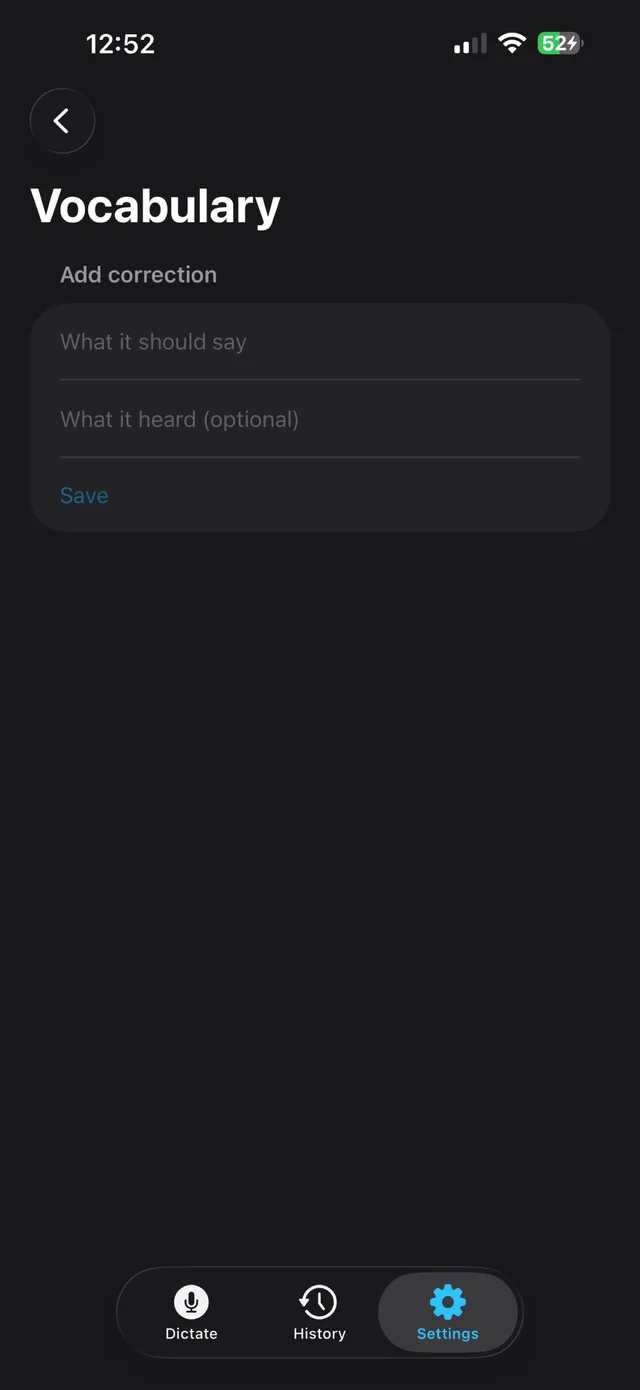
Add a name, brand or bit of jargon once, in Settings, and later dictations get it right. Your vocabulary is stored on the device where you add it.
A small indicator shows while you talk and tells you when your words are copied: a pill on your computer, a Live Activity on iPhone and iPad, a notification with Stop on Android.
On iPhone, start from the Action Button, Back Tap, Siri or Control Center without opening the app. On Android, use the Quick Settings tile or a home-screen widget.
Pick which microphone SayCopyPaste listens to, and test it live in Settings before you dictate.
Speak Spanish, French, German, Portuguese, Italian or Japanese and your transcript comes back in that language. No language setting to change.
On a computer, press Esc to cancel a dictation, and nothing reaches the clipboard.
On a computer, Recent chains in the menu brings back an earlier appended passage, to add to it or copy it again.
In History on a computer, on Android or on the web, pick several dictations and choose Append & copy to put them on the clipboard as one.
On iPhone, iPad and Android, a recording made without a connection is saved and transcribed when you’re back online. You can also turn on on-device transcription for when you’re offline; quality can be lower.
No daily or monthly cap. One dictation can run up to about 13 minutes.
In your browser at saycopypaste.bravely.dev, read, search, star and copy the dictations your other devices synced.
On iPhone and iPad, the Recent Dictations widget copies a past transcript without leaving the Home Screen.
SayCopyPaste in 42 seconds 0:42
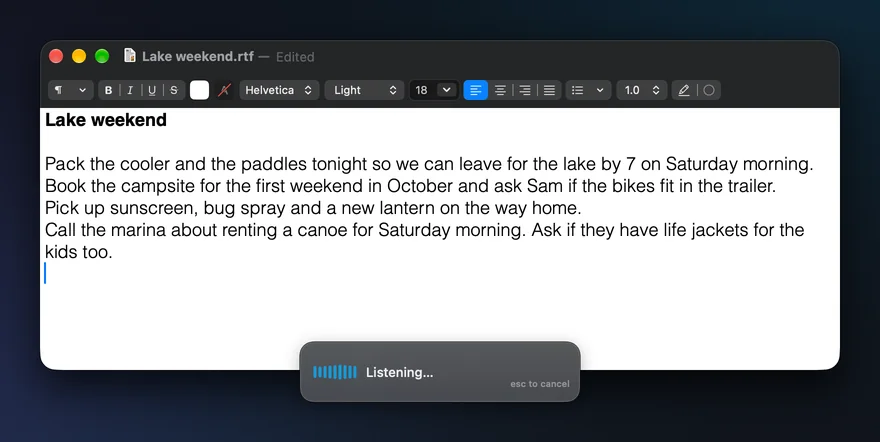
On your Mac, PC or Linux machine, hold your key and say what you mean. Let go, and a moment later your words are on the clipboard, ready to paste into Slack, VS Code, Notes or any field, with ⌘V or Ctrl+V.
Lives in your menu bar or system tray. A small pill while you talk, nothing on screen the rest of the time. No switching apps.
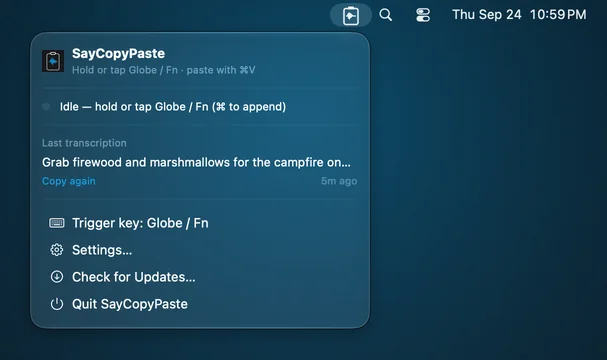
Globe / Fn on a Mac, Right Alt on Windows and Linux, or another key from the list. On a Mac you can also record any key, like F13 on a programmable keyboard.
Hold ⌘ on a Mac (Ctrl on Windows and Linux) as you start, and your next words join the last ones on the clipboard. On iPhone, iPad and Android, switch on Append Next.
Star the dictations worth coming back to. The Favorites filter in History pulls up your keepers in one tap, on every device.
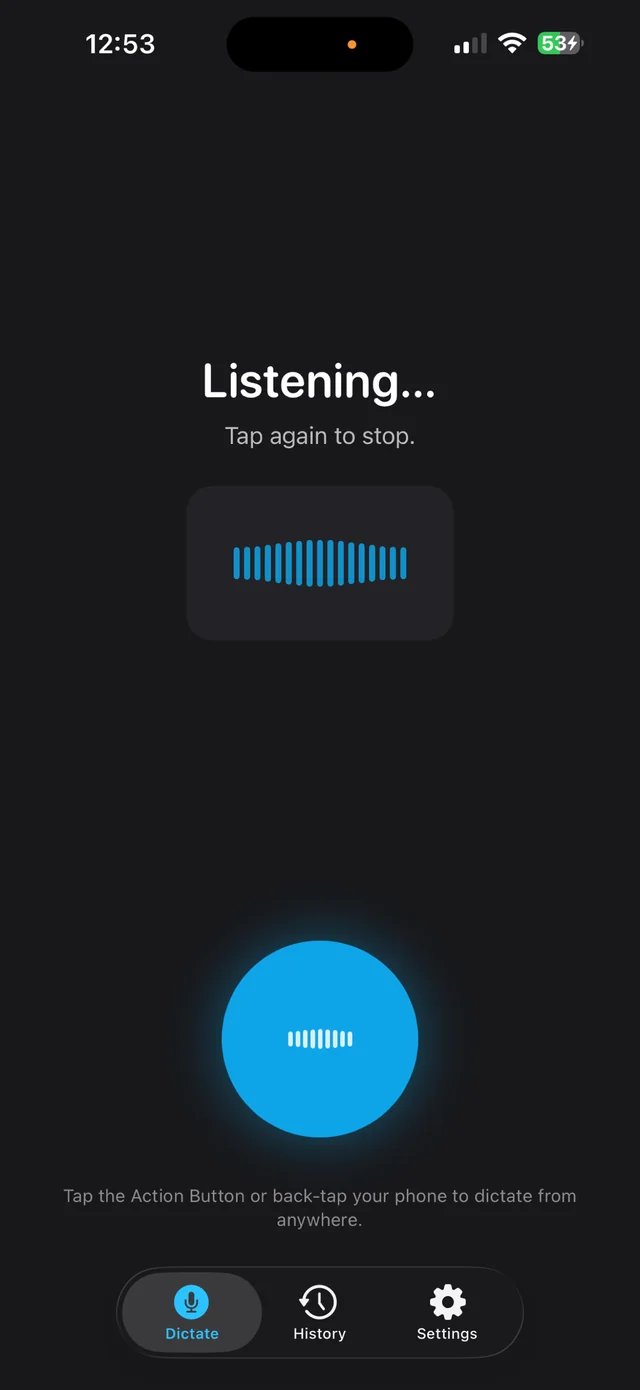
A small indicator shows while you talk and tells you when your words are copied: a pill on your computer, a Live Activity on iPhone and iPad, a notification with Stop on Android.
iPhone, iPad & Android
On a phone or tablet, tap once to talk and again to stop. Your words land on the clipboard, ready to paste anywhere.
On iPhone, start from the Action Button, Back Tap, Siri or Control Center without opening the app. On Android, use the Quick Settings tile or a home-screen widget.
On iPhone, iPad and Android, a recording made without a connection is saved and transcribed when you’re back online. You can also turn on on-device transcription for when you’re offline; quality can be lower.
01
Stop talking and your words are on the clipboard. Paste them into Messages, Mail, Notes, Slack or any app that takes text.
02
Search everything you have dictated, star the ones you reuse, synced across your devices.
03
Add a name, brand or bit of jargon once and later dictations get it right. Add what it heard, too, and SayCopyPaste puts your spelling in its place.
04
Switch on Append Next and your next dictation joins the last one, so you can pause, think and keep going.
Private by design
Your voice is sent securely for transcription, and we never store the audio. Your dictations sync to your Bravely Account as text so they show up on your other devices, and you can turn saving off in Settings. Your vocabulary is stored on your device and sent along only to help spell your words.
Sign in with the same account everywhere and your dictations follow you as text. Your history is on the web too.
Desktop
Phone, tablet and web
Monthly
SayCopyPaste unlocked on every platform & device
$9.99a month
cancel anytime
Annual + Bonus
SayCopyPaste Pro for a year, plus all 8 other Bravely apps, free
$95.99a year
20% less than monthly · cancel anytime
30-Day Money-Back Guarantee
FREE full access to the 8 other premium utilities, all platforms




Lifetime + Bonus
SayCopyPaste Pro forever, plus all 8 other Bravely apps, free, forever
$399once
no subscription · all updates included
30-Day Money-Back Guarantee
FREE lifetime access to the 8 other premium utilities, all platforms
One sign-in · instant unlock · sync everywhere. Secure checkout opens right here.
No. SayCopyPaste puts your words on the clipboard and you paste them where you want, with ⌘V, Ctrl+V or a tap. Nothing is auto-pasted, so it works in any field that takes a paste.
Signing in is free, and you make your first transcript before we ask you to pick a plan.
Yes. Speak Spanish, French, German, Portuguese, Italian or Japanese and your transcript comes back in that language, ready to paste, on your Mac, PC, Linux machine, iPhone, iPad or Android phone. There’s no language setting to change: SayCopyPaste works out the language from what you say. Those six and English are the ones we’ve tested. Japanese comes back without most of its punctuation. The one exception is the optional on-device mode for when a phone or tablet is offline, which doesn’t detect the language you speak.
No daily or monthly cap. One dictation can run up to about 13 minutes; for more, stop and use Append to add the next part.
It’s sent securely for transcription. We keep the text, never the audio. Your dictations sync to your Bravely Account as text so they show up on your other devices; turn saving off in Settings to keep nothing. Transcribing needs a connection. On iPhone, iPad and Android, a recording made offline waits and is transcribed when you’re back online.
Yes, on every device signed in to the same account, and in your browser at saycopypaste.bravely.dev. Each device fetches your newest 200 synced dictations. Your vocabulary stays on the device where you add it.
On a Mac, choose Globe / Fn or a right-hand modifier, or record any key, like F13. On Windows: Right Alt, Right Shift, Right Ctrl or Right Win. On Linux: Right Alt, Right Ctrl, Right Shift, Right Super, Pause or Scroll Lock. A single tap of Globe on a Mac can open the emoji picker; SayCopyPaste’s Settings show how to stop that.
64-bit (x64) Linux, as a .deb or an AppImage. The push-to-talk key reads your keyboard directly, so add yourself to the input group once, then log out and back in: sudo usermod -aG input $USER. SayCopyPaste tells you during setup, along with any recording or clipboard tool it needs.