
01
Calebar: any date, one click
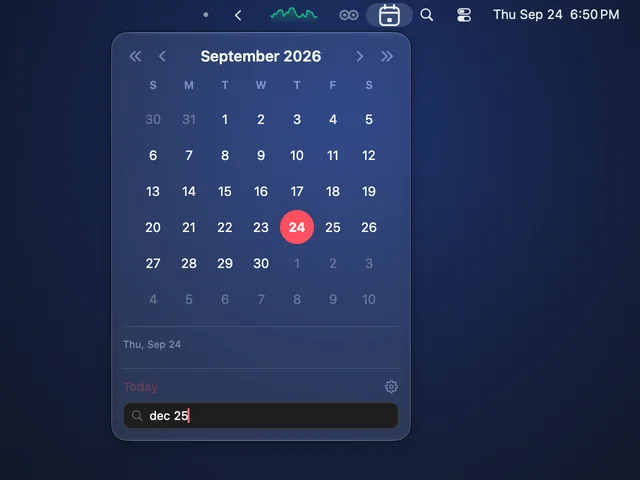
Click Calebar in the menu bar and a month calendar drops down. Type a date to jump to it, and click a day to see what’s on it.
 Mac Utility Bundle: Five native Mac utilities.
 A calendar, a menu bar organizer, a keep-awake, live system stats and display + window control: small, native apps that live in your menu bar and stay out of your way. One payment covers all five on every Mac you own, plus every Mac-only menu bar utility we make after this.

 downloads
Here’s what each one does.
Calebar menu-bar calendarBarmony menu bar organizerSleepover keep-awakeGraf system statsMonitorMonitor display + window controlCalebarA calendar in your menu barClick Calebar in the menu bar and a month calendar drops down. Step a month or a year at a time, or click Today to come back.
CalebarJump to any dateType a date and Calebar jumps to it: Dec 25, 2026-12-25, next fri or tomorrow.
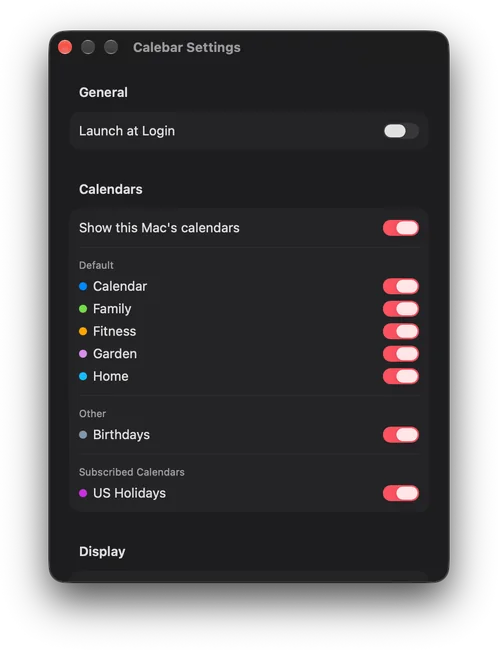
CalebarSee what’s on any dayClick a day to see its events, from every calendar already on your Mac, including Google and shared calendars you’ve added in System Settings. Pick which calendars show.
CalebarWeek numbers, Monday startsTurn on week numbers, and start the week on Monday or Sunday.
CalebarYour calendars stay on your MacCalebar asks for calendar access only when you ask to see your events. Your calendars never leave your Mac.
BarmonyTuck icons away⌘-drag the icons you don’t need to the left of Barmony’s dot. Click the chevron and they’re gone; click again and they’re back.
BarmonyA second group for rare iconsTurn on a second group for the icons you rarely use. They stay tucked away even when you show the rest.
BarmonyBarmony Bar on macOS 27On macOS 27, with the second group on, open the icons you rarely use from the Barmony Bar, a floating bar under your menu bar. Click an icon and its menu opens.
BarmonyTuck away again by itselfBarmony can tuck your icons away again after 5, 10, 20 or 60 seconds. It’s off until you choose.
SleepoverOne-click keep-awakeClick the owl and your Mac stays awake. Click again and it sleeps normally.
Sleepover15 minutes to 4 hoursKeep your Mac awake until you turn it off, or for 15 or 30 minutes, 1, 2 or 4 hours, with a countdown in the menu.
SleepoverLet the display sleepLet the display sleep while your Mac keeps working, if you like.
GrafCPU, memory, network, drivesClick Graf in the menu bar for CPU, memory in use, network down and up, and every mounted drive with its free space.
GrafAn optional live CPU graphTurn on the live graph and a CPU sparkline sits in the menu bar itself.
GrafRefresh every 1, 2 or 5 secondsGraf refreshes every 1, 2 or 5 seconds, 2 by default.
GrafQuiet by designNo alerts, no badges, no daily digest. Graf sits in the bar until you look at it — information on your schedule, not notifications on its schedule.
MonitorMonitorBrightness keys and slidersClick MonitorMonitor in the menu bar for a slider per display, with contrast and volume where the monitor offers them. On monitors with hardware brightness, your keyboard’s brightness keys work too, like on a built-in screen.
MonitorMonitorHalves, thirds and quartersSend the window in front to a half, a third, two-thirds, a quarter, the center or Maximize: fifteen spots, from the menu bar or with a shortcut you record. Draw spots of your own too.
MonitorMonitorLayouts that come backCapture where your windows are as a layout and apply it with one click. When you connect or disconnect displays, your windows go back to where they last were on that setup.
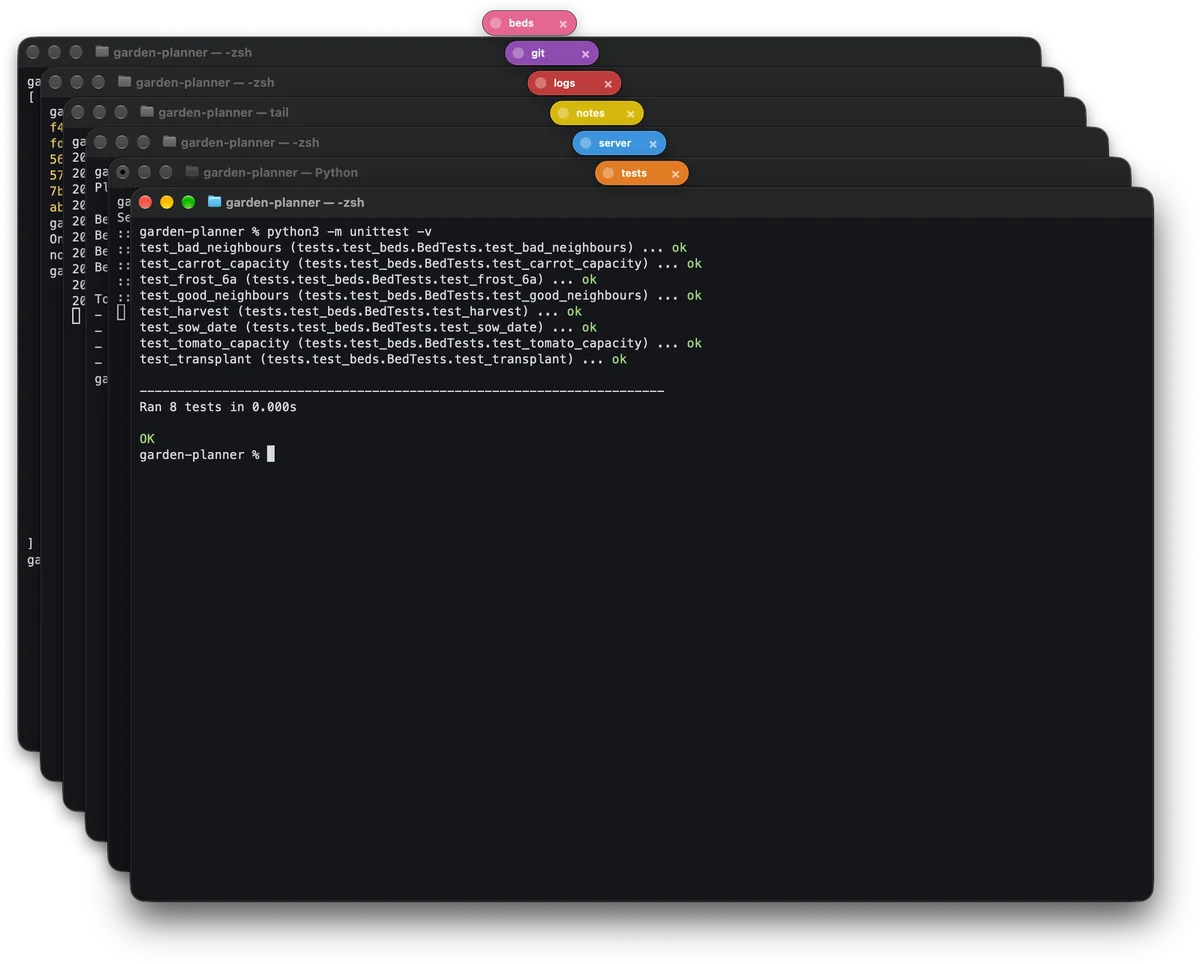
MonitorMonitorCascade with room for tagsCascade steps an app’s windows down a neat diagonal, each step at least 32 points, so every Terminal Tags tag clears the window above it. Undo cascade puts them back where they were.
MonitorMonitorFiner steps with Shift and OptionHold Shift and Option with a brightness or volume key to move a quarter step, as macOS does.
MonitorMonitorDim below the lowest settingAt 0%, keep pressing brightness down to dim further. Any press up brings it back.
MonitorMonitorLevels come back after sleepIf a monitor forgets its brightness, contrast or volume while your Mac sleeps or it’s unplugged, MonitorMonitor puts them back.
MonitorMonitorSwitch inputsSwitch a monitor to another input from the menu bar, or with a shortcut, on monitors that offer it.
MonitorMonitorCrisp scalingOn a monitor that isn’t Retina, crisp scaling draws everything at twice the detail and fits it to the display, so text looks sharper. It’s off until you turn it on, and goes back by itself unless you keep it.
MonitorMonitorMove to the next displayWith more than one display, move the window in front to the next or previous one. It keeps its place on the screen.
MonitorMonitorGood defaults at sign-inAfter you sign in, MonitorMonitor turns on a set of good defaults your displays support, shows you what it turned on, and can undo them all in one click.
Mac Utility BundleMenu bar onlyAll five live in the menu bar, with no Dock icon, and keep themselves up to date.
01
Click Calebar in the menu bar and a month calendar drops down. Type a date to jump to it, and click a day to see what’s on it.
02
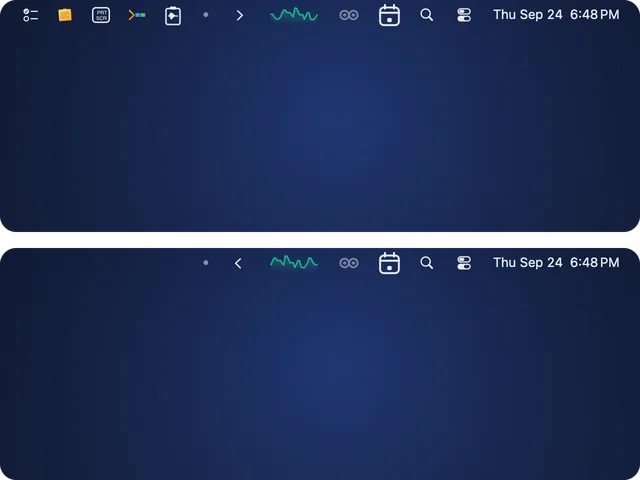
⌘-drag the icons you don’t need to the left of Barmony’s dot. Click the chevron and they’re gone; click again and they’re back.
03
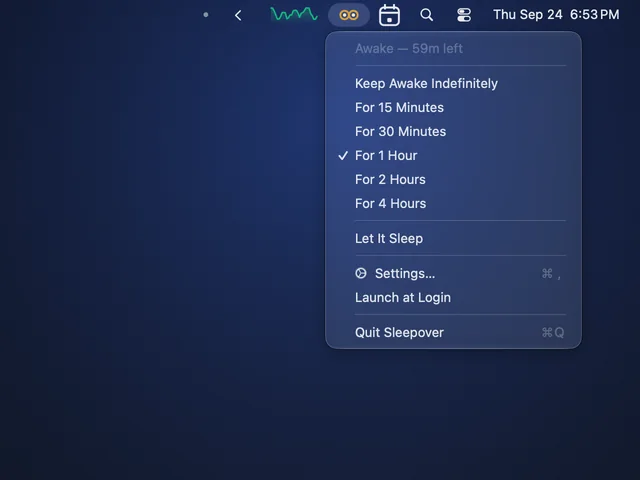
Click the owl and your Mac stays awake, until you turn it off or for 15 minutes to 4 hours. Click again and it sleeps normally.
04
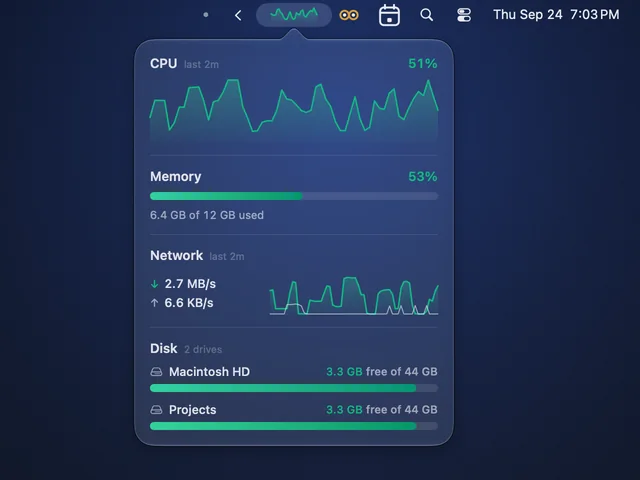
Click Graf in the menu bar for CPU, memory in use, network down and up, and every mounted drive with its free space.
05
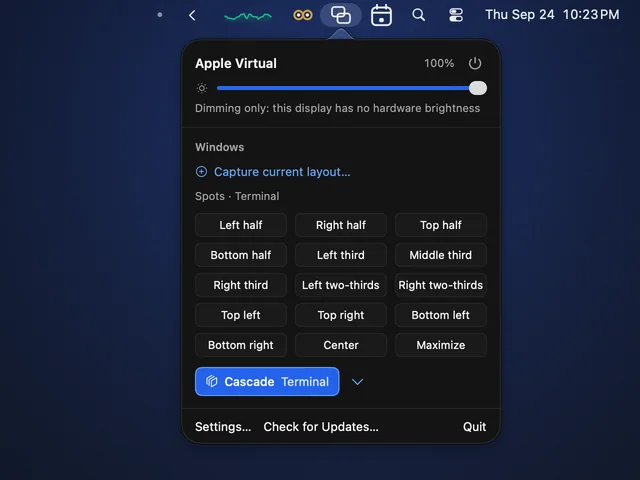
Click MonitorMonitor in the menu bar for a slider per display, or dimming where a display has no hardware brightness. Below it, fifteen spots send the window in front to a half, a third or a quarter of the screen.

macOS 27
On macOS 27, turn on Barmony’s second group and the icons you rarely use move into the Barmony Bar, a floating bar under your menu bar. Click an icon and that app’s menu opens. Allow Screen Recording and the bar shows their real icons.
MonitorMonitor
Click Cascade and MonitorMonitor steps the front app’s windows down a neat diagonal. Each step is at least 32 points, so every Terminal Tags tag clears the window above it, and Undo cascade puts them all back where they were.
Calebar
Calebar reads the calendars already on your Mac: iCloud, subscriptions, calendars shared with you, and Google or Exchange accounts you’ve added in System Settings. Pick which ones show. It asks for calendar access only when you ask to see your events, and your calendars never leave your Mac.
The bundle lives on your Bravely account, not on one machine — sign in on a new Mac and your apps unlock there too.

Grab any of them right now — no account needed to install. Each app asks you to sign in when you open it, and unlocks the moment your bundle is on your account.
Calebar menu-bar calendarCalebar.dmg · 3.4 MBBarmony menu bar organizerBarmony.dmg · 4.0 MBSleepover keep-awakeSleepover.dmg · 3.6 MBGraf system statsGraf.dmg · 3.7 MBMonitorMonitor display + window controlMonitorMonitor.dmg · 9.3 MBmacOS 14 Sonoma or later, on Apple silicon or Intel
Download any of them free, no account needed to install. Each app asks you to sign in when you open it, and unlocks the moment the bundle is on your account. One payment of $19.99 unlocks all five, on every Mac you own. There is no trial and no subscription.
Pay Once
$19.99one-time · yours forever
Calebar (menu-bar calendar)includedBarmony (menu bar organizer)includedSleepover (keep-awake)includedGraf (system stats)includedMonitorMonitor (display + window control)included…and every Mac-only menu bar utility we add later, included.
one payment · every Mac you own
Want all nine cross-platform Bravely apps too? Bravely Premium is the everything-everywhere upgrade — and it includes these Mac utilities.
Learn more about Bravely Premium
Yes. $19.99, once. No subscription, no renewals, no per-app upsells inside the bundle. Everything in it — including apps we add later — is covered by that one purchase.
No. Download any of them free, no account needed to install. Each app asks you to sign in when you open it, and unlocks the moment the bundle is on your account. There is no trial.
Every Mac you own. The bundle lives on your Bravely account, not on one machine — sign in on a new Mac and your apps unlock there too.
macOS 14 Sonoma or later, on Apple silicon or Intel. All five are signed and notarized by Bravely Studios, live in the menu bar with no Dock icon, and keep themselves up to date.
Only where they need one. Calebar asks for calendar access when you ask to see your events. Barmony asks for nothing on macOS 14 to 26; on macOS 27 it needs Accessibility before it can tuck icons away, and Screen Recording is optional, for real icon pictures in the Barmony Bar. MonitorMonitor’s sliders never ask for one; its brightness and volume keys, spots, layouts and Cascade need Accessibility, asked the first time you move a window or turn the keys on. Sleepover and Graf never ask for a permission.
MonitorMonitor asks each display what it can do. A monitor that allows it gets hardware brightness, plus contrast and volume where it offers them. A display that doesn’t, which can come down to its port or dock, gets a dimming slider instead, and MonitorMonitor says so. Spots, layouts and Cascade work on every screen.
Two ways, and neither can strand you. We email your download links the moment your payment goes through, and the downloads also sit on this page — no sign-in needed to install. Drag each app to Applications, sign in with your Bravely account, and they unlock. You can re-download any time.
The Mac Utility Bundle is these five Mac-only menu bar utilities, $19.99 once. Bravely Premium unlocks all nine Bravely apps, on every platform each one ships on, and it includes the Mac Utility Bundle too.
More on the Mac Utility Bundle
Native menu bar utilities for your Mac. One $19.99 purchase unlocks the whole bundle, forever.