Find what’s filling a drive
- Scan a folder you pick, your home folder, or a whole drive.
- Click the biggest block to go inside. The breadcrumbs take you back out.
- Switch to the sunburst or the list whenever it helps.
 Download Diskaroo
Mac · Diskaroo.dmg · 15 MB · macOS 14 Sonoma or later, on Apple silicon or Intel
Windows · Diskaroo-Setup.exe · 79 MB · Windows 10 or 11 (x64)
Linux · Diskaroo.deb · 40 MB · 64-bit (x64) Linux with GTK 4. The AppImage also needs FUSE 2.
Diskaroo runs on Mac, Windows and Linux. Download it on one of those computers and sign in with your Bravely Account.
Diskaroo runs on Mac, Windows and Linux. Download it on one of those computers and sign in with your Bravely Account.
Thank you for downloading Diskaroo. Did your download not start? Click here to try again.
Can’t install the .deb? Download the AppImage · 41 MB
Or: Download for Linux (.deb) · 40 MB
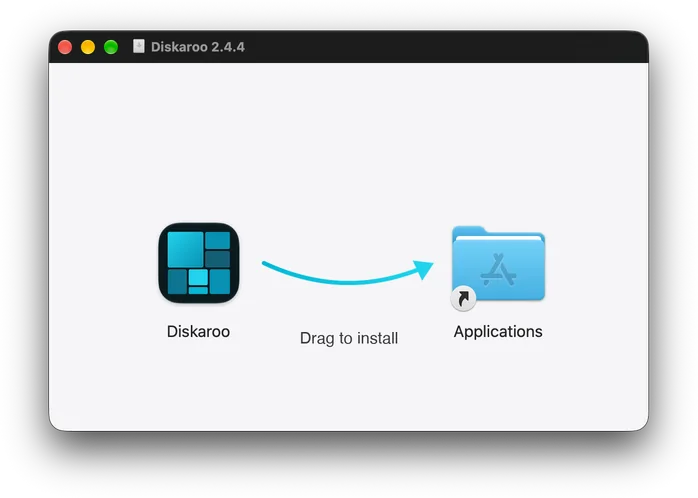
Open Diskaroo.dmg from your Downloads folder.
Drag Diskaroo into your Applications folder.
Open Diskaroo from Applications. macOS checks the signature once, then it opens.
Sign in, map your home folder, then choose Claim Diskaroo Pro. It’s free.
Open Diskaroo-Setup.exe from your Downloads folder.
If Windows shows a warning, choose More info, then Run anyway. The installer is signed by Bravely Studios LLC.
Diskaroo installs just for you, with no admin prompt, and opens. Sign in with your Bravely Account.
Map your first folder, then choose Claim Diskaroo Pro. It’s free.
Open Diskaroo.deb from your Downloads folder and choose Install.
Diskaroo shows up in your app menu and keeps itself up to date. Open it and sign in.
Map your home folder, then choose Claim Diskaroo Pro. It’s free.
Find Diskaroo.AppImage in your Downloads folder.
Right-click it, open Properties, and allow it to run as a program.
Double-click it and sign in with your Bravely Account.
Map your first folder, then choose Claim Diskaroo Pro. It’s free.
Download Diskaroo.dmg again (15 MB).
Drag Diskaroo into your Applications folder and open it from there. macOS checks the signature once, then it opens.
Open System Settings, then Privacy & Security, then Full Disk Access, and turn on Diskaroo. Move Diskaroo to Applications first, or the switch won’t stick.
Sign in with the account you claimed it with, the same way (Apple, Google or email). Different sign-in methods can make separate accounts. Already own it? You go straight in.
Contact us and tell us what you see.
Download Diskaroo-Setup.exe again (79 MB).
Choose More info, then Run anyway. The installer is signed by Bravely Studios LLC.
Diskaroo for Windows stops 12 folders deep unless you change it. Set the scan depth to 0 in Settings for no limit.
To include system folders and other people’s folders, turn on Run Diskaroo as administrator in Settings, under Scanning.
Sign in with the account you claimed it with, the same way (Apple, Google or email). Different sign-in methods can make separate accounts. Already own it? You go straight in.
Contact us and tell us what you see.
Download Diskaroo.deb again (40 MB).
Use the AppImage instead, on any other 64-bit (x64) Linux with GTK 4 and FUSE 2. Download the AppImage (41 MB).
Right-click it, open Properties, and allow it to run as a program. Or run chmod +x on it in a terminal.
Sign in with the account you claimed it with, the same way (Apple, Google or email). Different sign-in methods can make separate accounts. Already own it? You go straight in.
Contact us and tell us what you see.
Sign in with the account you claimed it with, the same way (Apple, Google or email). Different sign-in methods can make separate accounts. Already own it? You go straight in.
Contact us and tell us what you see.
Sign in with the account you claimed it with, the same way (Apple, Google or email). Different sign-in methods can make separate accounts. Already own it? You go straight in.
Contact us and tell us what you see.
Mac
macOS 14 Sonoma or later, on Apple silicon or Intel
Windows
Windows 10 or 11 (x64)
Linux
64-bit (x64) Linux with GTK 4. The AppImage also needs FUSE 2.
Sign in with your Bravely Account, map your home folder and click the biggest block, then claim Diskaroo Pro: it’s free. To scan the whole Mac, choose Scan This Mac and turn on Full Disk Access for Diskaroo when it asks. Once Diskaroo Pro is yours, Diskaroo opens when you log in to this Mac; you can turn that off in Settings.
Sign in with your Bravely Account, map your first folder and click the biggest block, then claim Diskaroo Pro: it’s free. Once it’s yours, Diskaroo starts with Windows and sits in the tray.
Sign in with your Bravely Account, map your home folder and click the biggest block, then claim Diskaroo Pro: it’s free. Diskaroo runs only while its window is open.
Diskaroo runs on Mac, Windows and Linux. Download it on one of those computers and sign in with your Bravely Account.
Diskaroo runs on Mac, Windows and Linux. Download it on one of those computers and sign in with your Bravely Account.