How to dictate into Claude Code, Cursor or any terminal
The short answer
Claude Code has its own dictation: type /voice, hold Space and talk, and your words appear in the prompt. It needs a Claude plan sign-in and a microphone on the computer running Claude Code, so it doesn't work over SSH, in cloud sessions or in VS Code Remote. Cursor has a microphone in its agent chat, and VS Code can dictate into its own terminal. For every other terminal, editor and remote session, SayCopyPaste works the same way everywhere: hold your key, talk, let go, and paste with ⌘V on a Mac, Ctrl+V on Windows or Ctrl+Shift+V in a Linux terminal.
- Nothing reaches the prompt until you paste, and nothing runs until you press Enter.
- For a long dictated prompt in Claude Code, type a few words of your own first, such as “Do what this says:”, then paste.
- While Claude is working, don't cancel a dictation with Esc: Claude Code sees that Esc too.
- SayCopyPaste needs an internet connection. 24 hours free with no card, then a plan.
Mac, Windows and Linux. 24 hours free with no card.
- Updated
- Outside facts dated and linked at the bottom
Your options
The built-in and free ways first, each with its catch. Each fact was read on the vendor's own page on the date shown.
Step by step with SayCopyPaste
The same steps on Mac, Windows and Linux; only the keys change.
Get SayCopyPaste and sign in
Download SayCopyPaste for your Mac, Windows PC or Linux computer and sign in. On a Mac, allow Microphone and Input Monitoring, then choose Restart SayCopyPaste: macOS needs to reopen it once.
Make your first transcript, then choose 24 hours free with no card, or a plan that starts with 7 days free.
Hold your key and say the prompt
Click into Claude Code, Cursor or any terminal. Hold Globe / Fn on a Mac, or Right Alt on Windows and Linux, say the prompt, and let go. A small pill shows while you talk and tells you when your words are copied.
Paste it, read it, press Enter
Paste with ⌘V on a Mac, and Ctrl+V in Windows Terminal. In a Linux terminal, including VS Code's and Cursor's terminal on Linux, use Ctrl+Shift+V.
The pasted text ends without a line break, so nothing runs until you press Enter.
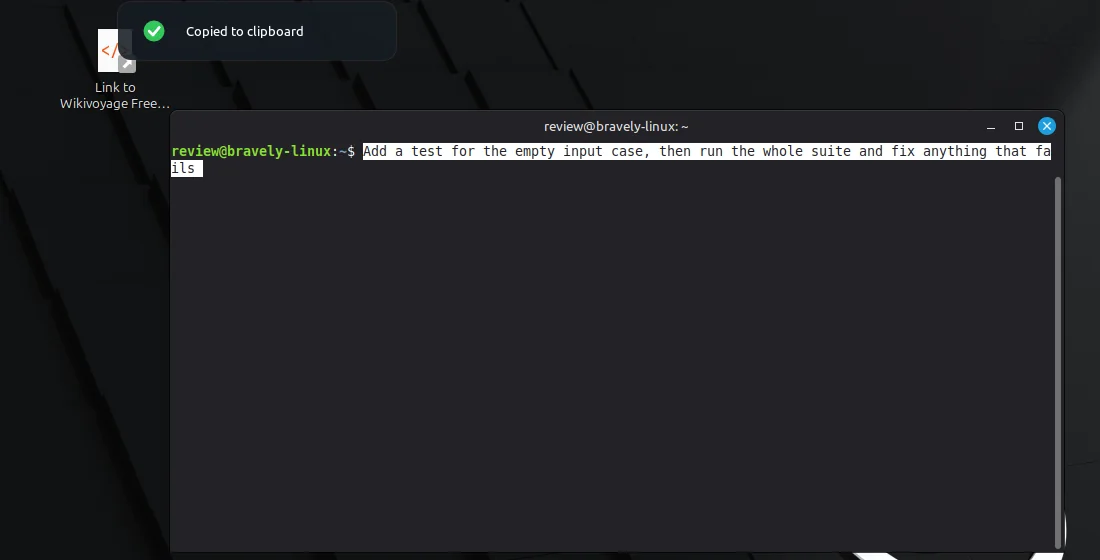
A dictated prompt pasted into GNOME Terminal with Ctrl+Shift+V; it waits for Enter. SayCopyPaste 0.8.2 on Linux Mint 22.3 (Cinnamon, X11); the test sentence was played into a virtual microphone. Captured . For a long prompt in Claude Code, type a lead-in first
Claude Code shows a paste of more than 800 characters or more than three lines as [Pasted text #1], marks it as pasted, and tells Claude to follow instructions inside a paste only where the words you typed ask it to.
So type a few words of your own first, such as “Do what this says:”, then paste. Claude Code's /voice doesn't need this, because its words go into the prompt as typed text.
Build a long prompt in pieces
Hold ⌘ on a Mac, or the left Ctrl key on Windows and Linux, as you press your key: your next words join the last ones on the clipboard. Paste once when the prompt is complete.
Cancelling while Claude works
Esc cancels a dictation, and the app in front sees the Esc too. In Claude Code, Esc stops Claude's current answer or says No to a permission prompt.
So while Claude is working, don't cancel with Esc: let the dictation finish, and just don't paste it.
Find an earlier prompt
History lists your dictations, searchable, with favorites for the ones you reuse. It syncs as text to SayCopyPaste on your other computers and phones, and to the web, so an idea you dictated on your phone is ready to paste at your desk.
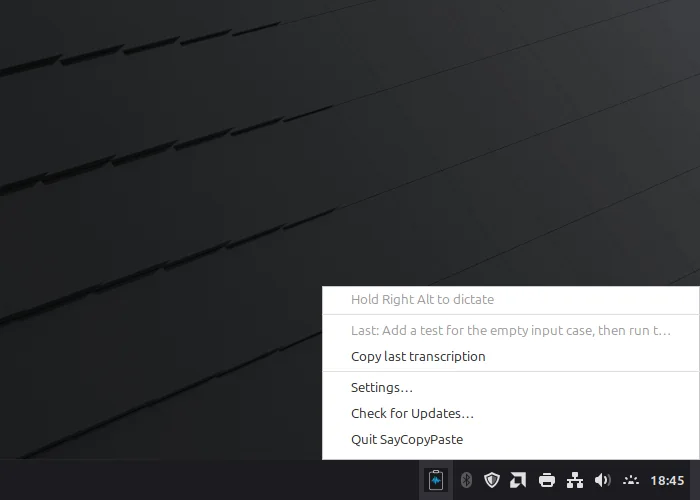
On Linux, the tray menu also shows your last dictation, with Copy last transcription. SayCopyPaste 0.8.2 on Linux Mint 22.3. Captured .
The paste key, terminal by terminal
SayCopyPaste only fills the clipboard, so the paste key is your terminal's:
- Mac: ⌘V in Terminal and in VS Code's terminal.
- Windows: Ctrl+V in Windows Terminal; Ctrl+Shift+V and Shift+Insert work too.
- Linux: Ctrl+Shift+V in GNOME Terminal and in VS Code's terminal. Plain Ctrl+V doesn't paste text there.
- Inside Claude Code: use the terminal's paste key. Claude Code's own Ctrl+V (Alt+V on Windows) pastes an image, not text.
When Claude Code's /voice is the better choice
If you run Claude Code on your own computer and sign in with a Claude plan, /voice does this for free: no paste step, no [Pasted text] handling, and an Esc that doesn't stop Claude.
SayCopyPaste is for the rest: Claude Code signed in with an API key or another provider, Claude Code over SSH or in tmux, other command-line agents, Cursor's terminal, and chat boxes in the browser. One key and one history cover all of them, on Mac, Windows and Linux.
What SayCopyPaste doesn't do here
- For Claude Code on your own computer with a Claude plan, /voice does the same job for free, with no paste step.
- It doesn't type into the prompt: you paste. Each dictation replaces what was on your clipboard.
- It needs an internet connection. Your audio is sent for transcription; SayCopyPaste keeps the text, never the audio.
- It writes down what you say. It doesn't turn spoken symbol names into shell syntax, and there's no voice control of your computer.
- It has no plugin or direct connection to Claude Code or other coding agents.
- On Linux, its push-to-talk key is tested on X11 desktops only; the Linux guide has the details.
- There's no free tier: after the 24-hour trial, it's $9.99/mo or the Bravely bundle.
FAQs
Does Claude Code have voice dictation?
Yes. Claude Code added /voice in March 2026: type /voice, hold Space and talk, and the words stream into the prompt. It needs a claude.ai sign-in and a microphone on the computer running Claude Code.
Can I dictate to Claude Code over SSH?
Not with /voice, which needs a microphone on the computer running Claude Code. Dictate on your own computer instead: SayCopyPaste's words land on your local clipboard, and your terminal sends the paste to the remote shell. VS Code's own dictation also works in remote workspaces.
How do I dictate to Claude Code on a Mac?
With /voice, if you sign in with a Claude plan. macOS Dictation starts when you press Fn twice and enters text anywhere you can type. With SayCopyPaste, hold Globe / Fn, talk, let go and press ⌘V.
How do I use voice input in Cursor?
Click the microphone in the agent chat input. For Claude Code in Cursor's terminal, use /voice, or paste a dictation: ⌘V on a Mac, Ctrl+V on Windows, Ctrl+Shift+V on Linux.
Can I dictate into Claude Code on Windows?
Yes. /voice works in Claude Code on Windows; under WSL it needs WSLg. Windows voice typing (Windows key + H) needs an internet connection. With SayCopyPaste, hold Right Alt, talk, let go, and press Ctrl+V in Windows Terminal.
Sources, with the date each was read
- Claude Code docs: Voice dictation (2026-09-27)
- Claude Code docs: Terminal configuration, paste large content (2026-09-27)
- Claude Code docs: Interactive mode (Esc, image paste) (2026-09-27)
- Claude Code changelog (voice dictation from 2.1.69, 2026-03-04) (2026-09-27)
- VS Code docs: Voice (dictation in the terminal) (2026-09-27)
- Cursor docs: Prompting, voice input (2026-09-27)
- Apple: Use Dictation on Mac (2026-09-27)
- Microsoft: Use voice typing to talk instead of type on your PC (2026-09-27)
- Apple: Keyboard shortcuts in Terminal on Mac (2026-09-27)
- GNOME Terminal help: copy and paste (2026-09-27)
- VS Code docs: Terminal basics (copy and paste) (2026-09-27)
- Windows Terminal docs: actions (paste) (2026-09-27)
- Handy on GitHub (v0.9.7, 2026-09-18) (2026-09-27)

SayCopyPaste
Voice to clipboard, one key
Free for 24 hours: every feature, no card.
Updated . Facts about other companies’ products were read on their own pages on the dates shown and can change.