Your first dictation
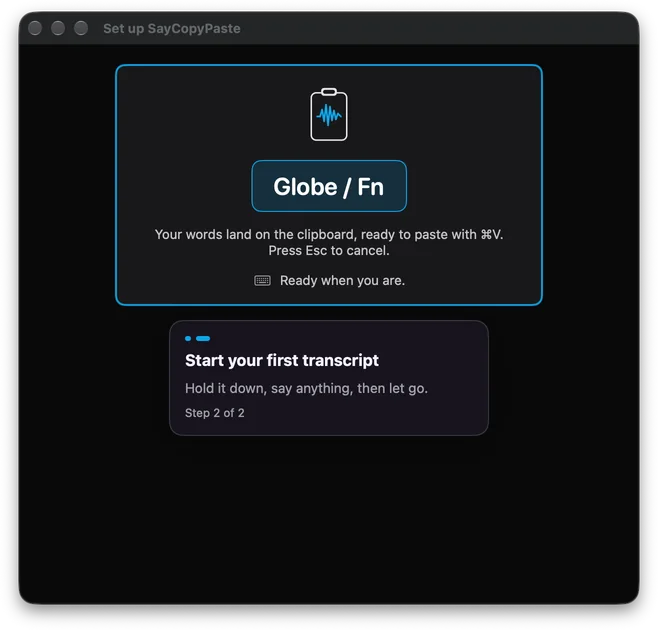
- Hold your key and say anything: Globe / Fn on a Mac, Right Alt on Windows and Linux. On a phone or tablet, tap instead.
- Let go, or tap again. A moment later your words are on the clipboard.
- Paste them anywhere with ⌘V or Ctrl+V.
 Download SayCopyPaste
Mac · SayCopyPaste.dmg · 16 MB · macOS 14 or later, on Apple silicon or Intel
Windows · SayCopyPaste-Setup.exe · 79 MB · Windows 10 or 11 (x64)
Linux · SayCopyPaste.deb · 41 MB · 64-bit (x64) Linux. The push-to-talk key needs your user in the input group.
iPhone & iPad · iOS 17 or later, on iPhone and iPad
Android · Android 8.0 or later
Thank you for downloading SayCopyPaste. Did your download not start? Click here to try again.
Can’t install the .deb? Download the AppImage · 41 MB
Or: Download for Linux (.deb) · 41 MB
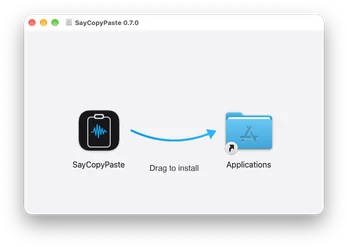
Open SayCopyPaste.dmg from your Downloads folder.
Drag SayCopyPaste into your Applications folder.
Open SayCopyPaste from Applications. It shows up in your menu bar.
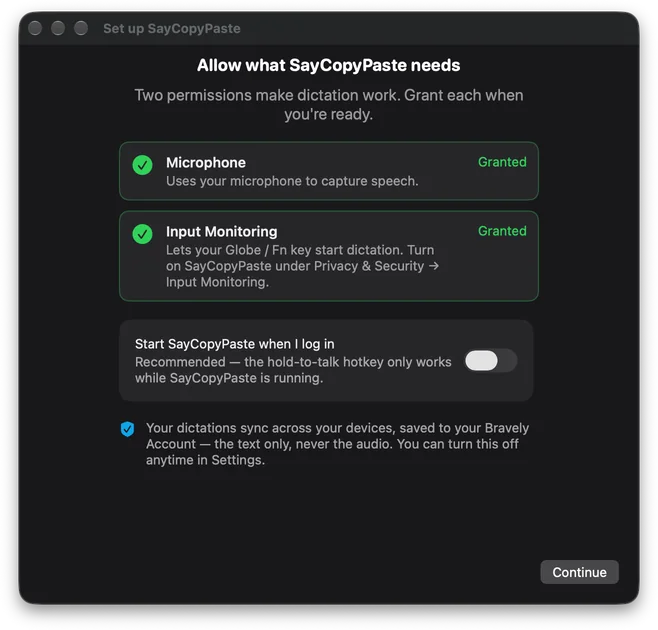
Sign in, then allow Microphone and Input Monitoring. macOS reopens SayCopyPaste once.
Open SayCopyPaste-Setup.exe from your Downloads folder.
If Windows shows a warning, choose More info, then Run anyway. The installer is signed by Bravely Studios LLC.
SayCopyPaste installs for your user, with no admin prompt, and opens. Sign in with your Bravely Account.
Hold Right Alt, say anything, and let go: your first transcript is on the clipboard.
Open SayCopyPaste.deb from your Downloads folder and choose Install.
SayCopyPaste shows up in your app menu and keeps itself up to date. Open it and sign in.
Run sudo usermod -aG input $USER, then log out and back in, so the push-to-talk key works.
Hold Right Alt, say anything, and let go: your first transcript is on the clipboard.
Find SayCopyPaste.AppImage in your Downloads folder.
Right-click it, open Properties, and allow it to run as a program.
Double-click it and sign in with your Bravely Account.
Run sudo usermod -aG input $USER, then log out and back in, so the push-to-talk key works.
Download SayCopyPaste.dmg again (16 MB).
Drag SayCopyPaste into your Applications folder and open it from there. It lives in the menu bar, with no Dock icon.
Open System Settings, then Privacy & Security, and allow SayCopyPaste under Microphone and Input Monitoring, then reopen it. A key you record yourself also needs Accessibility.
SayCopyPaste needs a connection to transcribe. If it says it didn’t catch any audio, check that the right microphone is picked in Settings.
Sign in the same way on every device (Apple, Google or email), and check that saving dictations is on in Settings. Different sign-in methods can make two separate accounts.
Contact us and tell us what you see.
Choose More info, then Run anyway. The installer is signed by Bravely Studios LLC.
Check that SayCopyPaste is running in the system tray and that the key in its Settings is the one you hold. If your microphone is switched off in Windows privacy settings, turn it on.
SayCopyPaste needs a connection to transcribe. If it says it didn’t catch any audio, check that the right microphone is picked in Settings.
Sign in the same way on every device (Apple, Google or email), and check that saving dictations is on in Settings. Different sign-in methods can make two separate accounts.
Contact us and tell us what you see.
Download SayCopyPaste.deb again (41 MB).
Use the AppImage instead, for other 64-bit (x64) Linux systems. Download the AppImage (41 MB).
Run sudo usermod -aG input $USER, then log out and back in. The push-to-talk key reads your keyboard directly and needs it.
Open SayCopyPaste’s setup check: it names any recording or clipboard tool that is missing, with the command to install it.
SayCopyPaste needs a connection to transcribe. If it says it didn’t catch any audio, check that the right microphone is picked in Settings.
Sign in the same way on every device (Apple, Google or email), and check that saving dictations is on in Settings. Different sign-in methods can make two separate accounts.
Contact us and tell us what you see.
SayCopyPaste needs iOS 17 or later. Your synced dictations are also in your browser at saycopypaste.bravely.dev.
SayCopyPaste needs a connection to transcribe. If it says it didn’t catch any audio, check that the right microphone is picked in Settings.
Sign in the same way on every device (Apple, Google or email), and check that saving dictations is on in Settings. Different sign-in methods can make two separate accounts.
Contact us and tell us what you see.
SayCopyPaste needs Android 8.0 or later. Your synced dictations are also in your browser at saycopypaste.bravely.dev.
SayCopyPaste needs a connection to transcribe. If it says it didn’t catch any audio, check that the right microphone is picked in Settings.
Sign in the same way on every device (Apple, Google or email), and check that saving dictations is on in Settings. Different sign-in methods can make two separate accounts.
Contact us and tell us what you see.
Mac
macOS 14 or later, on Apple silicon or Intel
Windows
Windows 10 or 11 (x64)
Linux
64-bit (x64) Linux. The push-to-talk key needs your user in the input group.
iPhone & iPad
iOS 17 or later, on iPhone and iPad
Android
Android 8.0 or later
Web
Read, search, star and copy the dictations your other devices synced, in your browser.
Sign in with your Bravely Account, then allow Microphone and Input Monitoring; macOS reopens SayCopyPaste once after Input Monitoring. Make your first transcript: hold Globe / Fn, say anything, let go. Then try every feature free for 24 hours with no card, or start a plan with 7 days free. SayCopyPaste lives in your menu bar.
In Settings, turn on Start SayCopyPaste when I log in, so your key works after a restart.
Sign in with your Bravely Account. Make your first transcript: hold Right Alt, say anything, let go. If your microphone is switched off in Windows privacy settings, SayCopyPaste says so. Then try every feature free for 24 hours with no card, or start a plan with 7 days free.
SayCopyPaste lives in the system tray; turn on Launch at login in its Settings so your key works after a restart.
Sign in with your Bravely Account. SayCopyPaste checks your microphone and the tools it needs, and gives you the exact command for anything missing. For the push-to-talk key, run sudo usermod -aG input $USER, then log out and back in. Make your first transcript, then try every feature free for 24 hours with no card, or start a plan with 7 days free.
Turn on Launch at login in Settings so your key works after a restart.
Sign in, allow the microphone and make your first transcript: tap, talk, tap again. Then try every feature free for 24 hours with no card, or start a plan. On iPhone, set up the Action Button, Back Tap or Control Center in Settings to dictate without opening the app.
Sign in, allow the microphone and make your first transcript: tap, talk, tap again. Then try every feature free for 24 hours with no card, or start a plan. Add the Quick Settings tile or a home-screen widget to start a dictation from anywhere.