How to use voice to text instead of typing
The short answer
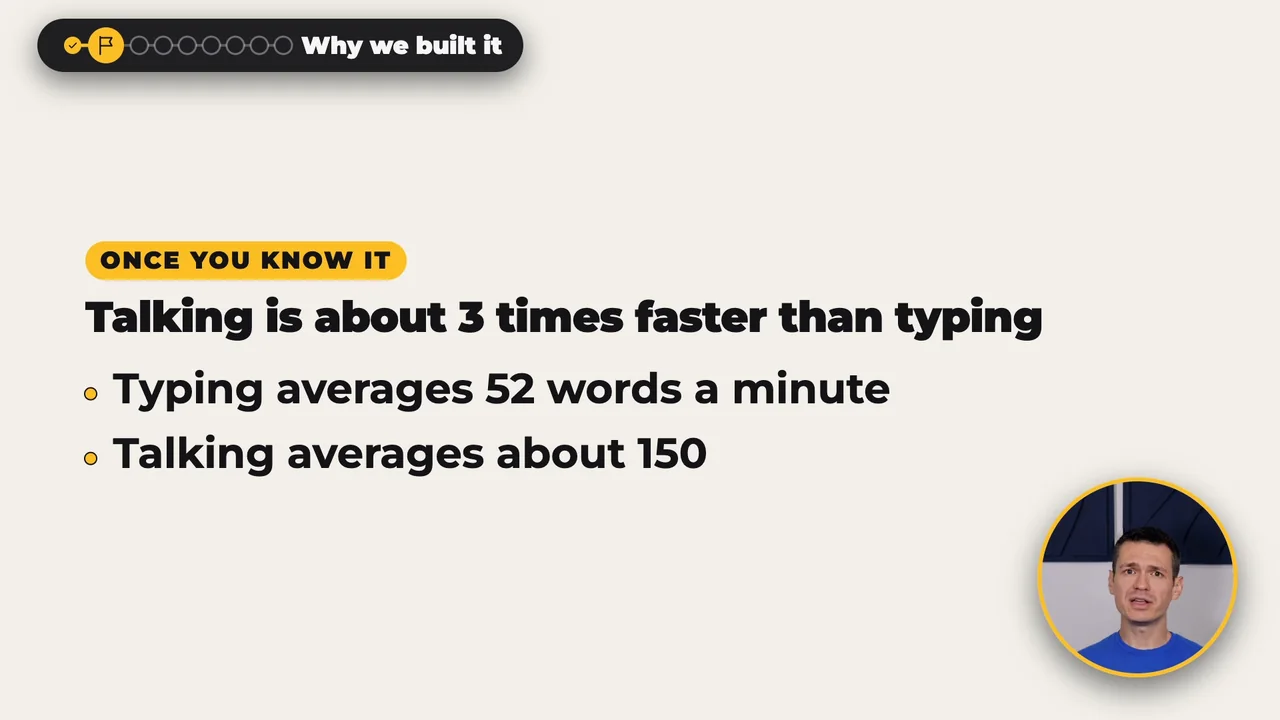
Talking is about three times faster than typing: two large studies measured typing at 52 words a minute on a computer and 36 on a phone, and a Stanford study measured dictation at about 150. Macs, Windows PCs, iPhones and Android phones come with dictation that types where your cursor is. SayCopyPaste works the other way round: press your key, talk, and your words land on the clipboard, ready to paste into any app, on Mac, Windows, Linux, iPhone, iPad and Android.
- On a computer: press your key (Globe / Fn on a Mac, Right Alt on Windows and Linux), talk, then paste with ⌘V or Ctrl+V.
- On a phone: tap to start and to stop, and the words wait in History on your computer.
- Your words: add a name or a term to the dictionary once, and it's used everywhere you dictate.
- No signal: an iPhone or Android phone keeps the recording and transcribes it once you're back online.
Read the transcript
0:00 The studies If you aren't using your voice in your workflow, you're working three times slower than you could be. Let me explain. That number comes from two large studies of a combined 200,000 participants. The average typing speed was 52 words a minute. On a phone, it was even slower at 36. Dictating, on the other hand, averaged about 150 words per minute. For people that make a living typing all day, converting some of that to voice can really add up.
0:28 Why we built it This is the sort of thing that once you know it, you can't un-know it. And if it's going to be something I introduce into my workflow, I need it to be PRECISELY how I want it. The app we built for this is SayCopyPaste. It runs on Mac, Windows and Linux, and on iPhone, iPad and Android. Let me explain how it works, and why we decided to build it this way.
0:52 On the desktop The foundation of the app is the desktop experience. SayCopyPaste can be found in your menu bar and in the system tray depending on your OS, but the general premise is the same. With the press of a keybind of your choice, you either tap or hold down the key and simply start talking. The transcription happens live, and when you're finished it will finish up and copy it to your clipboard. Other apps in this space, including built in tools, will often just type your text into wherever your cursor is.
1:22 Why the clipboard I found this lacking for a couple reasons. For starters, if you want to paste the text over Remote Desktop, the clipboard is the only way that's gonna happen reliably. In addition, I found that when using dictation, I have to start talking as soon as the thought strikes to stay in flow. Trying to find the right window to talk into broke my focus. Being able to hit a keybind and talk right away let me get my thought out first, then go and find where I wanted that text after.
1:50 Adding a thought I also sometimes would want to add an additional thought. With SayCopyPaste, that's just a modifier on the hotkey, and anything you say will be added to the clipboard. It's also kept in history, so if you forgot to do that you can still go back and copy what you said.
2:06 On your phone The app on the phone was another big unlock. To be completely transparent, if I do need to say something in a text, most of the time the built in options are my go to. However… when I am out and about and a thought strikes me I want to capture when I get home, SayCopyPaste is my go to. Anything you capture is synced to your desktop, waiting for you when you get back to the house.
2:29 Your words If you're like me and have a weird last name, or often say other things it mishears on the regular, you can easily add those into the dictionary on one device and it'll sync anywhere you dictate.
2:40 When you fly I fly a lot, so an offline mode is critical to capture fleeting thoughts on mobile to review once I am back to civilization. On both iOS and Android this is handled seamlessly, and will be available on all devices once you're reconnected.
2:55 Try it With trial options available, it's worth giving a try! Check it out at SayCopyPaste.com or you can find it with all our apps at Bravely.dev. Start saving time in your day with SayCopyPaste!
$9.99/mo, or every premium Bravely utility for $95.99/yr or $399 once.
- Updated
- Outside facts dated and linked at the bottom
The studies
Watch this part 0:00Two large typing studies set the baseline. In one, 168,000 volunteers typed on a computer at an average of 52 words a minute. In the other, 37,000 people typed on their phones at about 36. A Stanford study timed dictation against a phone keyboard and found speech about three times faster, at roughly 150 words a minute in English.
- Typing on a computer168,000 volunteers52 words a minute
- Typing on a phone37,000 volunteers36 words a minute
- DictatingStanford, against a phone keyboardabout 150 words a minute
Dhakal and others, CHI 2018 · Palin and others, MobileHCI 2019 · Ruan and others, Stanford, 2016
- At those speeds, 1,000 words take about 19 minutes to type and under 7 to say. If you write that much every workday, that's about an hour a week.
- All three studies timed people copying sentences they were given. Writing your own words is slower either way, because you stop to think.
- Typing-test volunteers lean fast, so 52 is generous to typing.
Why we built it
Watch this part 0:28Once you know the gap, it's hard to un-know it. SayCopyPaste is the app we built for it: one key on the computer, one tap on the phone, and your words wherever you need them next. It runs on Mac, Windows and Linux, and on iPhone, iPad and Android.
- Mac
- Windows
- Linux

- iPhone
- iPad
- Android
Sign in with the same Bravely Account on each one, and your History and dictionary come along.
On the desktop
Watch this part 0:52SayCopyPaste lives in the menu bar on a Mac and in the system tray on Windows and Linux. Press your key and talk: a small pill reads Listening…, then Copying to clipboard…, then Copied to clipboard once your words are ready. Click where you want them and paste.
- Press your keyGlobe / Fn on a Mac, Right Alt on Windows and Linux
- TalkHold the key, or tap it to start and again to stop
- On your clipboardCopied to clipboard, the moment you stop
- Paste it anywhere⌘V on a Mac, Ctrl+V on a PC
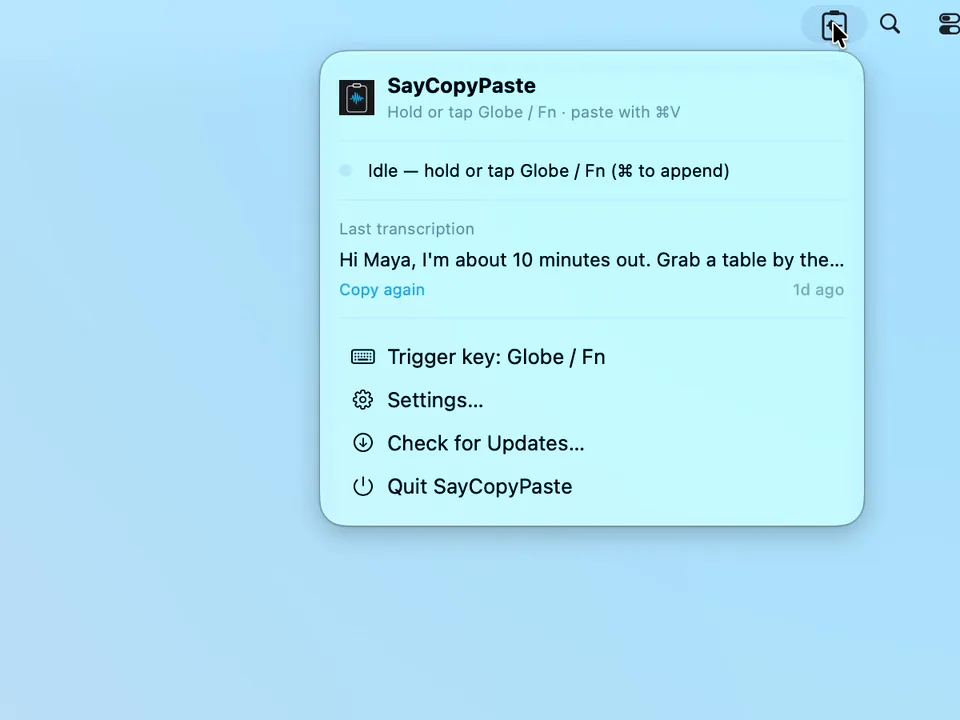
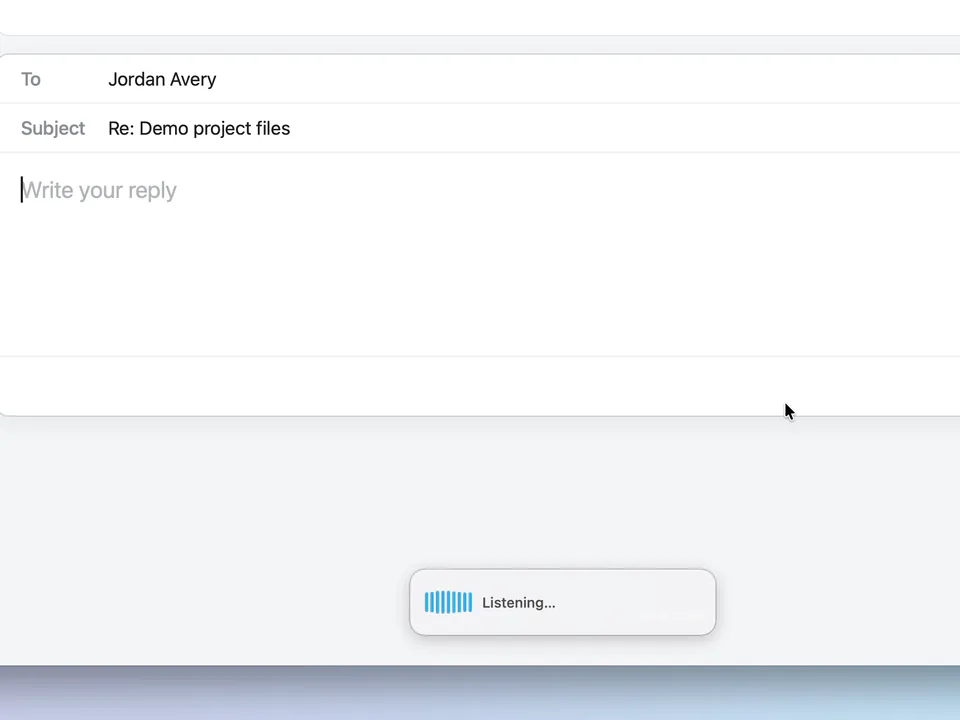
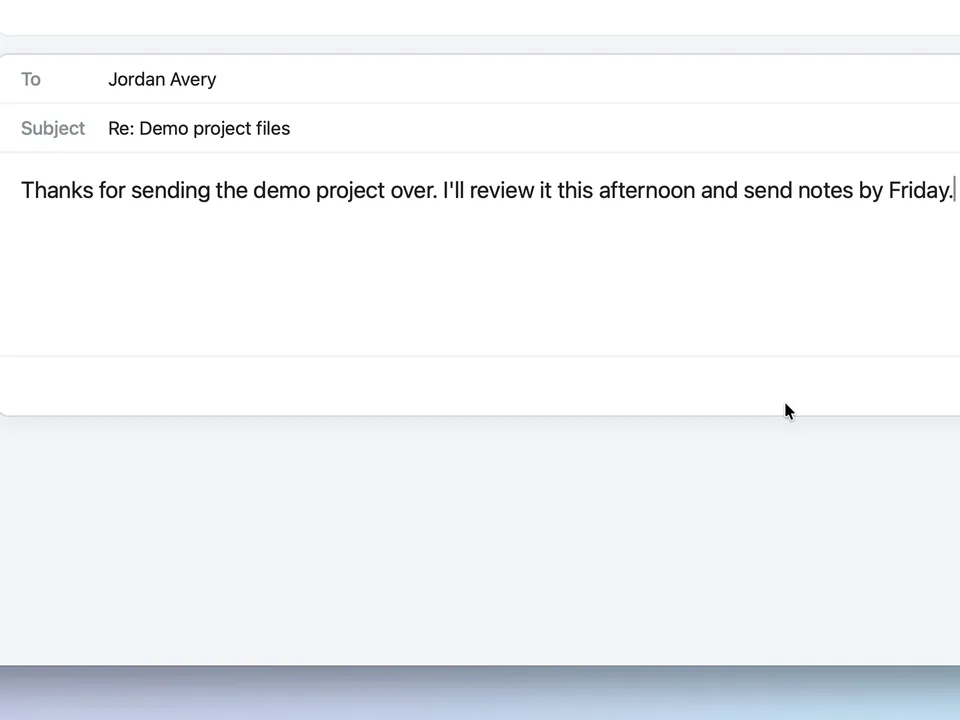
- Nothing is typed for you. Your words wait on the clipboard until you paste them, in any app.
- Changed your mind? Esc cancels a dictation while it records or transcribes.
Choose your key
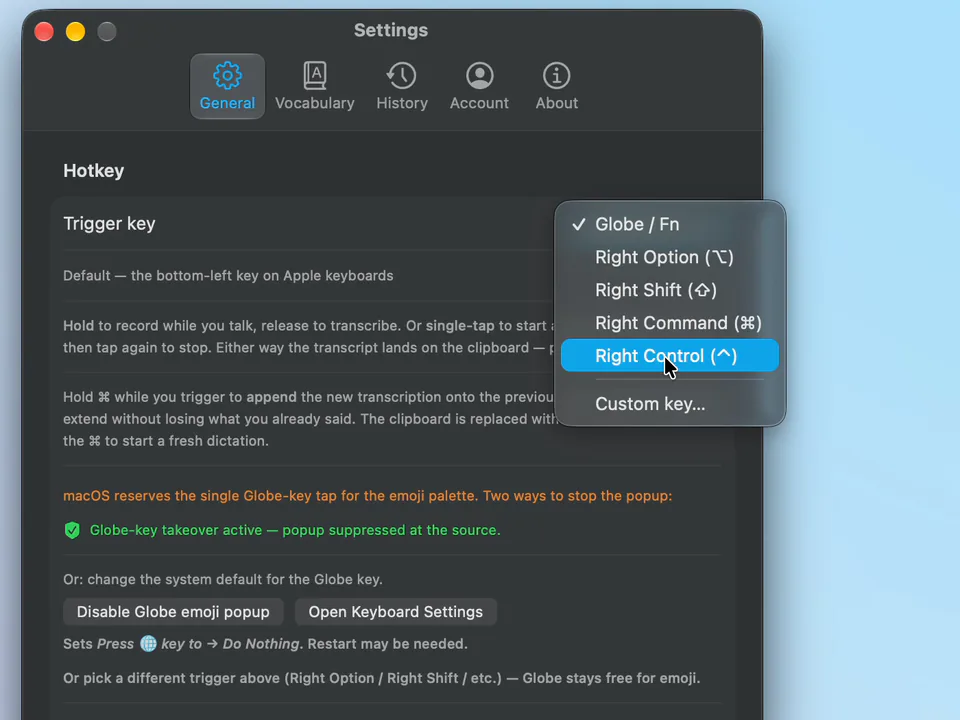
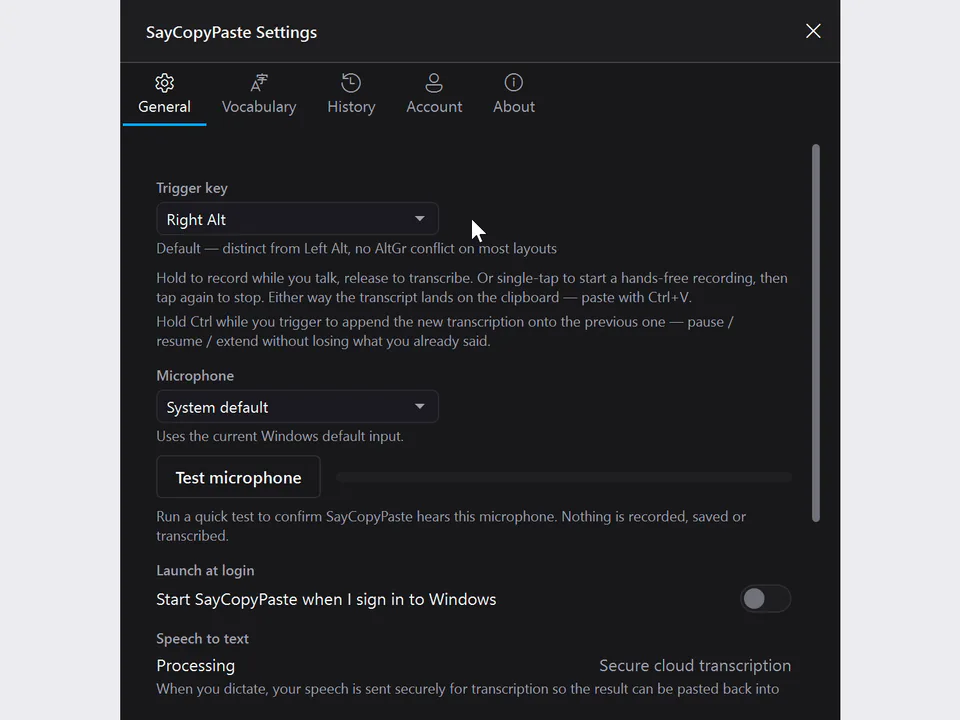
The key starts as Globe / Fn on a Mac and Right Alt on Windows and Linux. To change it, open SayCopyPaste's Settings, then General, and pick another under Trigger key. On a Mac the list has Right Option, Right Shift, Right Command, Right Control and a custom key; on Windows, Right Shift, Right Ctrl and Right Win; on Linux, Right Ctrl, Right Shift, Right Super, Pause/Break and Scroll Lock.
Why the clipboard
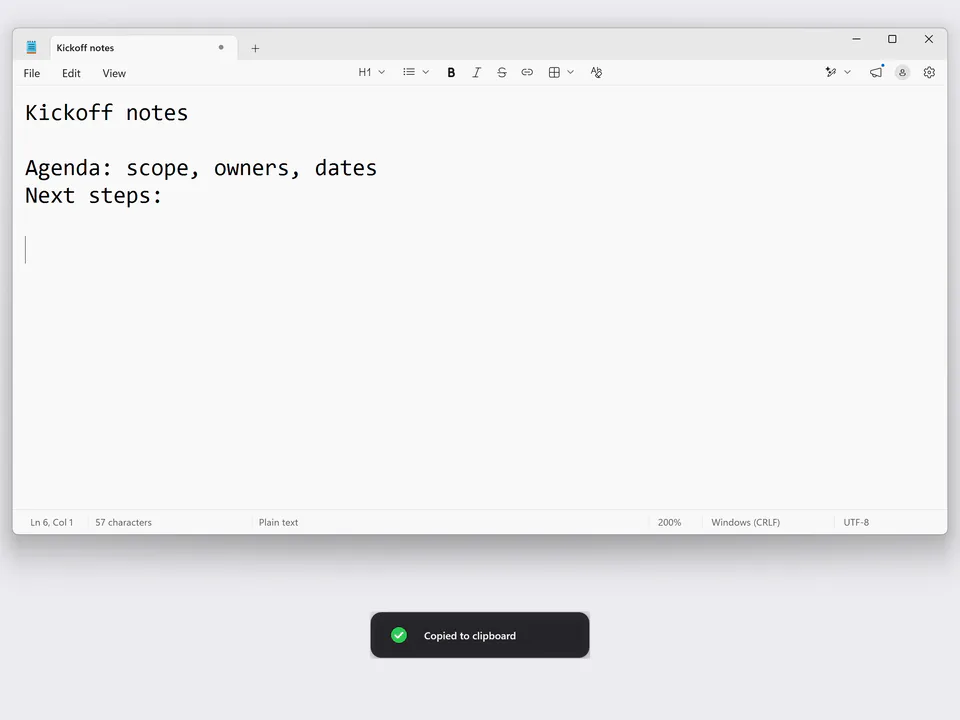
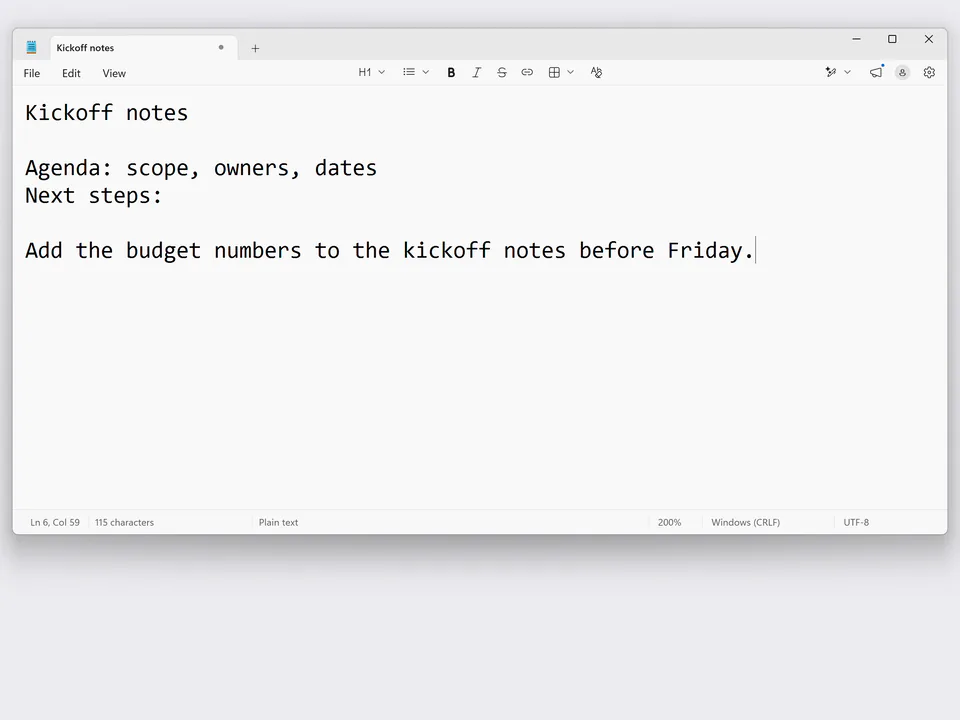
Watch this part 1:22Most dictation tools, the built-in ones included, type into whatever window has your cursor. SayCopyPaste puts your words on the clipboard instead, for two reasons.
- Remote DesktopA paste reaches the other computer, where copy and paste is allowed
- Staying in flowTalk first, find the window after
- Remote Desktop: your words go across with a paste, as long as the connection allows copy and paste. Many company setups turn that off, so if a paste doesn't arrive, check the clipboard setting of your Remote Desktop connection or ask IT.
- Staying in flow: start talking the moment a thought arrives, and decide where it goes afterwards. Nothing lands in the wrong window, because nothing lands until you paste.
Adding a thought
Watch this part 1:50Hold ⌘ on a Mac, or Ctrl on Windows and Linux (the left one on Windows), as you press your key. The pill reads Listening (appending)…, then Appended to clipboard: your new words join your last dictation, and one paste carries both. On a phone, Append Next in the iPhone app and Append next on Android's recording notification do the same.
- ⌘+Globe / FnMac
- Left Ctrl+Right AltWindows
- Ctrl+Right AltLinux
Your new words join your last dictation
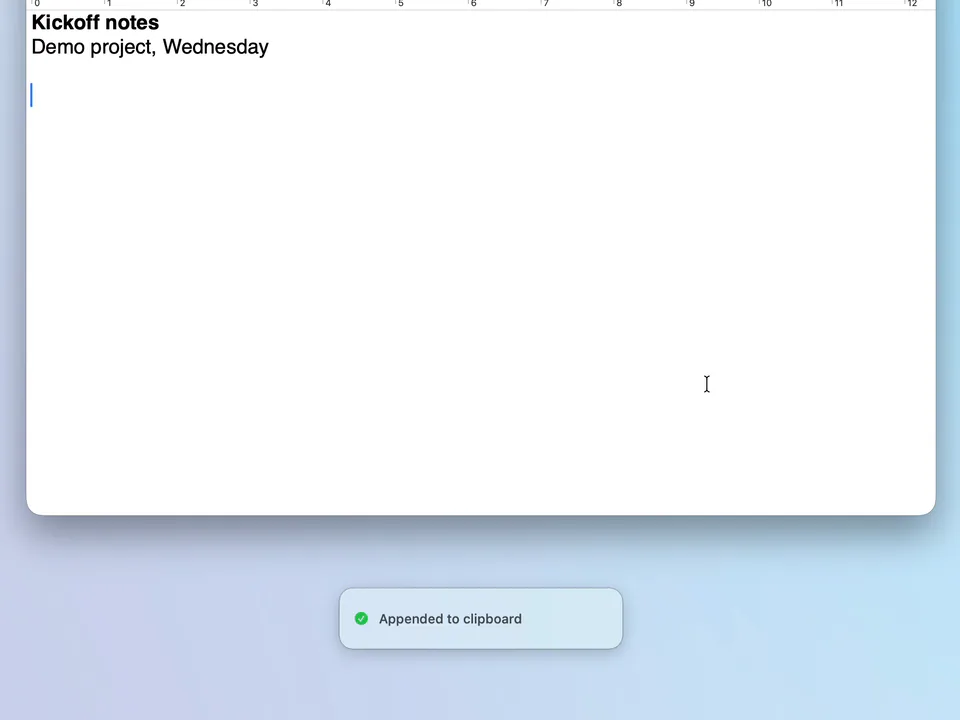
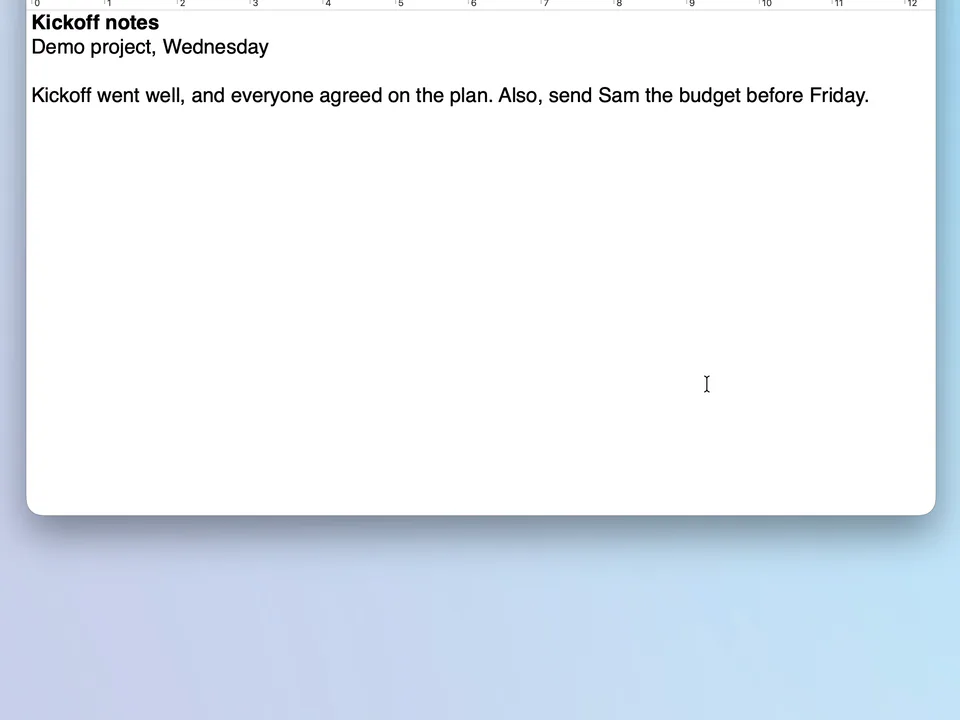
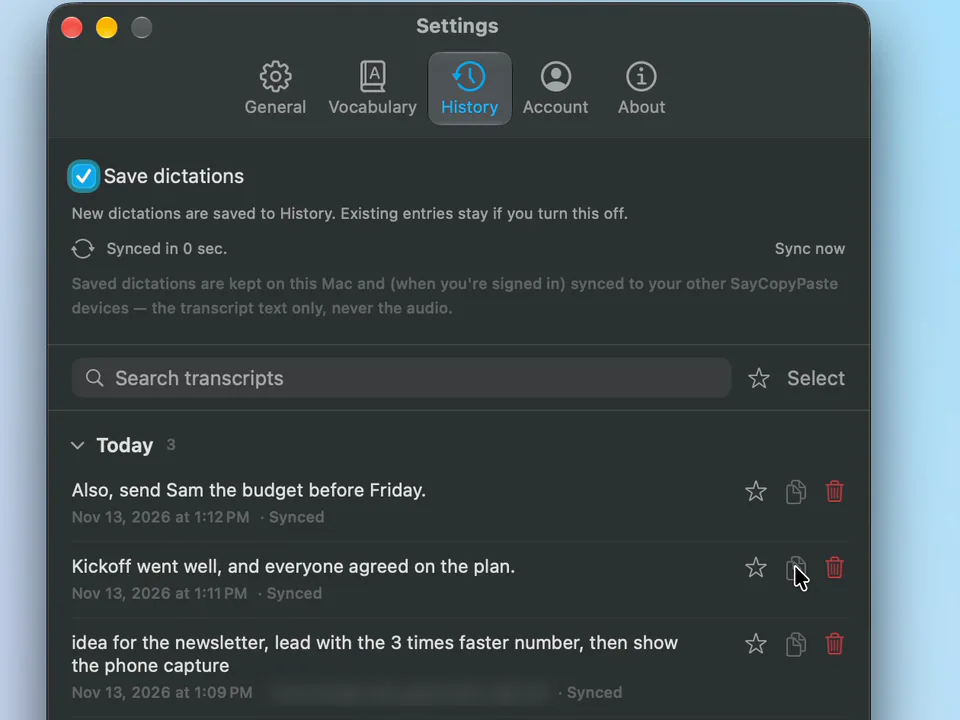
- It joins your last SayCopyPaste dictation, not something else you copied in between.
- History keeps each part as its own item, with search, favorites and a copy button, so a thought you didn't add is still there to copy.
On your phone
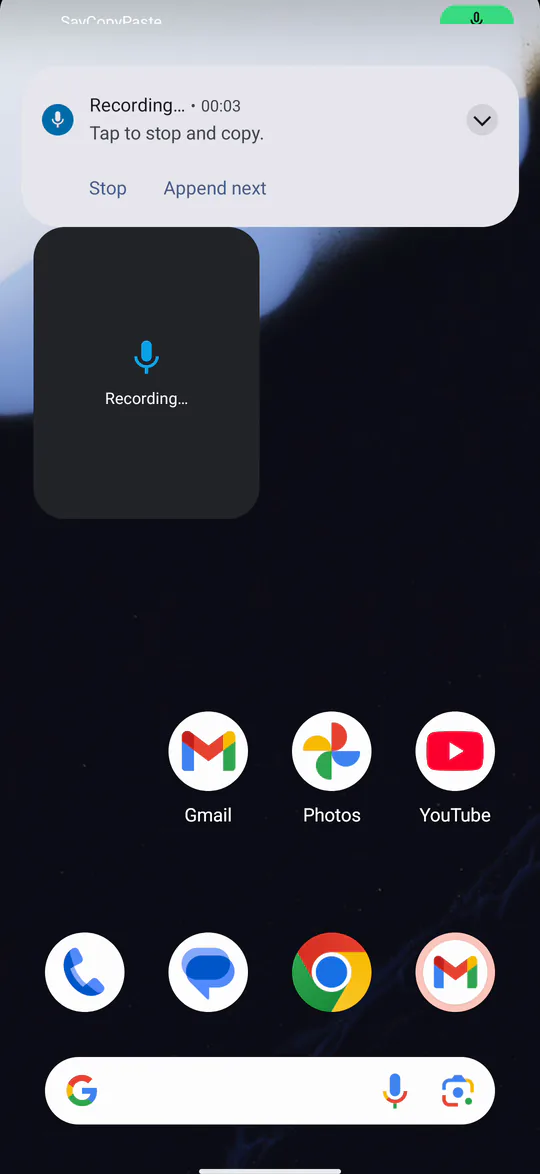
Watch this part 2:06For a quick reply in a messaging app, the microphone on your phone's keyboard is right there. SayCopyPaste is for the thought you want waiting at your computer: tap to start and tap again to stop, and the words go into History, where your Mac or PC has them too, and onto the phone's clipboard.
- Tap to startThe app, a widget, Control Center or a Quick Settings tile
- Say itTap again to stop
- Saved to HistoryAnd copied to the clipboard
- On your computerSynced to History, ready to copy
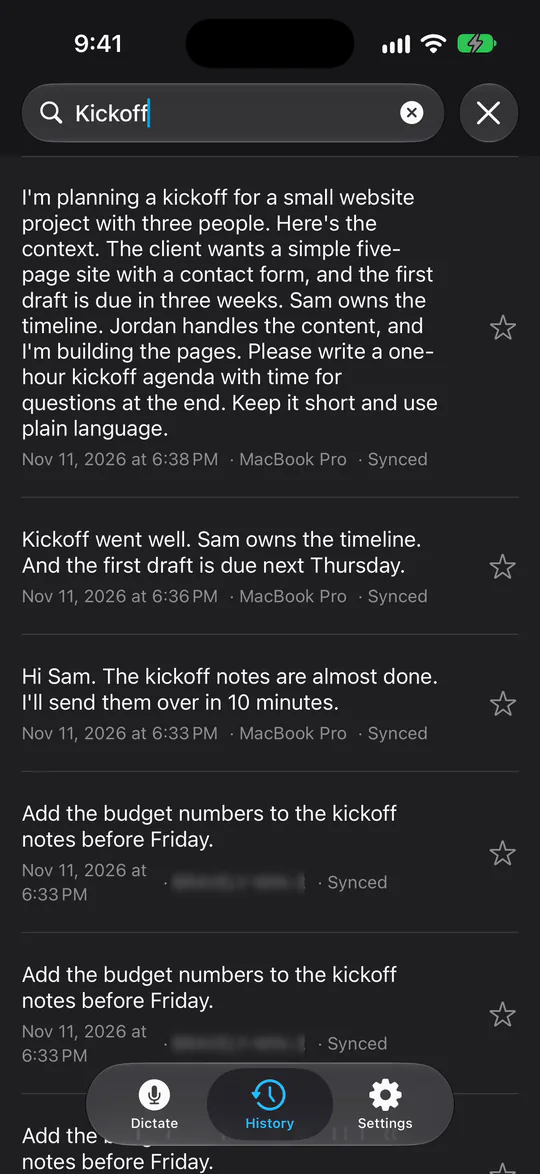
- iPhone and iPad: start from the app, the Dictate widget on the Home Screen, the Dictate control in Control Center or on the Lock Screen, the Action Button or Back Tap. On iOS 26 and later, the control, the Action Button and Back Tap start listening without opening the app.
- Android: tap the SayCopyPaste tile in Quick Settings or the Tap to dictate widget; tap again, or Stop on the recording notification, to finish.
- On an iPhone, if you stop from outside the app and iOS doesn't allow the copy, the banner says Saved to History, with a Copy button.
Your words
Watch this part 2:29If it keeps mishearing a name, your last name or a term from your work, add it to the dictionary. Open Settings, then Vocabulary, and type how it should look (Correct) and, if you like, what it was heard as (Misheard); the iPhone app calls them What it should say and What it heard. Add a word once, on any device, and it syncs to SayCopyPaste everywhere you dictate.
On your Mac
- Brightwaterwas: Bright water
- Acme Labs
On your phone
- Brightwaterwas: Bright water
- Acme Labs
Your dictionary syncs through your Bravely Account.
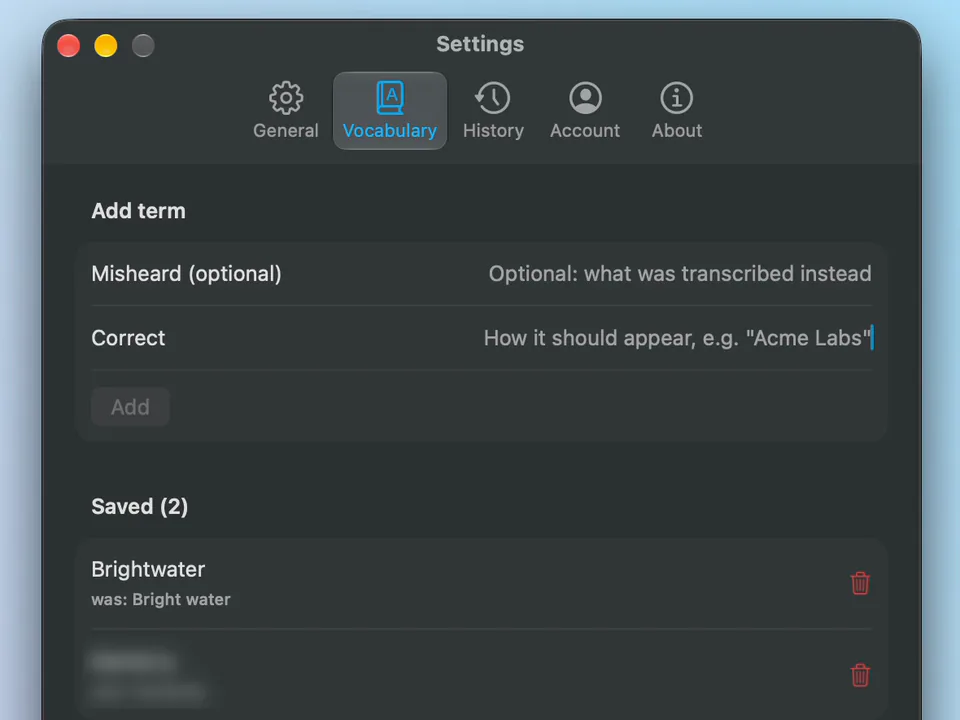
- The dictionary holds up to 1,000 words. The web app shows your History but has no dictionary.
When you fly
Watch this part 2:40A computer needs a connection to turn speech into text. A phone doesn't make you wait for one: on an iPhone or an Android phone with no signal, SayCopyPaste keeps the recording on the phone, and once you're back online it's transcribed and shows up in History on every device.
- Record anywayOn iPhone or Android
- Kept on the phoneUntil you're back online
- Back onlineTranscribed by itself
- On every deviceIn History, ready to copy
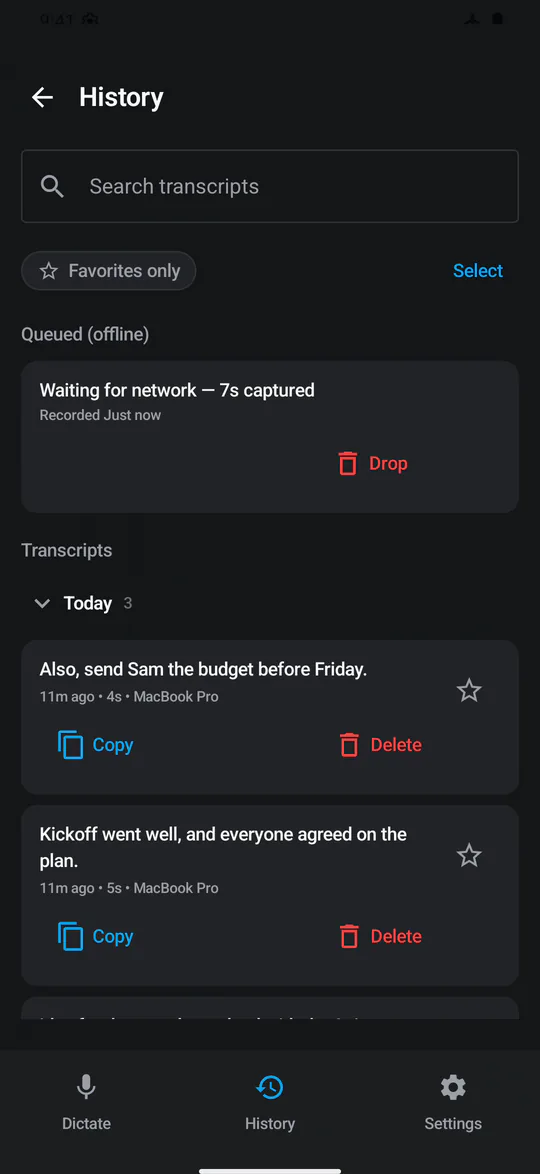
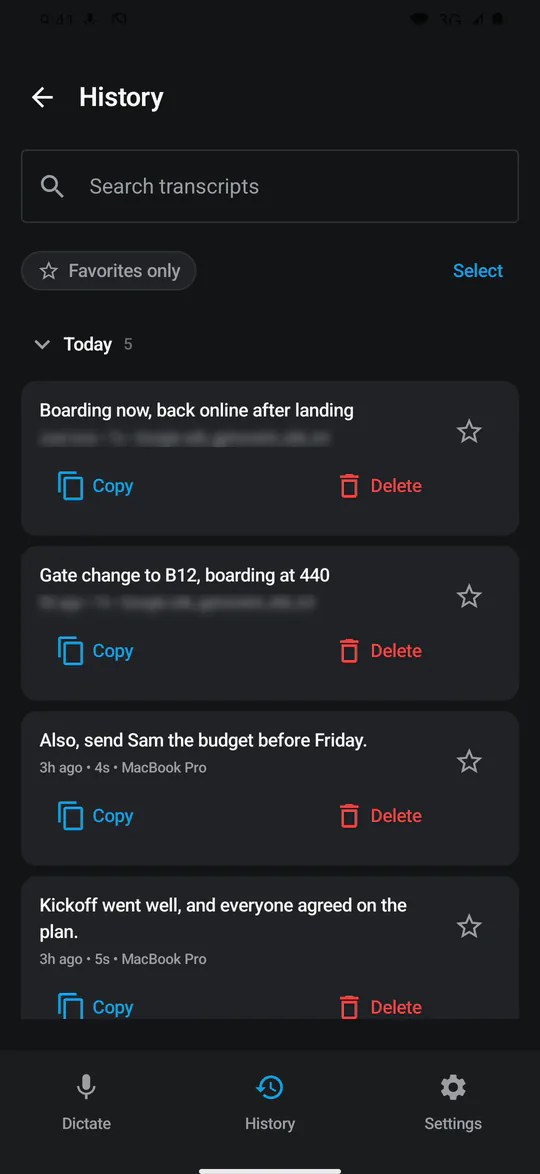
- Android lists the waiting recording in History under Queued (offline); an iPhone says Saved for later.
- An iPhone can also transcribe on the phone itself with no signal: turn on Allow local transcription when offline.
Try it
Watch this part 2:55SayCopyPaste is a download for Mac, Windows and Linux, and it's on the App Store and Google Play. Sign in with your Bravely Account, press your key and start talking.
- Press your keyOr tap, on your phone
- TalkAbout three times faster than typing
- Paste it anywhereAny app, any device
The built-in ways, and SayCopyPaste
What's already on your devices, each with its catch. Each fact was read on the vendor's own page on the date shown.
What SayCopyPaste doesn't do
- It doesn't type into the app you're in: you paste. Each new dictation replaces what's on the clipboard, unless you add to it.
- A computer needs an internet connection to transcribe. Only the phone apps keep a recording to transcribe later.
- It writes down what you say; there's no voice control of your computer.
- There's no free tier: it's $9.99/mo or the Bravely bundle.
FAQs
Is talking really faster than typing?
Yes, by about three times. Large typing studies put typing at 52 words a minute on a computer and 36 on a phone, and a Stanford study measured English dictation at about 150. Those studies timed copying given text; writing your own words is slower either way, because you stop to think.
What's the average typing speed?
About 52 words a minute on a computer, from 168,000 volunteers who took an online typing test (Dhakal and others, CHI 2018), and about 36 on a phone, from 37,000 volunteers (Palin and others, MobileHCI 2019).
How fast can you dictate?
About 150 words a minute in English, in a Stanford study that timed speech against a phone keyboard (Ruan and others, 2016).
How do I use voice to text on a Mac?
Macs have Dictation built in: press the Microphone key or your Dictation shortcut, or choose Edit, Start Dictation, and it types where your cursor is. With SayCopyPaste, press Globe / Fn, talk, and paste with ⌘V wherever you want the words.
How do I use voice to text on Windows?
Windows voice typing starts with Windows key + H and types into the box you're in. With SayCopyPaste, press Right Alt, talk, and paste with Ctrl+V.
How do I use voice to text on Linux?
Install SayCopyPaste from the .deb (or the AppImage), press Right Alt, talk, and paste. In a terminal, paste with Ctrl+Shift+V. Speech to text on Linux
How do I use voice to text on an iPhone?
Tap the microphone on the keyboard, and your words are typed where you're writing. With SayCopyPaste, start from the app, its Home Screen widget, the Dictate control in Control Center or on the Lock Screen, the Action Button or Back Tap; the words go into History and onto the clipboard.
How do I use voice to text on Android?
Tap the microphone at the top of your keyboard, and your words are typed where you're writing. With SayCopyPaste, tap its Quick Settings tile or its Tap to dictate widget, talk, and tap again to stop; the words go onto the clipboard and into History.
Can I change the SayCopyPaste key?
Yes. Open Settings, then General, and pick another under Trigger key. It starts as Globe / Fn on a Mac and Right Alt on Windows and Linux.
Do I hold the key or tap it?
Either. Hold it while you talk and let go when you're done, or tap it once to start and again to stop.
Does SayCopyPaste type into the app I'm using?
No. It puts your words on the clipboard, and you paste them where you want them. Nothing is typed or pasted for you.
Why does it use the clipboard instead of typing?
So you can talk the moment a thought arrives and pick the window afterwards, and so the words can go anywhere a paste can, a Remote Desktop session included.
Can I paste a dictation into a Remote Desktop session?
Yes, when the connection allows copy and paste between your computer and the remote one. Many company setups turn it off, so if a paste doesn't arrive, check the clipboard setting of your Remote Desktop connection or ask IT. Dictate on your own computer, then paste into the remote window.
How do I add to something I already dictated?
Hold ⌘ on a Mac, or Ctrl on Windows and Linux (the left one on Windows), as you press your key. The new words join your last dictation, and one paste carries both. On a phone, use Append Next in the iPhone app or Append next on Android's recording notification.
Where do I find something I said earlier?
In History: every dictation (saving is on unless you turn it off), searchable, with favorites and a copy button.
Do my dictations sync between my phone and my computer?
Yes. History syncs as text through your Bravely Account, so what you say on your phone is waiting on your computer, and the other way round.
Can SayCopyPaste get my name right?
Teach it: in Settings, Vocabulary, add your name as it should appear and, if you like, what it was misheard as. From then on it's spelled your way, on every device.
Does my dictionary sync to my other devices?
Yes. Add a word once, on any device, and it's used everywhere you dictate: Mac, Windows, Linux, iPhone, iPad and Android.
Does voice to text work offline?
On a phone, yes: with no signal, SayCopyPaste keeps the recording and transcribes it once you're back online. A computer needs a connection to transcribe.
Does SayCopyPaste keep my audio?
No. It keeps the text, never the audio. A recording made with no signal waits on your phone until it's transcribed, then it's deleted.
Do I need an account?
Yes, a Bravely Account. Sign in with the same one on each device and your History and dictionary follow you.
Which devices does SayCopyPaste run on?
Macs on macOS 14 or later, Windows 10 (version 2004 or later) and Windows 11 PCs (x64), 64-bit Linux PCs as a .deb or an AppImage, iPhones and iPads on iOS 17 or later, and Android phones on 8.0 or later.
Sources, with the date each was read
- Dhakal et al., Observations on Typing from 136 Million Keystrokes (CHI 2018) (2026-11-11)
- Palin et al., How do People Type on Mobile Devices? (MobileHCI 2019) (2026-11-11)
- Stanford: Speech is 3x faster than typing on mobile devices (Ruan et al., 2016) (2026-11-11)
- Apple: Use Dictation on Mac (2026-11-14)
- Apple: Dictate text on iPhone (2026-11-14)
- Microsoft: Use voice typing to talk instead of type on your PC (2026-11-14)
- Gboard Help: Type with your voice (2026-11-14)
- Microsoft Learn: Configure clipboard redirection over the Remote Desktop Protocol (2026-11-14)
SayCopyPaste
Voice to clipboard, one key
$9.99/mo, or every premium Bravely utility for $95.99/yr or $399 once.
Updated . Facts about other companies’ products were read on their own pages on the dates shown and can change.