How to control your Mac or PC from your iPhone or iPad
The short answer
You need two things: an app on the computer that lets it be reached, and a viewer on your phone. Apple doesn’t document a built-in way to control a Mac from an iPhone. Scry is both, in one app: install it on your Mac, Windows PC or Linux computer, sign in with the same account on your iPhone or iPad, and tap the computer you want.
- Scry runs on macOS 14 or later, Windows 10 or 11 and 64-bit Linux, with apps for iPhone and iPad (iOS 17 or later) and Android (8.0 or later).
- Prefer something free? Chrome Remote Desktop and the other ways are compared below, each with its catch.
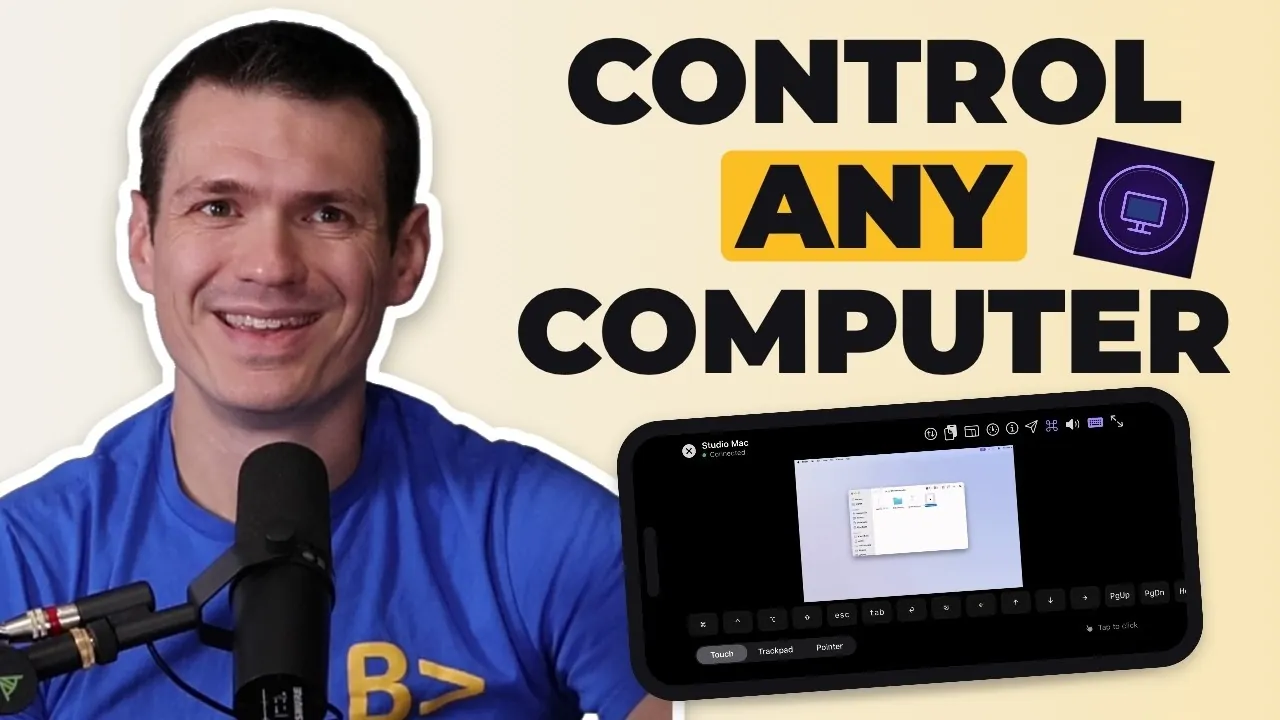
Read the transcript
0:00 The short answer Your computer's at home and you're not. Here's how to control your Mac or PC from your phone. Me and DevDot will show you how it works. You need two things: an app on the machine you want to reach, and a viewer on your phone. Scry is both. It runs on a Mac, a Windows PC or Linux, and once it's installed, you sign in and tap the one you want.
0:19 Set up Scry on a Mac Once Scry is on both ends, your devices find each other on their own, so there's nothing to set up on your router. Let's start with a Mac. Download Scry, drag it into Applications, open it, and sign in with your Bravely Account using Apple, Google or email. It asks for two permissions, Screen Recording so it can share the screen and Accessibility so your phone can control it. Click Enable on each, and switch Scry on when your Mac asks. Then, at the bottom of the Account tab in its Settings, turn on Launch Scry at login, so it starts whenever someone signs in to the Mac. You'll see Login Item Added.
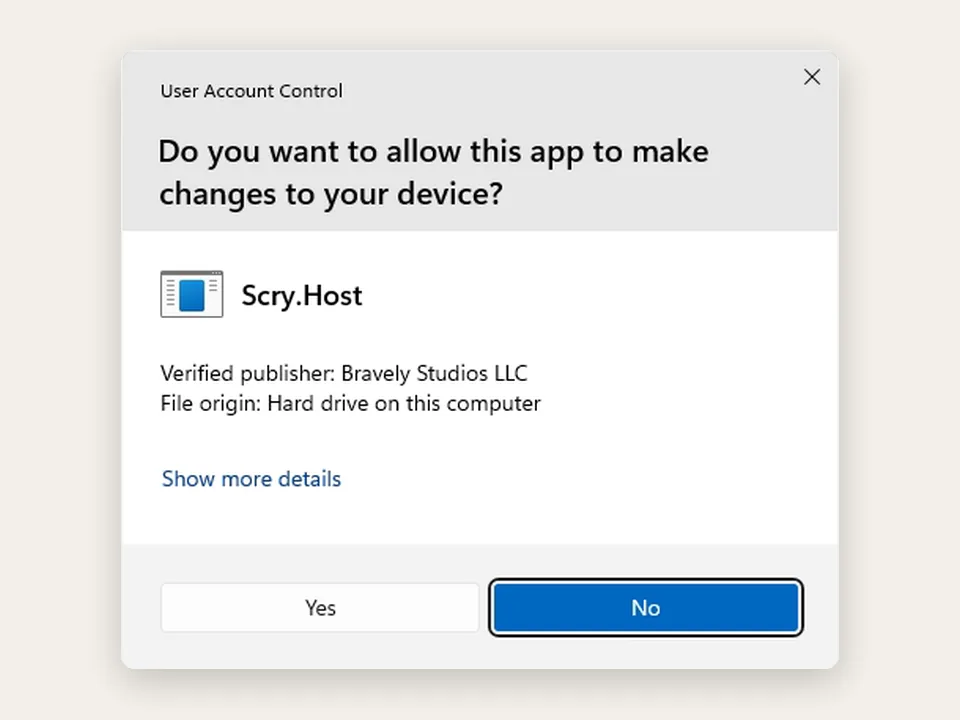
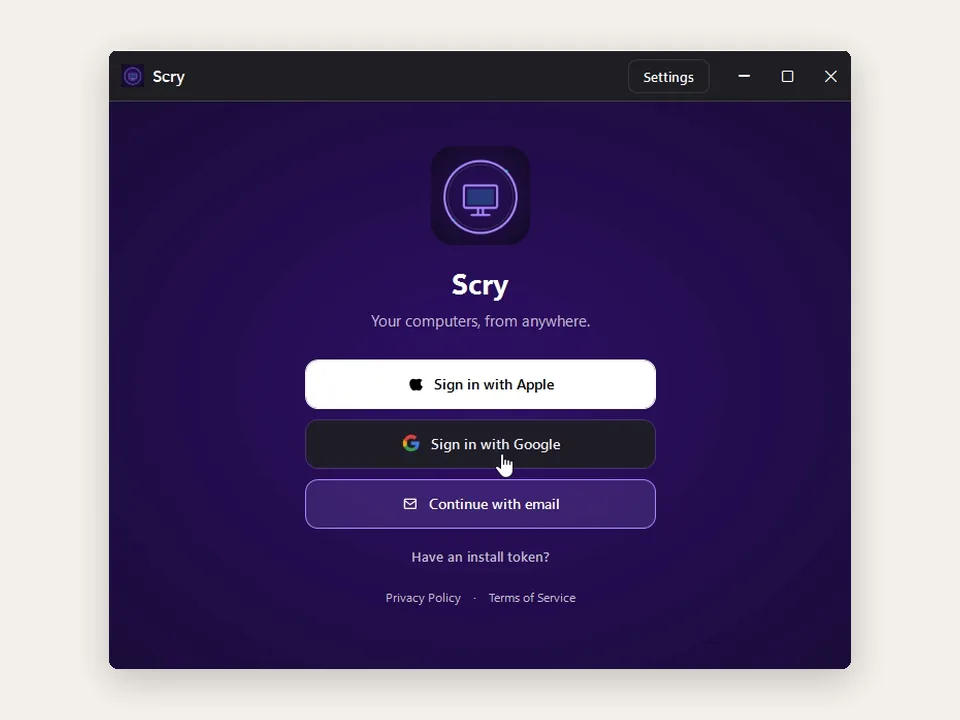
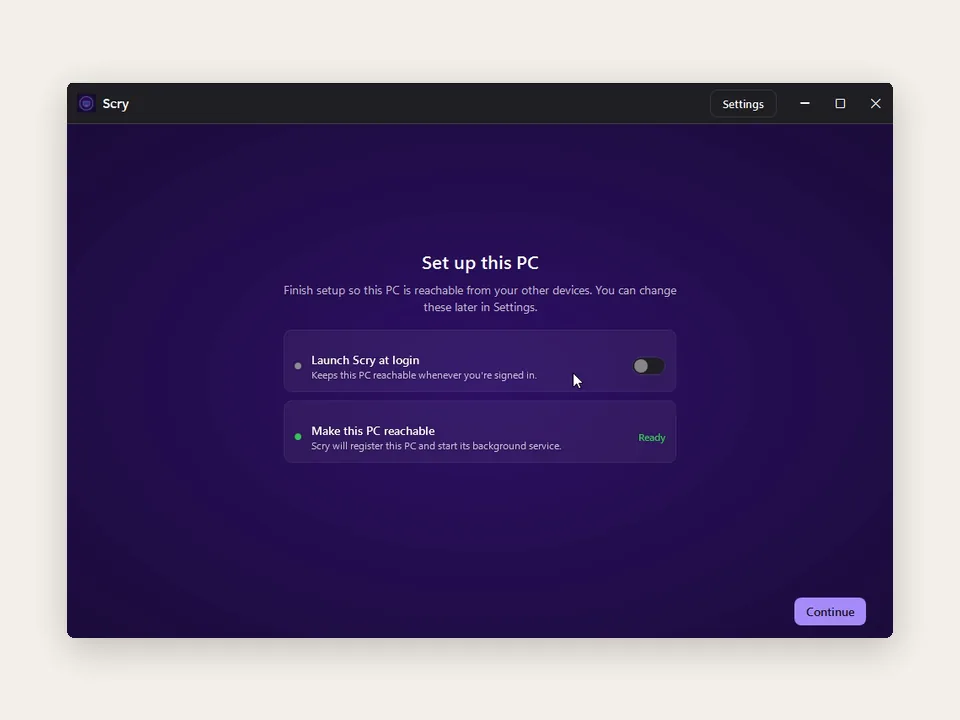
0:56 Set up Scry on Windows If it's a Windows PC, download the Windows version and run the installer. When Windows asks whether it can make changes, choose Yes, because that one prompt installs the service that lets you reach the PC. Then sign in.
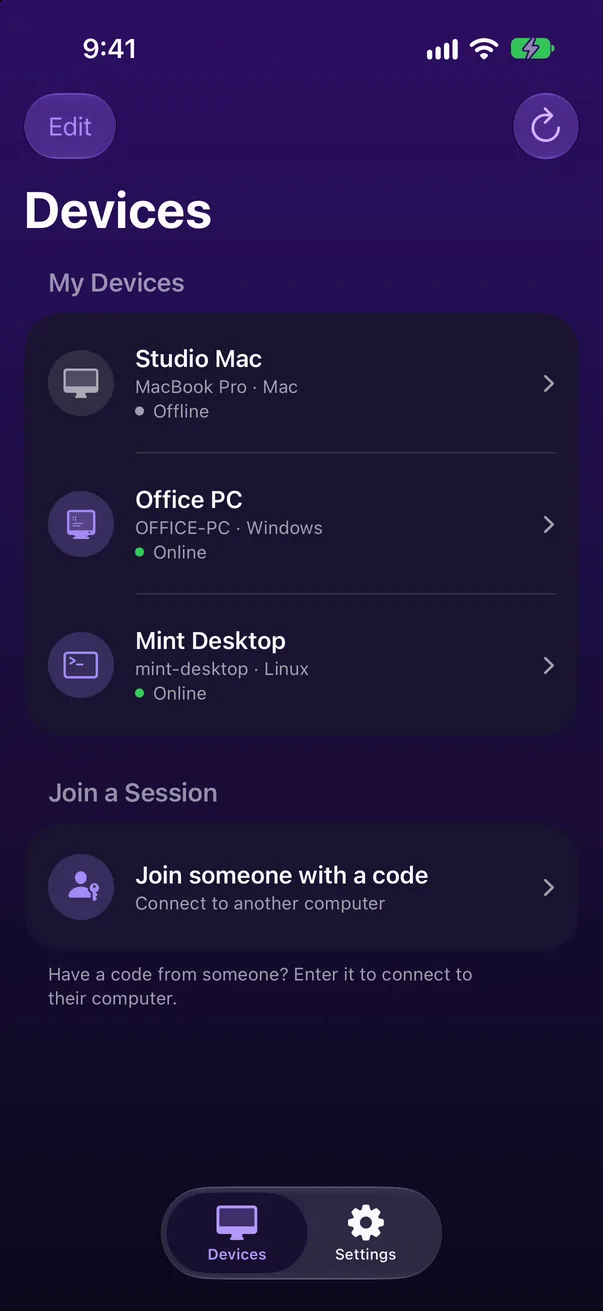
1:10 Connect from your iPhone Next, set up your phone. Scry is on the App Store and Google Play, and an iPhone or an Android phone can connect to a Mac, a Windows PC or Linux. In the app, sign in with the same account you used on the computer. Every computer you've set up is in one list, with a green dot when it's online. Pick the one you want, and you're in, looking at your Mac.
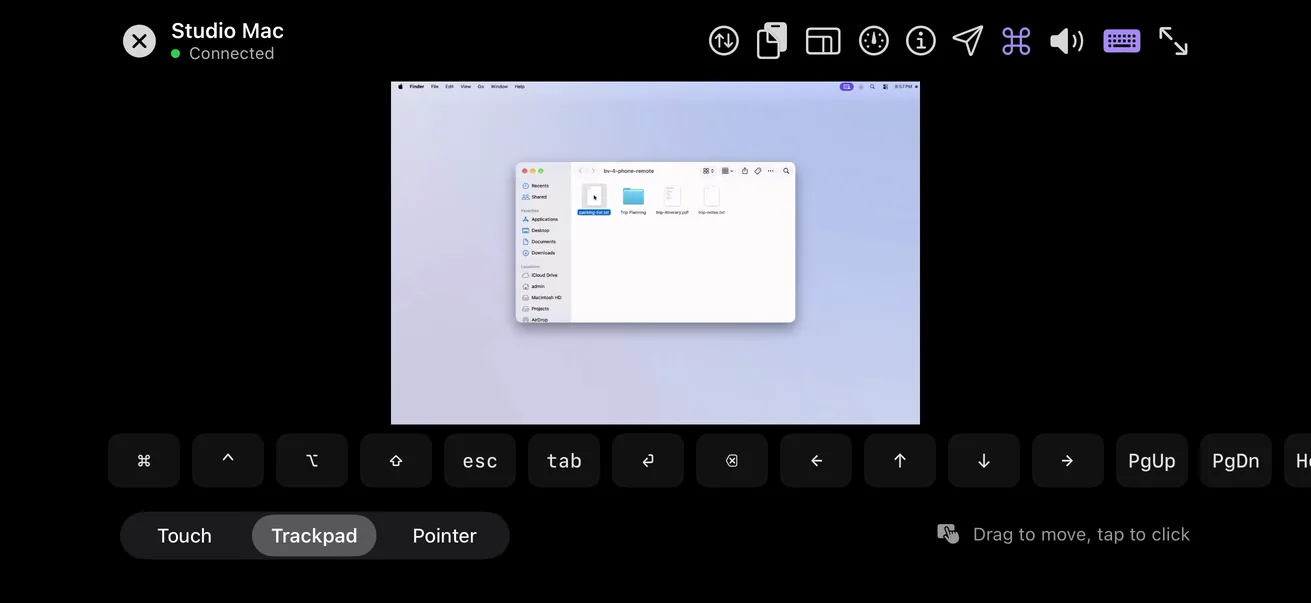
1:31 Touch, zoom and keys Below the screen, you choose how your finger steers the pointer. With Touch, it clicks wherever your finger lands. Trackpad works like the one on a laptop, where you slide to move and tap to click, and Pointer lets you drag the arrow anywhere. Double-tap, and the folder opens. Press and hold to right-click, and the menu appears. If the text is small, pinch to zoom in up to four times, and choose Fit to screen to see everything again. Bring up the keyboard to type. The key bar adds what a phone keyboard leaves out, from Command, Control, Option and Shift to Escape, Tab and the arrows. Command stays on after you press it, waiting for the next key, so shortcuts still work. Follow it with the Down arrow, and you jump to the end.
2:15 Copy, paste and send a file Copy and paste have their own button. Copy Selection takes what's selected on the computer, Copy Host Clipboard brings its clipboard over to you, and Paste from Phone sends text the other way. Only text can be pasted. To send a document, tap the button with two arrows, then Choose File, and pick one. The computer asks where to save it, and you can click Save right in the session. Files only go from your phone to the computer, not the other way around.
2:43 What to know Sound plays by default, and if you don't want it, tap the mute button. Every session is end-to-end encrypted between your devices, so our servers never see your screen. Scry connects your devices directly whenever it can. When it can't, like on some networks away from home, it goes through our relay, and it's still encrypted.
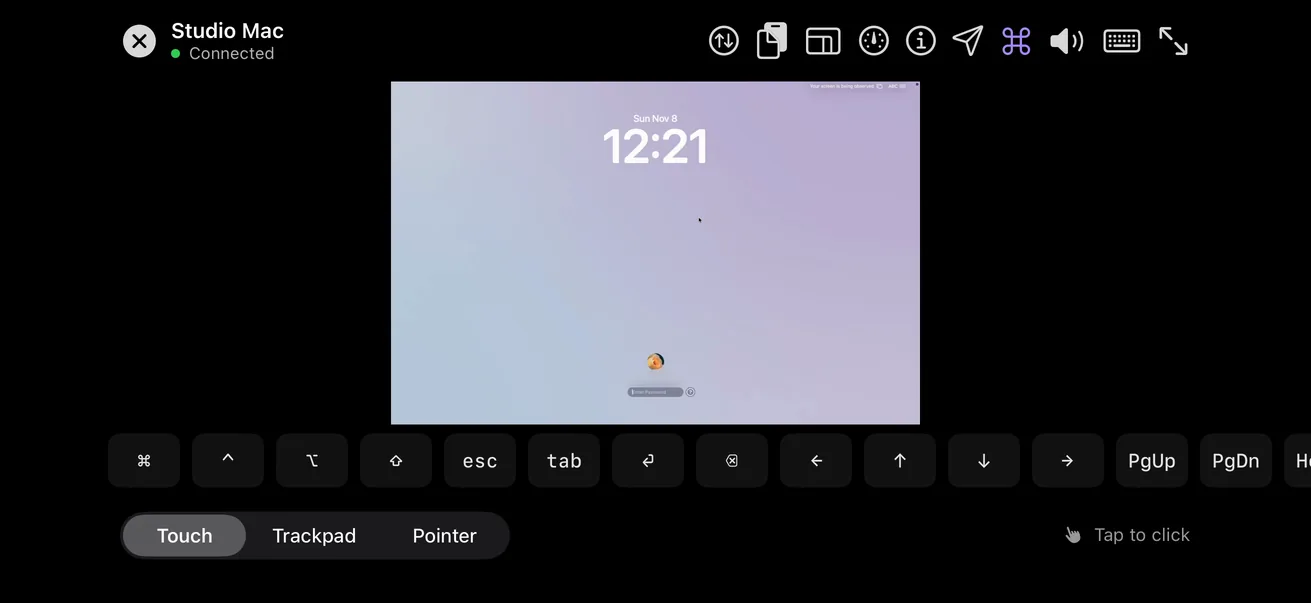
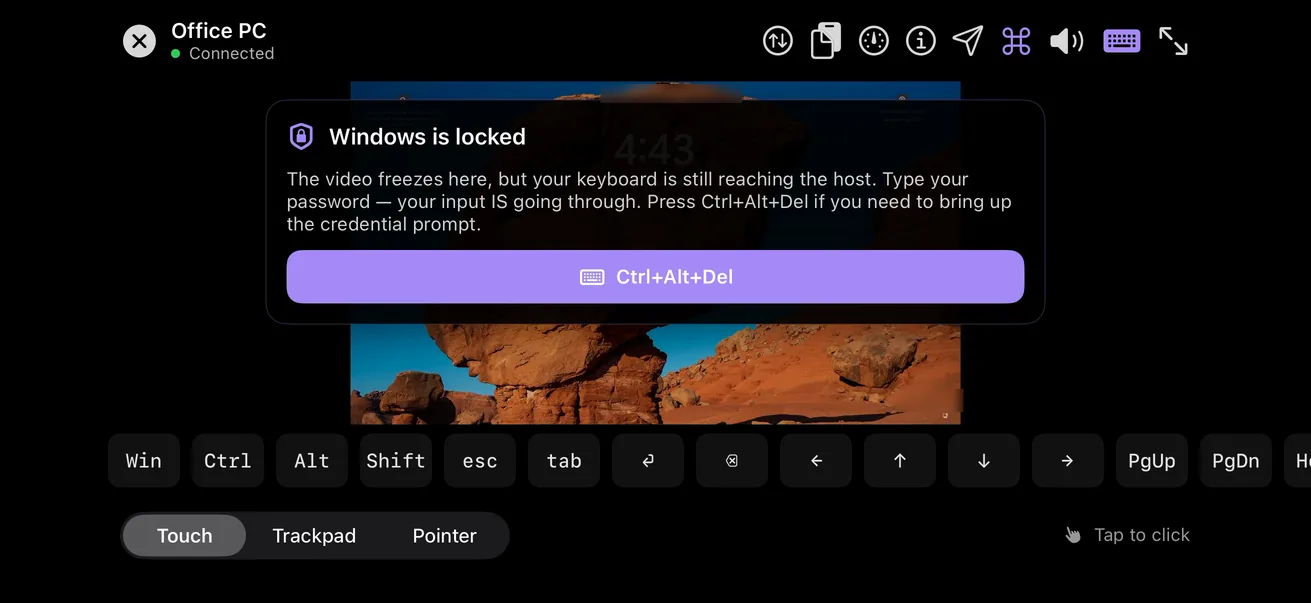
3:04 Unlock a locked computer If the Mac is locked, Scry shows you its login screen. Type the password, and it unlocks, just as if you were sitting in front of it. Windows works the same way. Tap the PC in your list. If it's locked, Scry shows a Control Alt Delete button. Tap it, type the password, and you're back on the desktop.
3:23 Recap That's the whole setup: the app on your computer and the viewer on your phone. It works the same way on a Mac, a Windows PC or Linux, and you can also connect from another desktop or a web browser. The link is in the description.
Set up Scry on your computer too.
- Updated
- Outside facts dated and linked at the bottom
What you need
Watch this part 0:00 Scry is both
An app on the computer you want to reach
A viewer on your phone
- Mac
- Windows PC
- Linux
- Mac
- Windows PC
- Linux
- iPhone
- iPad
- Android
Nothing to set up on your router
Set up Scry on a Mac
Watch this part 0:19Download Scry for Mac and sign in with your Bravely Account. Scry then asks for two permissions: Screen Recording, so it can share the screen, and Accessibility, so your phone can control it. Click Enable on each, and switch Scry on when your Mac asks.
- Download Scrybravely.dev/scry/download
- Drag it into Applications
- Open it and sign inApple, Google or email
- Allow two permissionsScreen Recording and Accessibility
- Turn on Launch Scry at loginSettings, Account
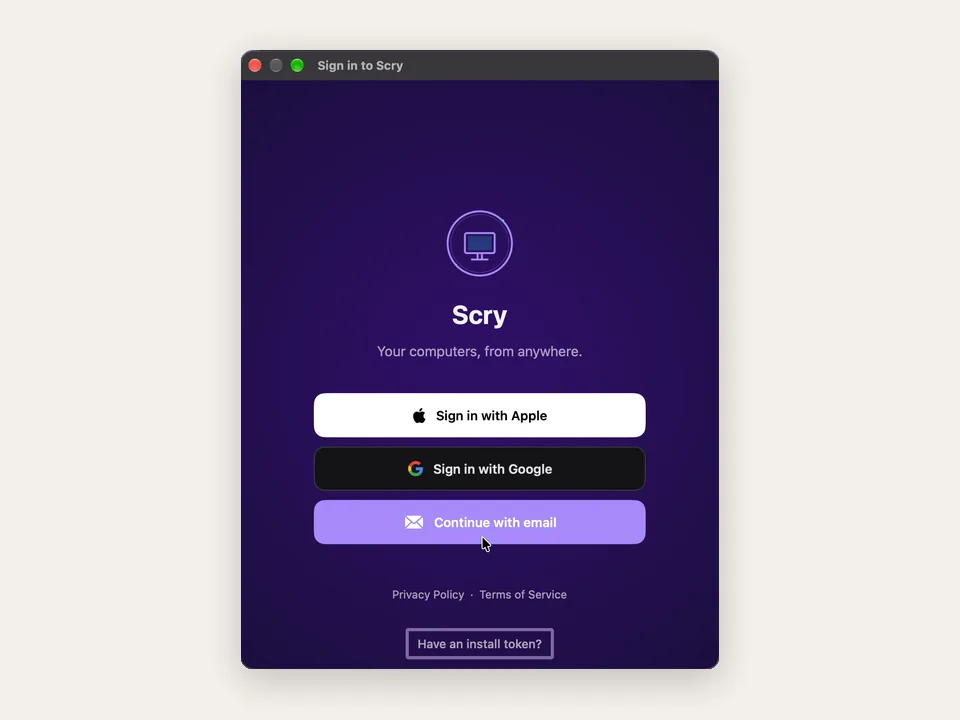
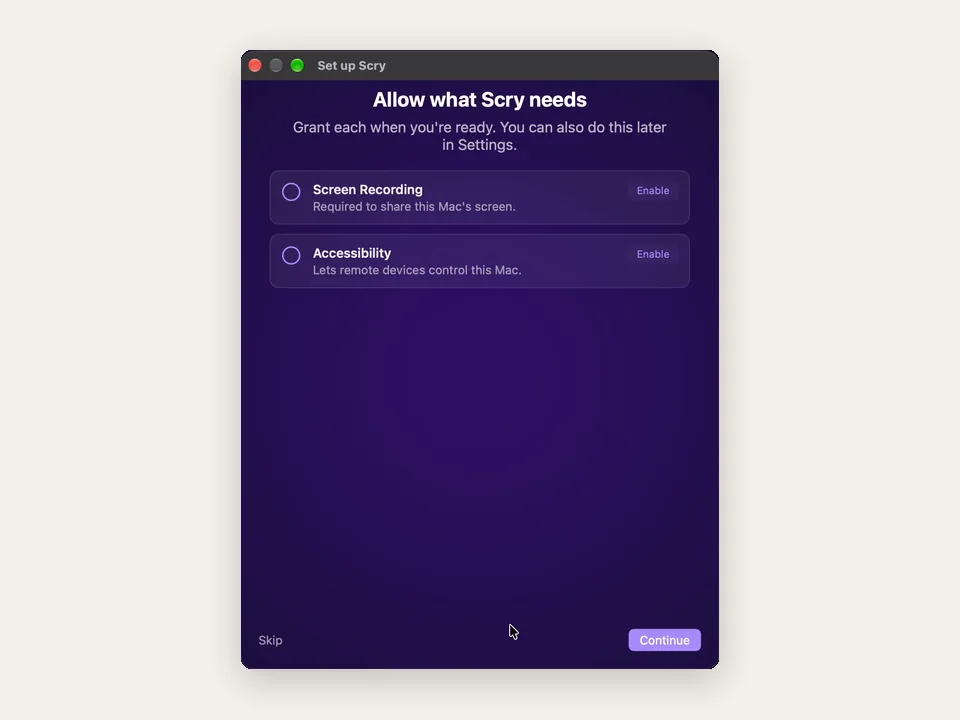
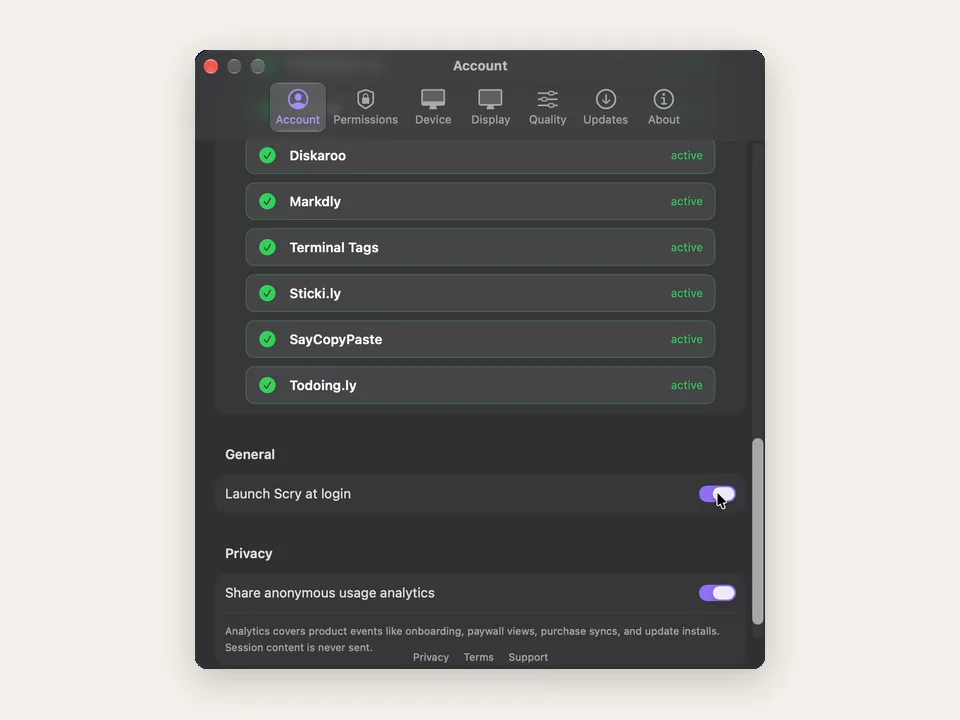
- Then, in Scry’s Settings, on the Account tab under General, turn on Launch Scry at login, so it starts whenever someone signs in to the Mac. Your Mac confirms with Login Item Added.
Set up Scry on Windows
Watch this part 0:56Download Scry for Windows and run the installer. When Windows asks whether it can make changes, choose Yes: that one prompt installs the background service that lets you reach the PC, even at its lock screen.
- Download the Windows versionScry-Setup.exe
- Run the installer
- Choose YesWhen Windows asks to let it make changes
- Sign inApple, Google or email
- Scry doesn’t use Windows’ own Remote Desktop, so it works the same on Windows 10 and 11, Home or Pro.
Set up Scry on Linux
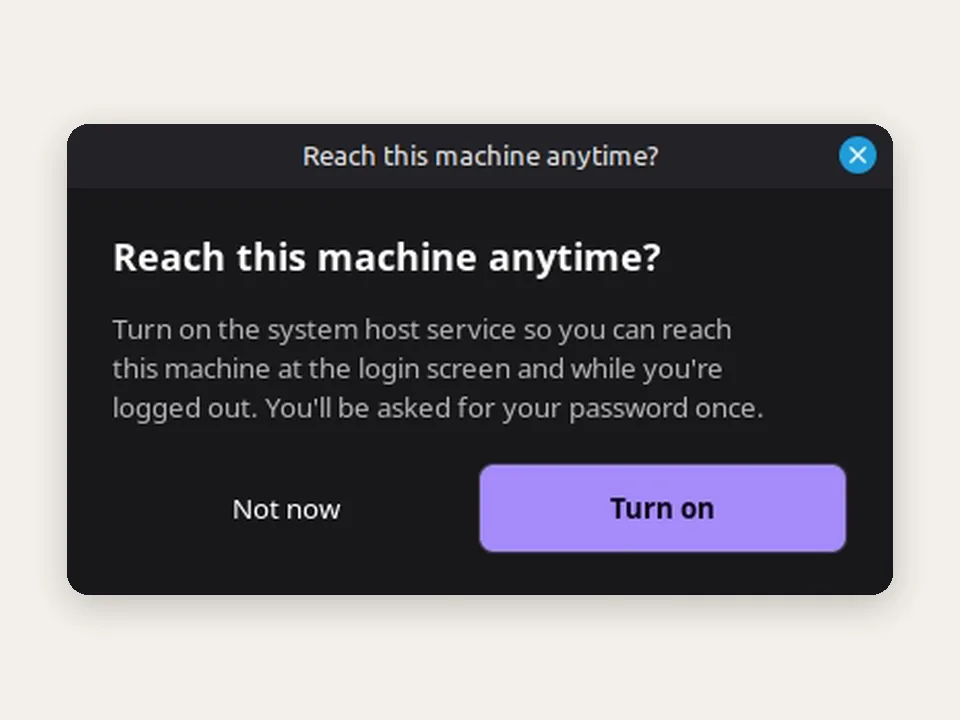
The video doesn’t show Linux, but it works the same way. Download Scry for Linux, a .deb or an AppImage for 64-bit PCs, and sign in. When Scry asks Reach this machine anytime?, choose Turn on and type your password once, so its background service keeps the computer reachable.
- Download Scry for Linux.deb or AppImage
- Install it
- Open it and sign in
- Turn on Reach this machine anytimeYour password, once
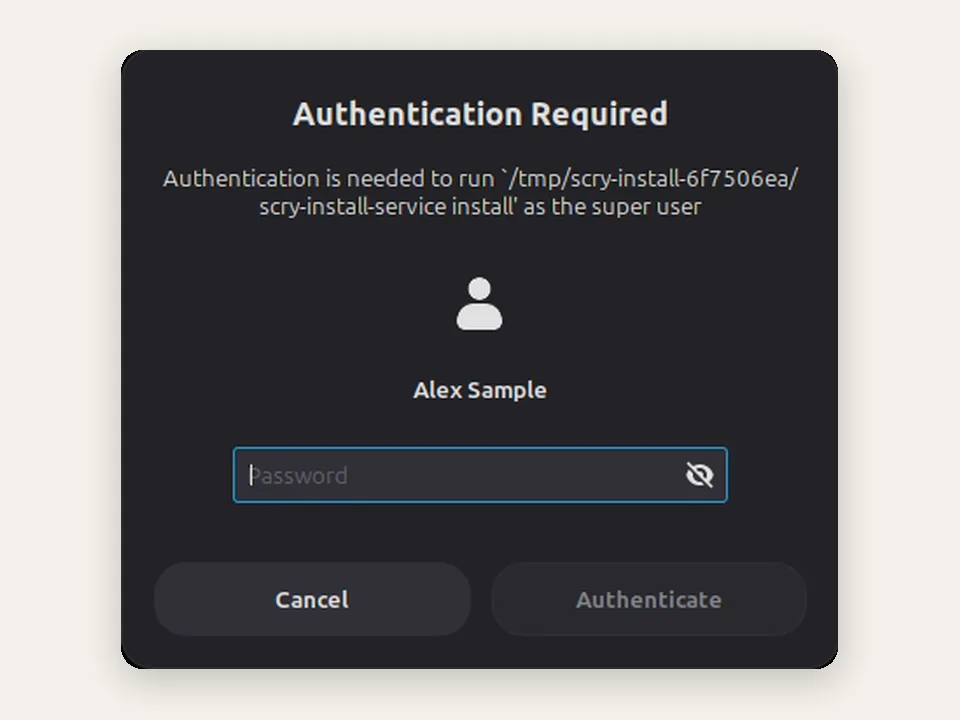
- It works on X11 and on Wayland. On Wayland the desktop asks once to allow screen sharing, and you see one display. More in remote desktop into Linux.
Connect from your iPhone or Android phone
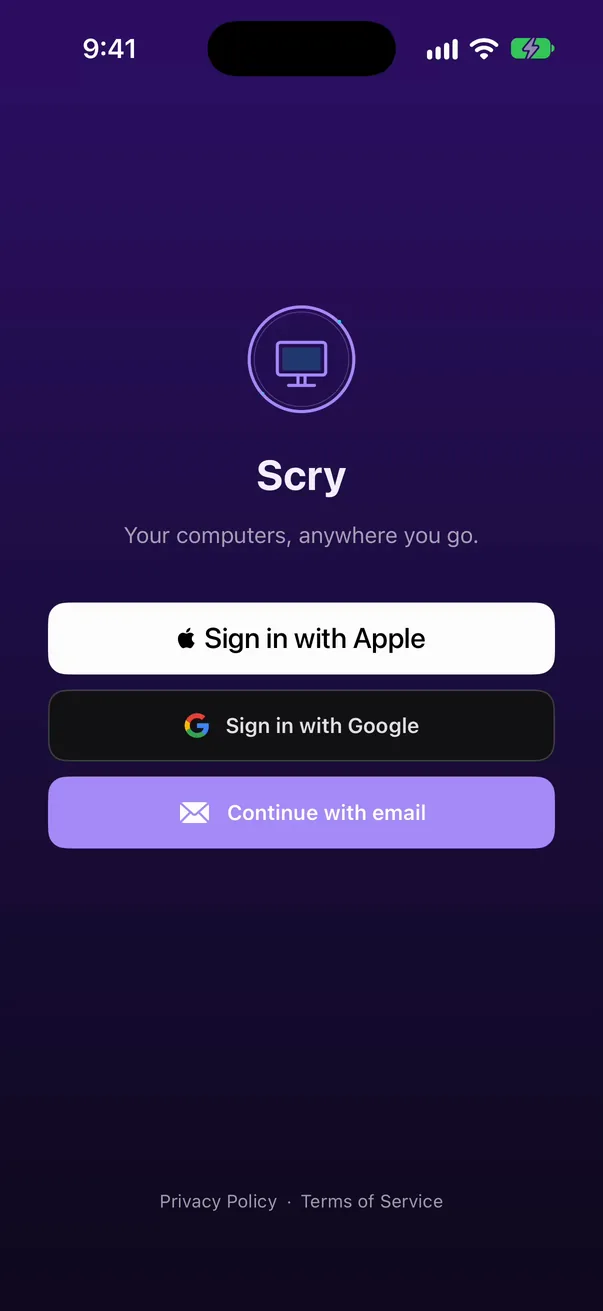
Watch this part 1:10Get Scry for iPhone and iPad or Android, and sign in with the same account you used on the computer, the same way. Every computer you’ve set up is in one list. Pick the one you want, and you’re in.
- Get ScryApp Store or Google Play
- Sign in with the same account
- Tap the computerA green dot means it’s online
Touch, zoom and keys
Watch this part 1:31- TouchClicks wherever your finger lands.
- TrackpadWorks like a laptop’s: slide to move, tap to click.
- PointerDrag the arrow anywhere, then tap to click.
⌘↓Jumps to the end
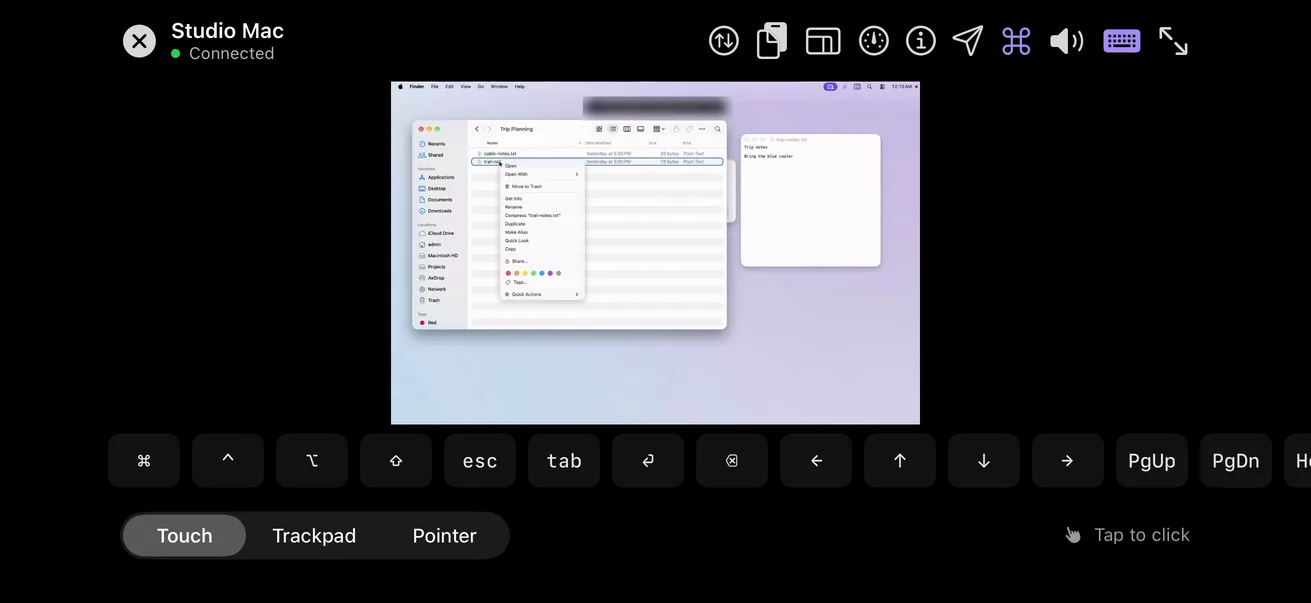
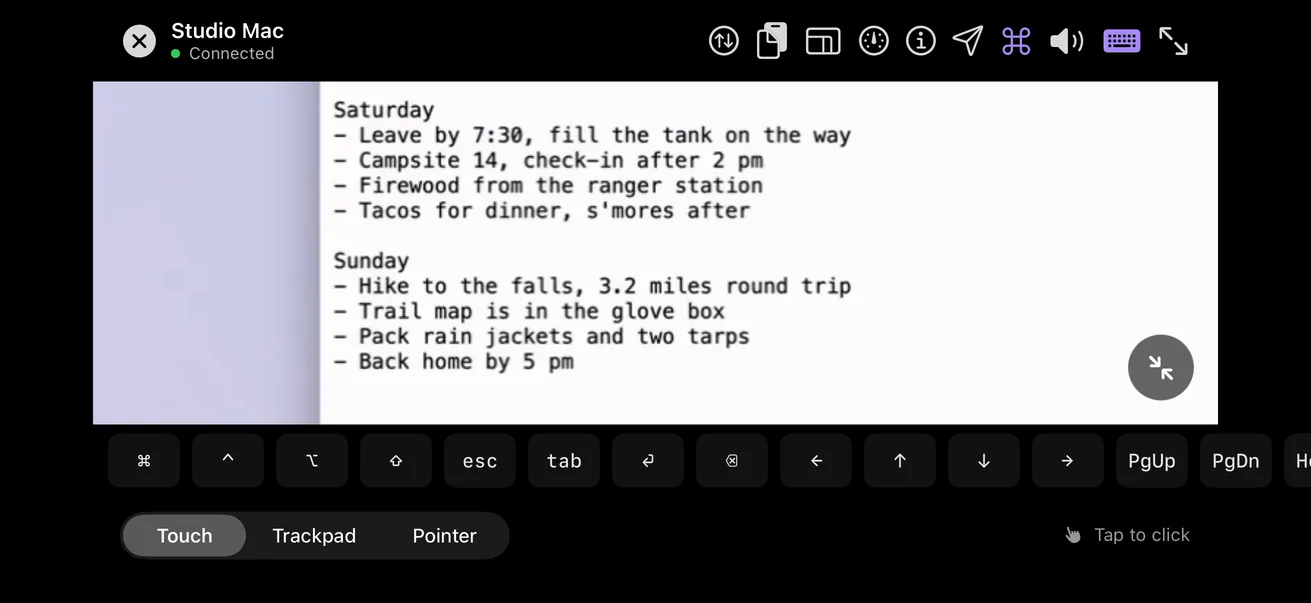
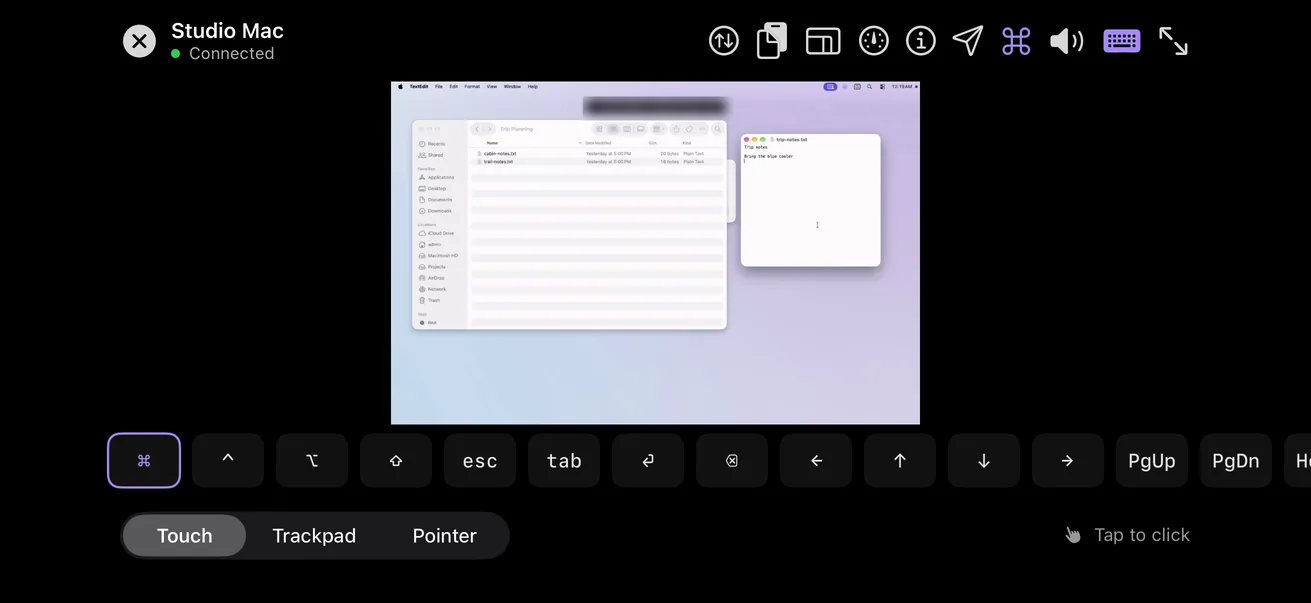
- Double-tap to double-click, and press and hold to right-click.
- Pinch to zoom in up to four times, and tap Fit to screen to see everything again.
- The key bar adds what a phone keyboard leaves out: Command, Control, Option and Shift (Win, Ctrl, Alt and Shift on a PC), Esc, Tab, the arrows, Page Up, Page Down, Home and End. Tap a modifier twice quickly to lock it down, and once more to let go.
- A hardware keyboard on an iPad or iPhone types straight into the computer, its shortcuts included.
Copy, paste and send a file
Watch this part 2:15Copy and paste have their own button. Copy Selection takes what’s selected on the computer, Copy Host Clipboard brings its clipboard over to you, and Paste from Phone sends text the other way. Only text can be pasted.
To send a document, tap the button with two arrows, then Choose File, and pick one, up to five at a time. The computer asks where to save it, and you can click Save right in the session. Files go one way: from your phone to the computer.
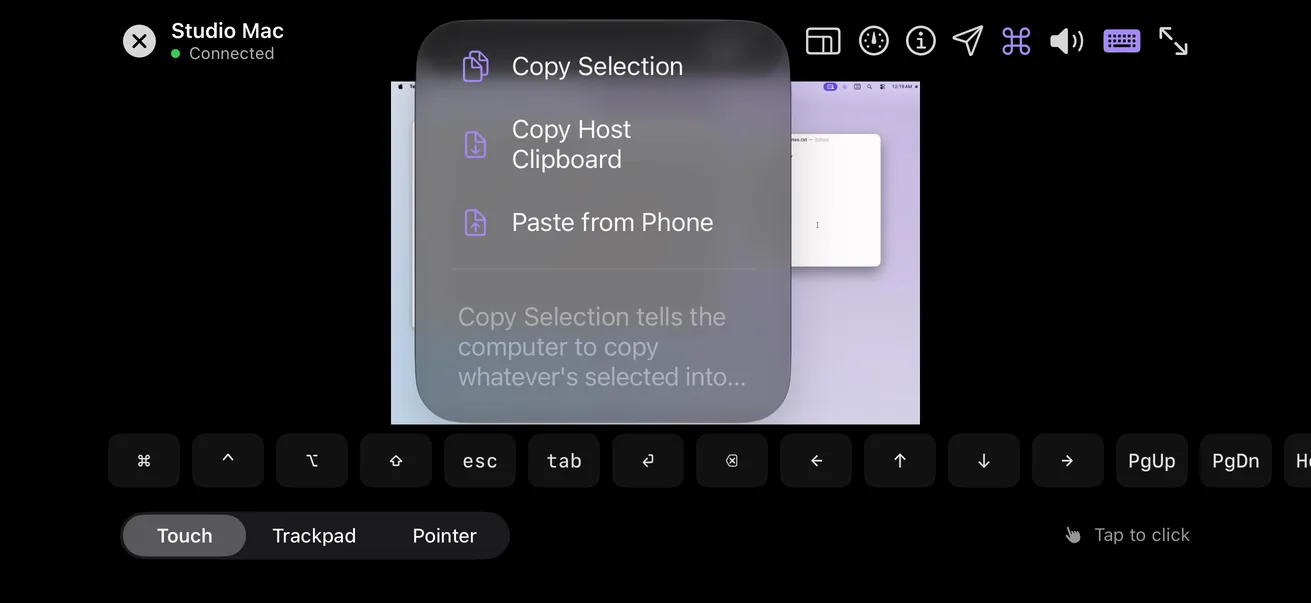
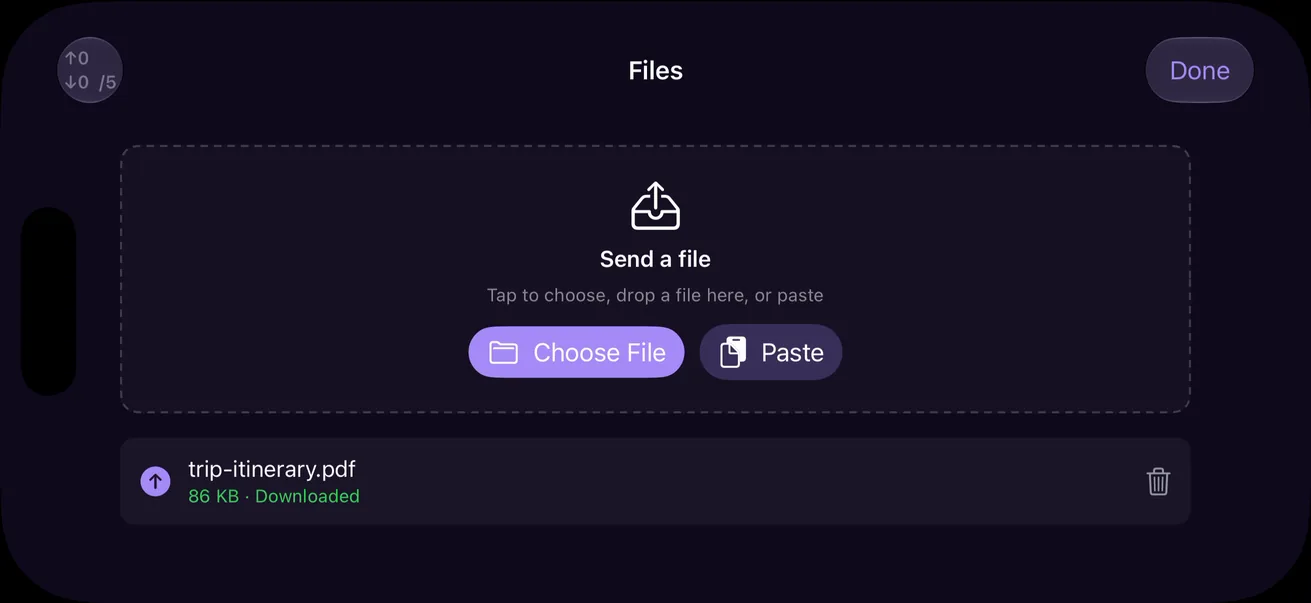
- On Android, the same three clipboard choices read Copy host selection, Copy from host and Paste from phone.
What to know
Watch this part 2:43- End-to-end encrypted between your devices
- Our servers never see your screen
- Direct whenever the network allows
- Or through our relay, still encrypted
- When a network won’t allow a direct connection, like some networks away from home, Scry goes through our relay. It works on Wi-Fi or mobile data, and if the network drops or switches, the app reconnects on its own for up to two minutes.
- Sound plays by default; tap the mute button if you don’t want it.
- While you’re connected, the computer shows a bar saying your account is controlling it, with an End button.
Unlock a locked computer
Watch this part 3:04If the Mac is locked, Scry shows you its lock screen: type the password, and it unlocks, just as if you were sitting in front of it. Windows works the same way. If the PC is locked, Scry shows a Ctrl+Alt+Del button. Tap it, type the password, and you’re back on the desktop.
Recap
Watch this part 3:23- An app on your computer, a viewer on your phone
- Mac, Windows PC or Linux
- Or from another computer, or a web browser
Other ways to do it
The built-in and free ones, each with its catch.
What Scry can’t do here
- It can’t wake a sleeping computer, and it has no setting to keep one awake, so set the computer not to sleep if you’ll need it. A locked computer is fine.
- When a Mac or Windows PC restarts, it can be reached again once someone signs in to it (on a Mac, with Launch Scry at login on).
- The Windows app is for x64 PCs; there’s no version for Windows on Arm.
- Your iPhone, iPad and Android phone connect to your computers; they can’t be reached themselves.
FAQs
Can I control my Mac from my iPhone?
Yes, with an app on both. Apple doesn’t document a built-in way: iPhone Mirroring does the reverse, letting a Mac control a nearby iPhone. Scry has a native iPhone app that reaches your Mac from anywhere.
Can I control a Windows PC from my iPhone or Android phone?
Yes. Install Scry on the PC, sign in with the same account on your phone, and tap the PC. Microsoft’s free Windows App also reaches a PC running Windows Pro, Enterprise or Education, but not Windows Home.
Which computers and phones does Scry work with?
Computers: a Mac with macOS 14 or later, a Windows 10 or 11 PC (x64), or a 64-bit Linux computer. You connect from the iPhone and iPad app (iOS 17 or later), the Android app (Android 8.0 or later), Scry on another computer, or a web browser.
Does it work on an iPad?
Yes. It’s the same app as on iPhone, with the same controls, and a hardware keyboard on the iPad types straight into the computer.
Does it work on an Android phone?
Yes. Scry for Android (8.0 or later) has the iPhone app’s controls: Touch, Trackpad and Pointer, pinch to zoom, the key bar, the clipboard button, the mute button, and Ctrl+Alt+Del for a locked Windows PC.
Does it work when I’m away from home, or on mobile data?
Yes. Scry connects over the internet from anywhere, on Wi-Fi or mobile data. When a network won’t allow a direct connection, it goes through our relay, still end-to-end encrypted.
Do I need port forwarding, a VPN or my IP address?
No. Sign in with the same account on both devices and pick the computer from your list: there’s no IP address to type and no router setting to change.
Does the computer have to stay on and awake?
Yes. Scry can’t wake a sleeping computer, so set it not to sleep if you’ll need it. A locked computer is fine. When a Mac or Windows PC restarts, it can be reached again once someone signs in to it.
Can I unlock my computer from my phone?
Yes. A locked Mac shows its lock screen in Scry, and unlocks when you type its password. A locked Windows PC shows a Ctrl+Alt+Del button first; tap it, then type the password. The screenshots are in Unlock a locked computer, above.
Is it secure? Can Bravely Studios see my screen?
Every session is end-to-end encrypted between your two devices, whether it goes directly or through our relay, so our servers never see your screen. Only your account can start a session with your computers.
Will the computer show that someone is connected?
Yes. While you’re connected, the computer shows a bar saying your account is controlling it, with an End button that ends the session.
Can someone else connect to my computer?
Not from their own list: only the account that owns a computer can start a session with it. To let someone in, you’d give them a one-time code from Scry, which expires after 15 minutes, and they need Scry and a plan of their own.
What does Scry cost?
On the web, Scry is $9.99/mo, and Bravely Premium is $95.99/yr or $399 once. One plan covers every device you sign in on, your iPhone and iPad included, wherever you bought it; the App Store shows its own prices, in your currency.
Can I control more than one computer?
Yes. Every computer you set up with your account shows in one list, and there’s no limit on how many you add.
Can I use a web browser instead of the app?
Yes. Sign in to Scry’s web app at scry.bravely.dev to reach your Mac, Windows PC or Linux computer from a browser. Scry on another Mac, Windows PC or Linux computer connects too.
Does it work with Windows Home?
Yes. Scry doesn’t use Windows’ own Remote Desktop, which Microsoft says Windows Home can’t host, so it works the same on Windows 10 and 11, Home or Pro.
Which Linux distributions does it support?
Scry for Linux comes as a .deb package or an AppImage, for 64-bit (x64) PCs, and we test it on Linux Mint. It works on X11 and Wayland; on Wayland you see one display.
Can I copy and paste between my phone and the computer?
Yes, text. The clipboard button has Copy Selection, Copy Host Clipboard and Paste from Phone. To move a document, send it as a file instead.
Can I send a file from the computer to my phone?
No. Files go one way, from your phone to the computer, up to five at a time, and the computer asks where to save each one.
Can I hear the computer’s sound?
Yes. Sound from a Mac, Windows PC or Linux computer plays on your phone by default, and there’s a mute button.
What if my computer has more than one display?
On an iPhone or iPad you see one display at a time: tap the display button for the next one, or press and hold it to pick from a list.
What happens if my connection drops?
The app reconnects on its own, for up to two minutes, including when your phone switches from Wi-Fi to mobile data.
How is Scry different from Chrome Remote Desktop?
Chrome Remote Desktop is free and reaches a Mac, Windows PC or Linux computer you’ve set it up on; on iPhone and iPad, its app isn’t in the App Store (checked 2026-11-10), so Google sends iPhone users to its web page. Scry is paid, signs in with Apple, Google or email, and has native iPhone, iPad and Android apps with the pointer modes, key bar and file sending shown above.
Can I control my iPhone from my computer?
Not with Scry: your phone connects to computers, and can’t be reached itself. For a Mac and an iPhone near it, signed in to the same Apple Account, Apple’s iPhone Mirroring does that.
Sources, with the date each was read
- Apple: Use iPhone Mirroring on your Mac (2026-11-10)
- Apple: Use an iPad as a second display for a Mac (Sidecar) (2026-11-10)
- Microsoft Learn: Enable Remote Desktop on your PC (2026-11-10)
- App Store: Windows App Mobile (2026-11-10)
- Google: Chrome Remote Desktop on iPhone and iPad (2026-11-10)
- Google: Set up remote access to your computer (2026-11-10)
Scry
Remote desktop, anywhere
$9.99/mo, or every premium Bravely utility for $95.99/yr or $399 once.
Updated . Facts about other companies’ products were read on their own pages on the dates shown and can change.