Remote desktop into Linux from a Mac, Windows or iPhone
The short answer
Free tools can do this. On a GNOME or KDE Plasma desktop, turn on the built-in Remote Desktop and connect from Windows's Remote Desktop Connection or another RDP app. On Linux Mint, install xrdp for a separate desktop session, or a VNC server such as x11vnc to share the screen you're using. To reach it from outside your home network without opening ports, add Tailscale to both machines. Scry is the paid option: one app on each end, nothing to set up on your router, and the Linux machine's own desktop from a Mac, a Windows PC, an iPhone or iPad, an Android phone or Scry's web app.
- Scry for Linux (0.15.2) is a .deb or an AppImage for 64-bit (x64) Linux. We test it on Linux Mint's Cinnamon desktop on X11.
- It shows the desktop that's on the Linux machine's own screen, not a separate session.
- Both ends need Scry, signed in to the same account.
- 24 hours free with no card, then a plan.
24 hours free with no card. 64-bit (x64) Linux, as a .deb or an AppImage.
- Updated
- Outside facts dated and linked at the bottom
Your options
The built-in and free ways first, each with its catch, then a paid one, then Scry. Each fact was read on the project's own page on the date shown.
How to reach a Linux desktop with Scry
The steps follow Scry for Linux 0.15.2, the current release. The screenshot shows our Linux Mint 22.3 test machine (Cinnamon, X11).
Install Scry on the Linux machine
Download Scry for Linux, open Scry.deb from your Downloads folder and choose Install. On other 64-bit (x64) Linux systems, use the AppImage from the same page.
Open Scry from your app menu and sign in with Apple, Google or email.
Let it check what it needs
If the Allow what Scry needs screen shows a command, paste it into a terminal, run it, then click Re-check. It installs what's missing, such as ffmpeg, which Scry uses to show your screen, and xclip, which carries copied text.
Turn on Reach this machine anytime
When Scry asks Reach this machine anytime?, choose Turn on and enter your password once. That installs Scry's background service, which is what lets your other devices connect. If you chose Not now, turn on System host service in Scry's Settings.
If Scry asks you to sign out of the computer once to finish, do that. At the end of setup, pick how to start: 24 hours free with no card, or a plan that starts with 7 days free.
Sign in on the device you'll connect from
On your Mac, Windows PC, iPhone or iPad, install Scry from the download page and sign in with the same account, the same way. The iPhone and iPad app needs iOS 17 or later. Or open Scry's web app in Chrome.
Pick the Linux machine and connect
Your Linux machine is in your device list. Pick it and connect: you see the desktop that's on its screen, and your mouse and keyboard work on it. From a Mac, ⌘ works as Ctrl on the Linux machine, so ⌘C and ⌘V copy and paste there.
On an iPhone or iPad, the clipboard menu's Paste from Phone puts your phone's copied text into the Linux machine.
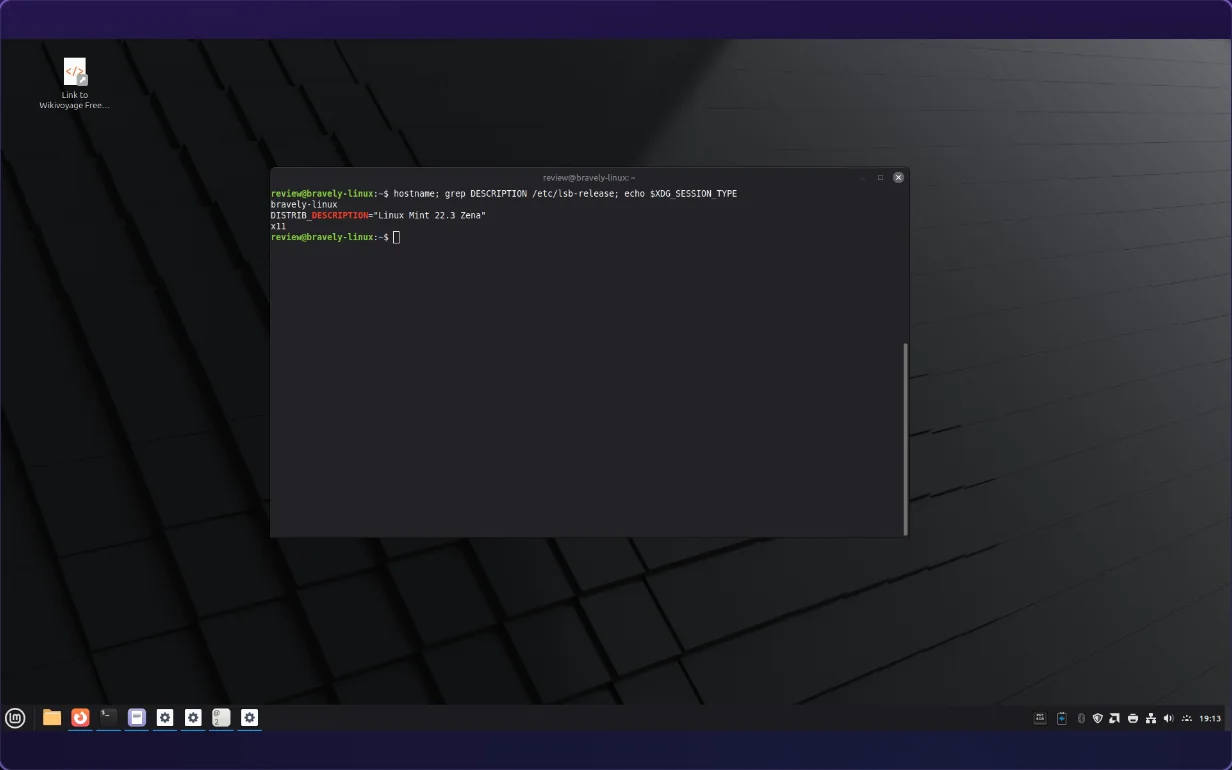
Scry's web app (0.4.12, in Chromium on a Mac) connected to our Linux Mint 22.3 test machine on X11. That machine runs an older Scry host, 0.3.1; the current Linux release is 0.15.2. Captured .
Which one should you use?
A Windows PC on the same network, and a separate session is fine: xrdp and Windows's own Remote Desktop Connection. Nothing to buy.
GNOME or KDE Plasma, and you want the screen you're using: turn on the built-in Remote Desktop and connect with an RDP app.
Linux Mint, and you want the screen you're using: a VNC server such as x11vnc, with a VNC viewer on the other side. Free, but you set up the security yourself.
From anywhere, without opening ports: add Tailscale's free Personal plan to any of those.
One app on your Mac, Windows PC, iPhone, iPad and Android phone, and nothing to host: Scry. It costs money, and it's tested on Linux Mint's Cinnamon desktop on X11.
Check that your Linux desktop runs on X11
Scry is tested on X11 desktops. To check yours, open a terminal and run echo $XDG_SESSION_TYPE: an X11 desktop prints x11. Linux Mint's Cinnamon desktop runs on X11 by default.
What Scry doesn't do on Linux
- It isn't free: both ends need Scry and an account with a plan or trial. After the 24-hour trial, it's $9.99/mo or the Bravely bundle.
- It's tested on Linux Mint's Cinnamon desktop on X11.
- A Linux machine that has restarted can be reached again once someone signs in to it.
- It needs a desktop session on the Linux machine; there's no headless server mode.
- Copying text between the machines needs xclip or xsel on the Linux machine, and carries text only.
- To send files to the Linux machine, the Scry app has to be open there (turn on Launch Scry at login in Settings), and someone there clicks Save.
- 64-bit (x64) Linux only: there's no Raspberry Pi or other ARM Linux app.
- On iPhone and iPad, the key bar sends one key at a time.
FAQs
How do I enable remote desktop on Linux Mint?
Linux Mint's Cinnamon desktop has no Remote Desktop switch in System Settings (we checked on Linux Mint 22.3). Install xrdp for a separate desktop session, or a VNC server such as x11vnc to share the screen you're using. With Scry, install it and turn on Reach this machine anytime.
Can I use Windows Remote Desktop to connect to Linux?
Yes, to an RDP server on the Linux machine. GNOME's and KDE Plasma's built-in Remote Desktop share the screen you're using; xrdp opens a separate desktop session. Windows's Remote Desktop Connection is built in, so there's nothing to install on the Windows side.
Does Chrome Remote Desktop show my current screen on Linux?
Not as Google sets it up: its Linux host starts a separate virtual desktop session. It is free and needs a Google account. Scry shows the desktop that's on the Linux machine's own screen.
How do I reach my Linux machine without port forwarding?
Put Tailscale on both machines (its Personal plan is free for up to 6 users, for non-commercial use), then connect with RDP or VNC to the Linux machine's Tailscale address. Scry needs no router or VPN setup either.
Is NoMachine still free?
No. Since version 10, NoMachine has no free edition. Its Personal Edition costs $24.50 a year, with a 14-day evaluation.
Sources, with the date each was read
- GNOME Help: Share your desktop (2026-09-27)
- KDE Plasma 6.1 announcement: remote desktop from System Settings (2026-09-27)
- xrdp on GitHub (2026-09-27)
- xrdp wiki: Tips and FAQ (2026-09-27)
- x11vnc on GitHub (2026-09-27)
- TigerVNC releases (2026-09-27)
- RustDesk wiki: public server (2026-09-27)
- Chrome Remote Desktop Help: access another computer (2026-09-27)
- Tailscale pricing (2026-09-27)
- NoMachine: version 10 and the Personal Edition (2026-09-27)
- NoMachine store: Personal Edition price (2026-09-27)
Scry
Remote desktop, anywhere
Free for 24 hours: every feature, no card.
Updated . Facts about other companies’ products were read on their own pages on the dates shown and can change.