Snipping Tool for Linux: screenshot, mark up and copy text
The short answer
Linux doesn't have Microsoft's Snipping Tool, but your desktop has its own screenshot tool, and it's free. On GNOME, Ubuntu's desktop, press Print: drag over an area, or pick a window or the whole screen, and the picture is saved and copied. On Linux Mint's Cinnamon desktop, Shift+Print grabs an area and Alt+Print a window. To add arrows or blur, Flameshot and Ksnip are free; to copy the text out of the screen, NormCap is free. PrintScreen.ly does capture, markup and text grab in one app on an X11 desktop, and keeps your screenshots in one private library with your Mac, PC and phone.
- Tested on Linux Mint 22.3 (Cinnamon, X11) with PrintScreen.ly 0.11.0, the current Linux release.
- Press Ctrl+Shift+2 anywhere, drag over text, and it's on your clipboard.
- There's no built-in screenshot key on Linux: you bind printscreenly --capture region to one in your keyboard settings.
24 hours free with no card. 64-bit (x64) Linux, as a .deb or an AppImage.
- Updated
- Outside facts dated and linked at the bottom
Your options
The tools your desktop already has come first, then the free apps, then PrintScreen.ly. Each fact was read on the project's own page on the date shown.
How to take a screenshot on Linux with PrintScreen.ly
Checked on Linux Mint 22.3 (Cinnamon, X11) with PrintScreen.ly 0.11.0.
Install PrintScreen.ly
Download the .deb and open it: your software installer adds PrintScreen.ly and the capture helpers it uses on an X11 desktop. On other 64-bit (x64) Linux systems, use the AppImage.
Open PrintScreen.ly, sign in with Apple, Google or email, and take the guided first screenshot. Then choose 24 hours free with no card, or a plan that starts with 7 days free.
Choose Capture Region
Right-click the PrintScreen.ly icon in the tray and choose Capture Region. The same menu has Capture Window, Capture Fullscreen, Capture Scrolling, a 3 or 5 second delay, Copy Text from Screen and screen recording.
Left-click the icon instead for a quick bar: 1 Region, 2 Scroll, 3 Window, 4 Everything, 5 Record Region, 6 Record Fullscreen.
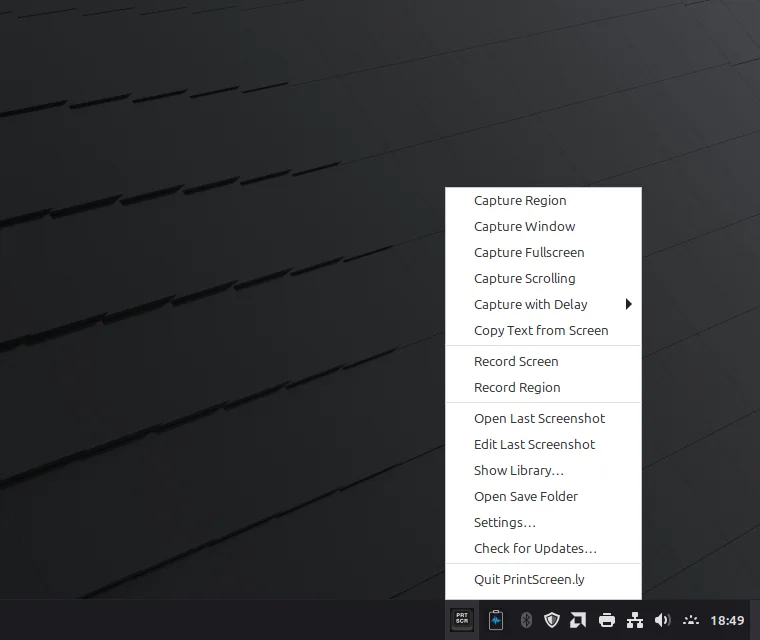
The tray menu. PrintScreen.ly 0.11.0 on Linux Mint 22.3 (Cinnamon, X11). Captured . Drag over the area
The screen freezes and dims. Drag over the area you want; the badge shows its size. Press Esc to cancel.
Every capture is saved to Pictures/PrintScreen.ly with the date and time in its name, and put on your clipboard.
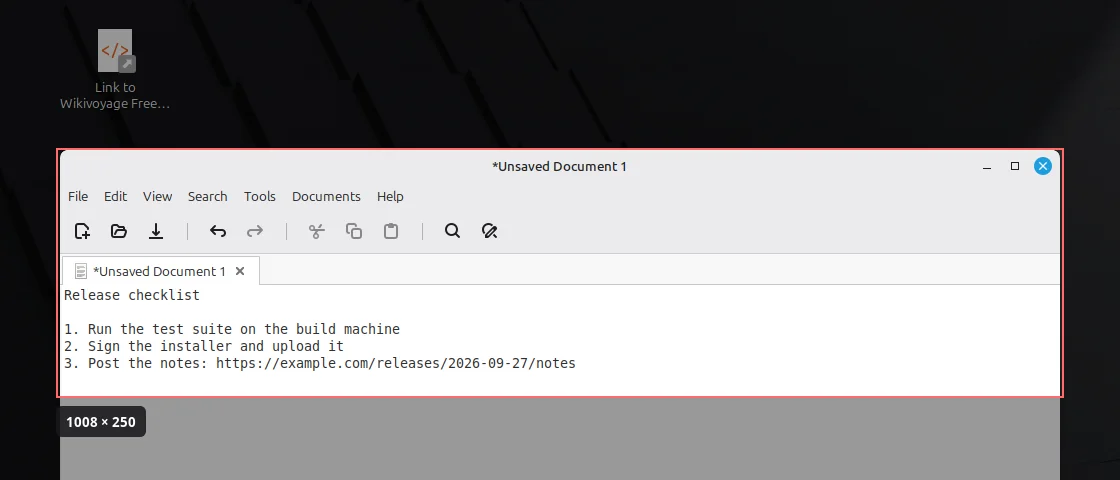
Selecting a region; the badge shows its size in pixels. PrintScreen.ly 0.11.0 on Linux Mint 22.3 (Cinnamon, X11). Captured . Mark it up
The editor opens with your capture: select, pen, highlighter, eraser, arrow, rectangle, ellipse, text, blur and crop, in eight colours or any colour you pick. Undo steps back.
Choose Copy to put the marked-up picture on the clipboard, or Save to keep the original and save the marked-up copy beside it.
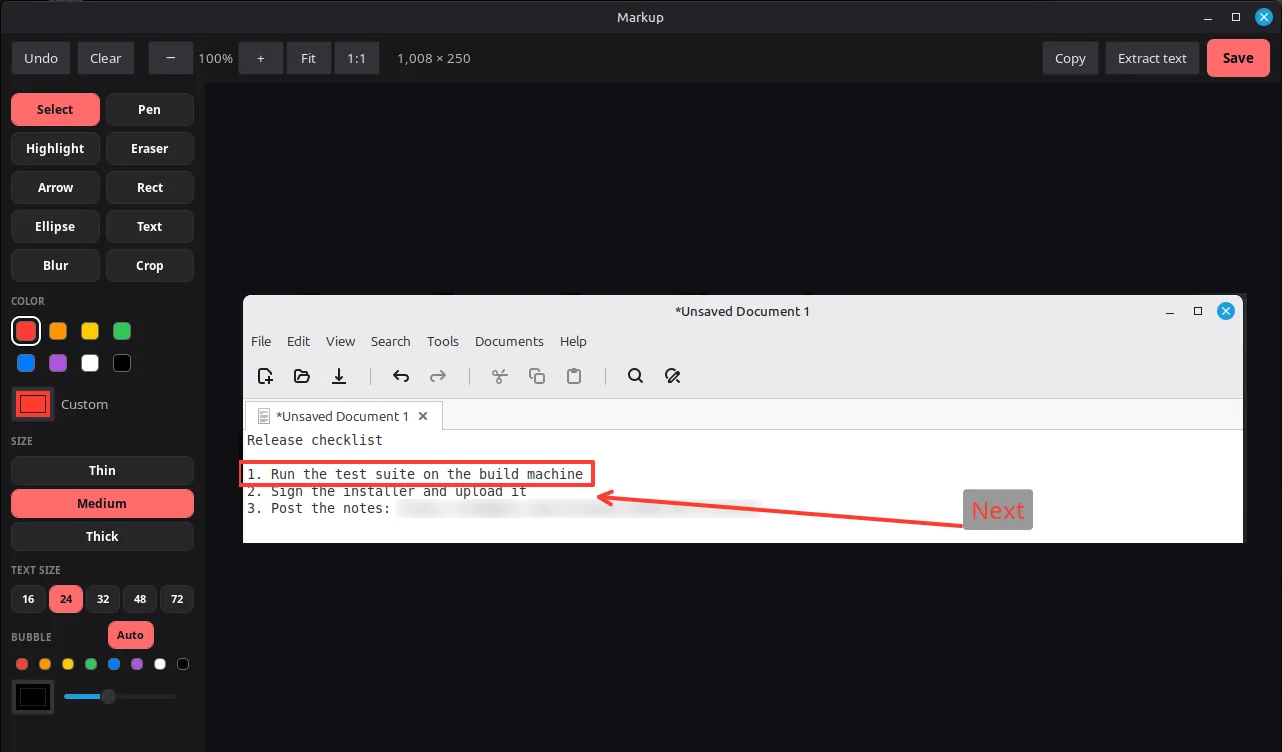
A box, an arrow, a text label and a blurred link in the Linux editor. PrintScreen.ly 0.11.0 on Linux Mint 22.3. Captured . Copy text off the screen
Press Ctrl+Shift+2 anywhere, drag over the text, and it's on your clipboard, ready to paste. Nothing is saved and the editor doesn't open. A link that wraps onto a second line comes out whole.
The text is read on your computer, and the Linux app reads English.
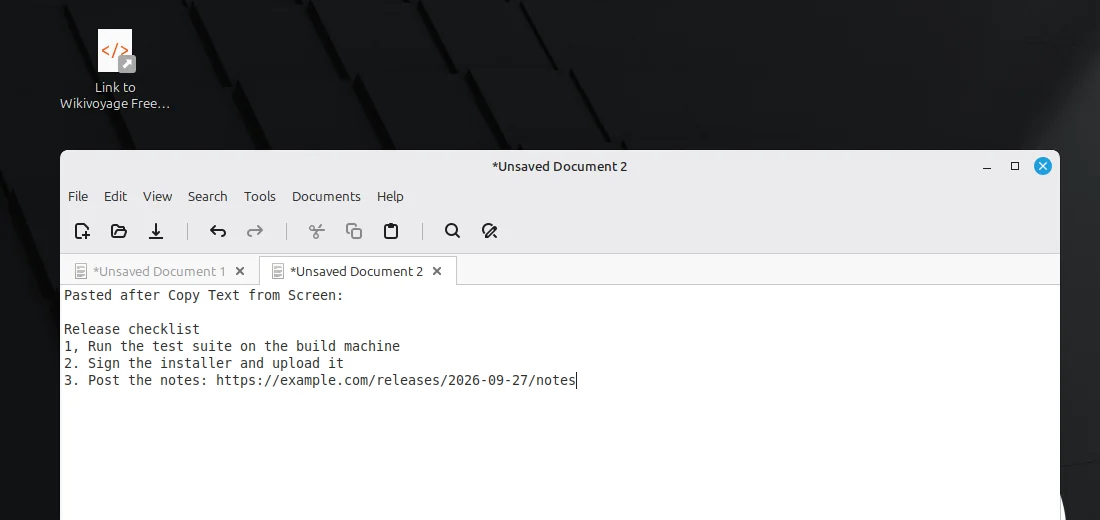
The checklist from the previous screenshot, grabbed with Ctrl+Shift+2 and pasted as text. It read the first “1.” as “1,”. PrintScreen.ly 0.11.0 on Linux Mint 22.3. Captured . Add a key for screenshots
PrintScreen.ly for Linux has no built-in screenshot key, so you add one. On Cinnamon: System Settings, Keyboard, Shortcuts, then Add custom shortcut. Give it a name and the command, then click the new binding and press your keys, such as Ctrl+Shift+1.
With the .deb, the command is printscreenly --capture region. With the AppImage, use its full path, such as ~/Applications/PrintScreenly.AppImage --capture region. PrintScreen.ly's Settings, Hotkeys, lists every command with a Copy button.
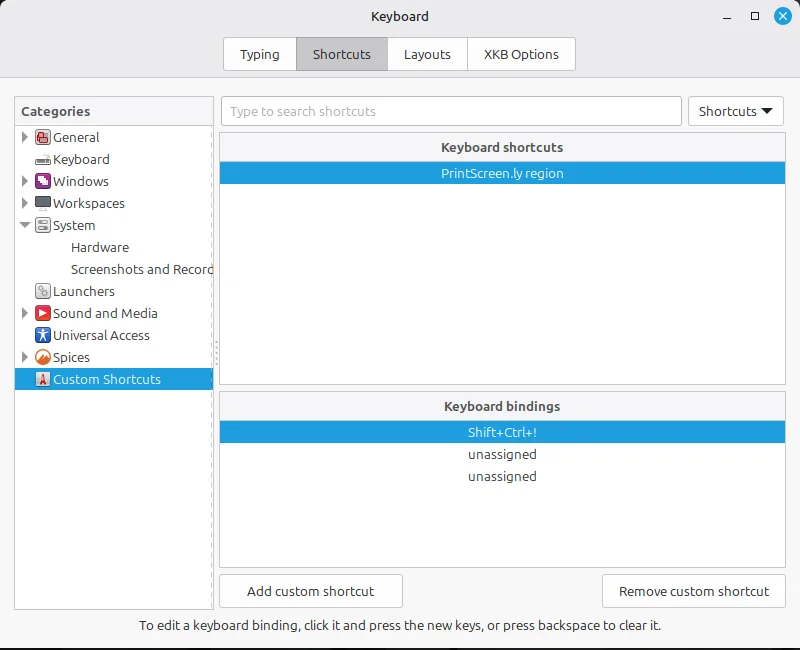
A custom shortcut for the region command. Cinnamon lists Ctrl+Shift+1 as Shift+Ctrl+!; pressing it started a capture. Linux Mint 22.3, PrintScreen.ly 0.11.0. Captured .
Which one should you use?
For a quick picture of an area, a window or the screen, use the tool your desktop already has: it's free and it's already there. Add Flameshot or Ksnip if you want arrows and blur, and NormCap if you mostly copy text.
PrintScreen.ly is worth paying for when you want capture, markup and text grab in one app, and your screenshots in one private library that you also reach from PrintScreen.ly on a Mac, a Windows PC, an iPhone, iPad or Android phone, and on the web.
On Ubuntu's default desktop
PrintScreen.ly's capture on Linux is tested on an X11 desktop. Ubuntu 26.04 LTS runs its GNOME desktop only on a newer display system, not X11, and we haven't tested PrintScreen.ly there. On Ubuntu's default desktop, GNOME's own Print key is the answer for now.
What PrintScreen.ly doesn't do on Linux
- There's no built-in screenshot key: you add one in your keyboard settings. Ctrl+Shift+2 for Copy Text from Screen is the exception.
- The Linux editor has Undo but no Redo, and no share links: those come from PrintScreen.ly's phone apps, the web library and Windows.
- Text grab reads English only, and doesn't read QR codes.
- Recording, picking a window from a list, and scrolling capture that scrolls for you need an X11 desktop.
- It runs on 64-bit (x64) Linux only.
- There's no free tier: after the 24-hour trial, it's $9.99/mo or the Bravely bundle.
FAQs
Is there a Snipping Tool for Linux?
Not Microsoft's, but every Linux desktop has its own screenshot tool: GNOME's Print key, the Screenshot app on Linux Mint's Cinnamon desktop, and KDE's Spectacle. PrintScreen.ly adds markup, text grab and a private library that you also reach from your other devices.
What's the Snipping Tool shortcut on Linux?
On GNOME, Print opens the screenshot tool, Alt+Print grabs the window in front and Shift+Print the whole screen. On Cinnamon, Shift+Print grabs an area, Alt+Print a window and Print the whole screen; add Ctrl to copy instead of saving. In PrintScreen.ly, Ctrl+Shift+2 copies text, and you bind printscreenly --capture region to a key for screenshots.
How do I copy text from a screenshot on Linux?
Free: NormCap, Frog or gImageReader, and Spectacle on KDE Plasma 6.6 or later. With PrintScreen.ly, press Ctrl+Shift+2, drag over the text and paste. It reads the text on your computer, in English.
Is there a Linux screenshot tool with an editor?
Yes: Flameshot, Ksnip and Shutter are free and mark up screenshots, and KDE's Spectacle annotates too. PrintScreen.ly's editor has a pen, highlighter, arrow, rectangle, ellipse, text, blur and crop, with Undo but no Redo.
Sources, with the date each was read
- GNOME Help: Screenshots and screencasts (2026-09-27)
- Cinnamon's default screenshot keys (cinnamon-desktop schema) (2026-09-27)
- KDE Plasma 6.6 announcement: text recognition in Spectacle (2026-09-27)
- Flameshot on GitHub (v14.0.0, 2026-06-19) (2026-09-27)
- Ksnip on GitHub (v1.10.1) (2026-09-27)
- Shutter (v0.99.7, 2026-05-09) (2026-09-27)
- NormCap on GitHub (v0.6.0, 2025-08-31) (2026-09-27)
- Frog on GitHub (1.6.0) (2026-09-27)
- gImageReader on GitHub (v3.4.3) (2026-09-27)
- Ubuntu 26.04 LTS release notes: summary for LTS users (2026-09-27)
PrintScreen.ly
Screenshots & recordings
Free for 24 hours: every feature, no card.
Updated . Facts about other companies’ products were read on their own pages on the dates shown and can change.