Download PrintScreen.ly

Mac · PrintScreenly.dmg · 12 MB · macOS 14 or later, on a Mac with Apple silicon

Windows · PrintScreenly-Setup.exe · 80 MB · Windows 10 (version 1809) or 11, 64-bit (x64)

Linux · PrintScreenly.deb · 82 MB · 64-bit (x64) Linux. Screen recording needs an X11 desktop.

iPhone & iPad · iOS 17 or later, on iPhone and iPad

Android · Android 8.0 or later

Download for Linux (.deb)

Can’t install the .deb? Download the AppImage · 82 MB

Install PrintScreen.ly

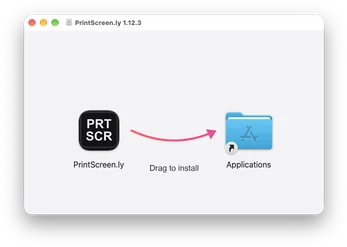
The PrintScreen.ly disk image window: drag the PrintScreen.ly icon along the arrow onto the Applications folder to install.
  1. Open

    Open PrintScreenly.dmg from your Downloads folder.

  2. Drag

    Drag PrintScreen.ly into your Applications folder.

  3. Launch

    Open PrintScreen.ly from Applications. macOS checks the signature once, then it opens in your menu bar.

  4. Allow

    Sign in, then allow Screen Recording in System Settings so PrintScreen.ly can capture.

  1. Open

    Open PrintScreenly-Setup.exe from your Downloads folder.

  2. Allow

    If Windows shows a warning, choose More info, then Run anyway. The installer is signed by Bravely Studios LLC.

  3. Launch

    PrintScreen.ly installs and opens on its own. Sign in with your Bravely Account.

  4. Capture

    Take your first screenshot: press Ctrl+Shift+1 and choose Region.

  1. Open

    Open PrintScreenly.deb from your Downloads folder and choose Install. It brings the capture tools PrintScreen.ly uses.

  2. Launch

    PrintScreen.ly shows up in your app menu and keeps itself up to date. Open it and sign in.

  3. Check

    It shows what this machine can capture and gives you an install command for anything missing.

  4. Shortcut

    Bind printscreenly --capture region to a key in your desktop’s keyboard settings.

  1. Open

    Find PrintScreenly.AppImage in your Downloads folder.

  2. Allow

    Right-click it, open Properties, and allow it to run as a program.

  3. Launch

    Double-click it and sign in. It checks for the capture tools it needs and gives you an install command for anything missing.

  4. Shortcut

    Bind printscreenly --capture region to a key in your desktop’s keyboard settings.

Go to PrintScreen.ly

Can’t install PrintScreen.ly?

  • The download did not start

    Download PrintScreenly.dmg again (12 MB).

  • PrintScreen.ly does not open

    Drag PrintScreen.ly into your Applications folder and open it from there. macOS checks the signature once, then it opens.

  • PrintScreen.ly can’t capture

    Open System Settings, then Privacy & Security, then Screen Recording, and allow PrintScreen.ly. Then reopen it.

  • Scrolling capture doesn’t scroll by itself

    Allow PrintScreen.ly under Accessibility in Privacy & Security. Without it, you scroll and PrintScreen.ly stitches.

  • My screenshots don’t show up

    Sign in the same way on every device (Apple, Google or email). Different sign-in methods can make two separate accounts.

  • Still stuck?

    Contact us and tell us what you see.

  • The download did not start

    Download PrintScreenly-Setup.exe again (80 MB).

  • Windows shows a warning

    Choose More info, then Run anyway. The installer is signed by Bravely Studios LLC.

  • The shortcut does nothing

    Check that PrintScreen.ly is running in the tray. If another app already uses Ctrl+Shift+1, pick a different shortcut in Settings.

  • My screenshots don’t show up

    Sign in the same way on every device (Apple, Google or email). Different sign-in methods can make two separate accounts.

  • Still stuck?

    Contact us and tell us what you see.

  • The download did not start

    Download PrintScreenly.deb again (82 MB).

  • Can’t install the .deb?

    Use the AppImage instead, for other 64-bit (x64) distros. Download the AppImage (82 MB).

  • No keyboard shortcut?

    Bind printscreenly --capture region to a key in your desktop’s keyboard settings.

  • Recording isn’t available

    Screen recording needs an X11 desktop. Pick an X11 (Xorg) session at your login screen.

  • My screenshots don’t show up

    Sign in the same way on every device (Apple, Google or email). Different sign-in methods can make two separate accounts.

  • Still stuck?

    Contact us and tell us what you see.

  • On an older iPhone or iPad?

    PrintScreen.ly needs iOS 17 or later. You can also open your library in a browser at printscreenly.bravely.dev.

  • My screenshots don’t show up

    Sign in the same way on every device (Apple, Google or email). Different sign-in methods can make two separate accounts.

  • Still stuck?

    Contact us and tell us what you see.

  • On an older Android phone?

    PrintScreen.ly needs Android 8.0 or later. You can also open your library in a browser at printscreenly.bravely.dev.

  • My screenshots don’t show up

    Sign in the same way on every device (Apple, Google or email). Different sign-in methods can make two separate accounts.

  • Still stuck?

    Contact us and tell us what you see.

Need PrintScreen.ly somewhere else?

Your first few minutes

Take a screenshot

  1. Press ⌘⇧1 on a Mac or Ctrl+Shift+1 on Windows. On Linux, use the tray menu or the shortcut you set up.
  2. Pick Region, Window, Full screen or Scroll, then drag over what you want.
  3. It saves to your folder, lands on your clipboard and opens in the editor.

Record your screen

  1. Press ⌘⇧R on a Mac or Ctrl+Shift+R on Windows, or choose a recording from the menu, and pick the area.
  2. System sound and your microphone are on by default. Pause from the control bar any time.
  3. Press the shortcut again to stop. The MP4 saves to your Movies or Videos folder.

Grab the text

  1. Press ⌘⇧2 on a Mac or Ctrl+Shift+2 on Windows or Linux and drag over any text on your screen, no screenshot needed.
  2. Or open a screenshot in the editor and choose Extract text.
  3. The text is on your clipboard. Paste it anywhere.

What happens next

PrintScreen.ly lives in your menu bar. Sign in with your Bravely Account, then allow Screen Recording in System Settings so it can capture (if it asks, reopen PrintScreen.ly to finish). Take your first screenshot with the guided step, then try every feature free for 24 hours with no card, or start a plan with 7 days free. After that, press ⌘⇧1 from any app.

PrintScreen.ly lives in the tray and starts with Windows. Sign in with your Bravely Account and take your first screenshot with the guided step, then try every feature free for 24 hours with no card, or start a plan with 7 days free. After that, press Ctrl+Shift+1 from any app.

Sign in with your Bravely Account. PrintScreen.ly checks which capture tools this machine has and gives you a one-line install command for anything missing. Take your first screenshot, then try every feature free for 24 hours with no card, or start a plan with 7 days free. To capture from the keyboard, bind printscreenly --capture region to a key in your desktop’s keyboard settings.

Sign in with the same account you use on your computers: their screenshots show up in your library. The app offers to email you the link for your computer. Then try every feature free for 24 hours with no card, or start a plan.
Sign in with the same account you use on your computers: their screenshots show up in your library. The app offers to email you the link for your computer. Then try every feature free for 24 hours with no card, or start a plan.