How to control your Windows PC from your phone
The short answer
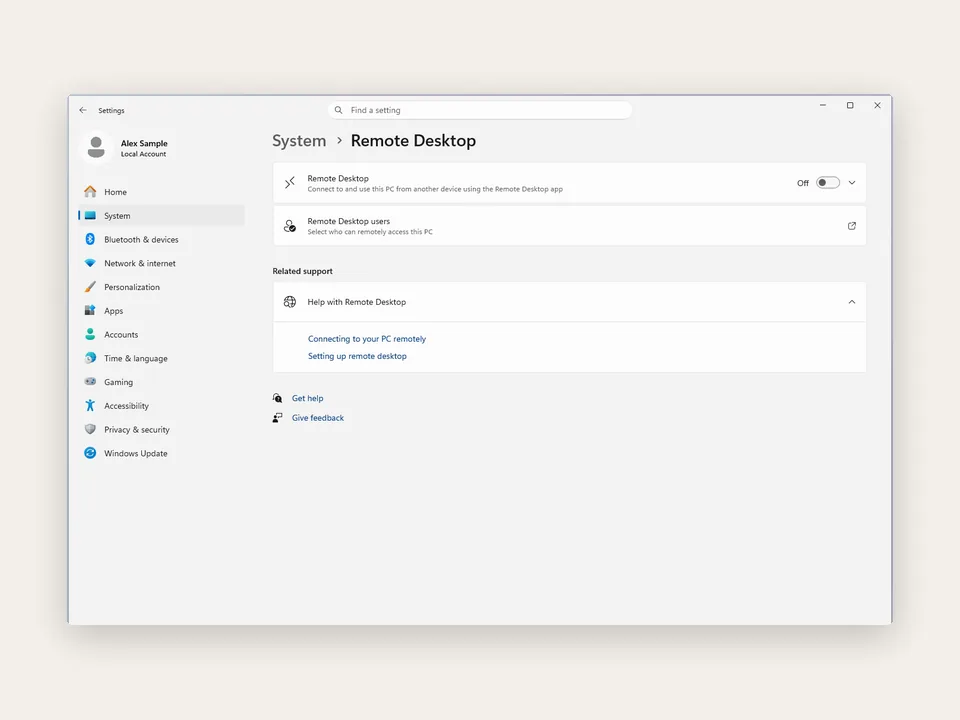
Windows' own Remote Desktop can only be reached on a PC running Pro, Enterprise or Education, and Microsoft says that reaching it from outside your network takes port forwarding or a VPN. Scry needs neither: install it on the PC, Home or Pro, choose Yes at Windows' admin prompt, then sign in with the same account in Scry on your phone and tap the PC.
- Built for 64-bit (x64) PCs running Windows 10 or 11.
- A locked PC is still within reach: the phone shows a Ctrl+Alt+Del button, and you type the password from there.
Then get Scry on your phone.
- Updated
- Outside facts dated and linked at the bottom
Install Scry on the PC
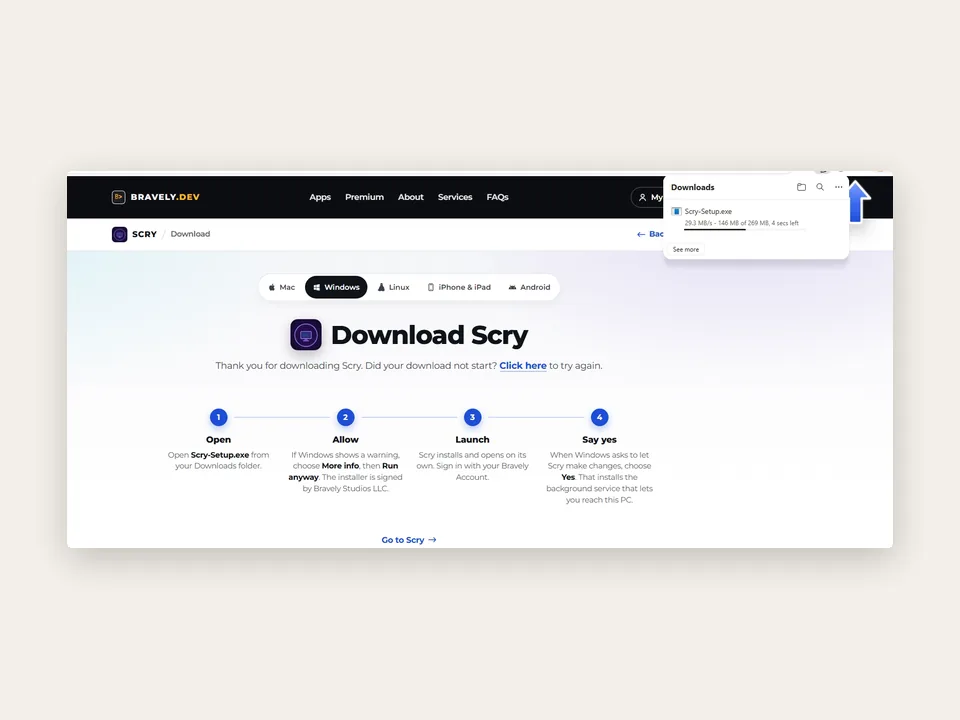
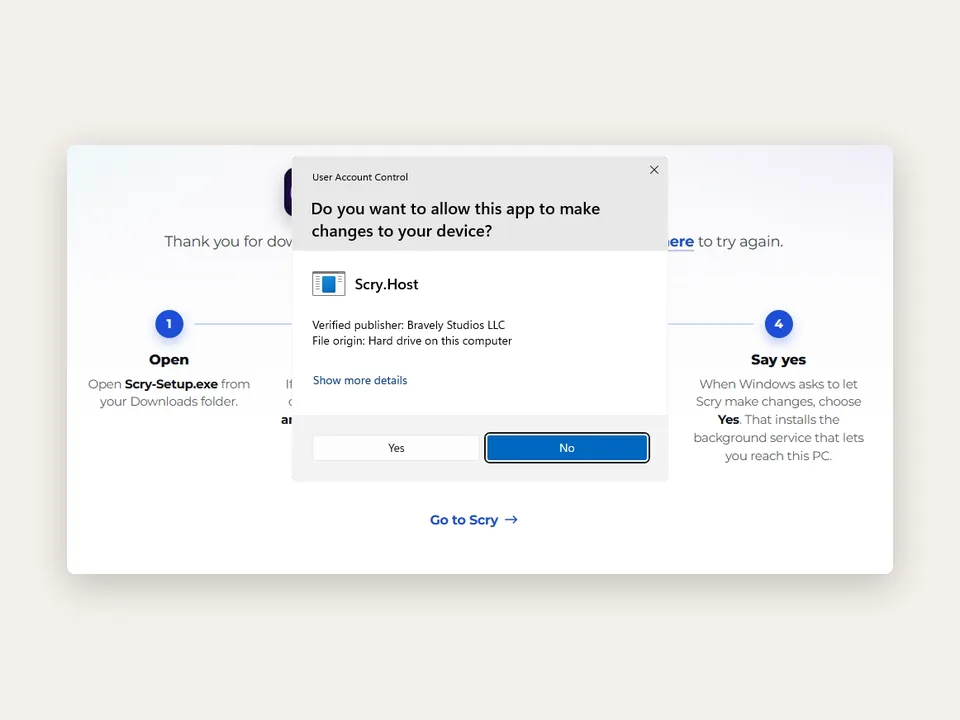
Watch this part 0:56The installer is on Scry's download page. Run it, and when Scry opens for the first time, Windows shows its admin prompt for Scry.Host, from the verified publisher Bravely Studios LLC. Scry.Host is the background service your phone talks to, and choosing Yes installs it, so the PC stays within reach even while it's locked.
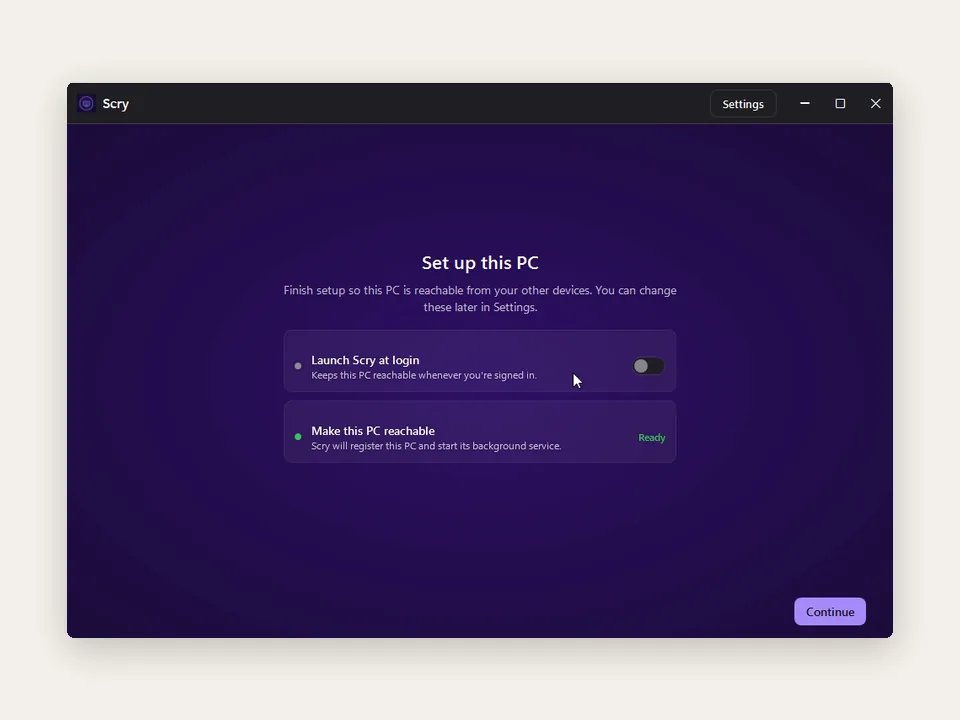
After you sign in, Set up this PC shows two items. Make this PC reachable reads Ready once Scry's background service is running, and offers Enable if it isn't. Launch Scry at login stays off until you switch it on; then Scry opens whenever you sign in to Windows.
- Get Scry-Setup.exebravely.dev/scry/download
- Open the installerFrom your Downloads folder
- Choose YesScry.Host, from Bravely Studios LLC
- Sign inApple, Google or email
- Make this PC reachableOn Set up this PC
Windows Home or Pro: either one works
Microsoft documents its Remote Desktop host for Windows Pro, Enterprise and Education, and says Home editions can't be reached that way. Scry carries its own connection instead of using Remote Desktop, and it doesn't check the edition, so a PC running Windows 10 Home or Windows 11 Home is reached the same way as a Pro one, with Remote Desktop left off.
Keep the PC within reach
- Make this PC reachableScry's background service
- Launch Scry at loginOn Set up this PC, or in Scry's Settings
- Sleep: Never when plugged inWindows Settings, Power & battery
- Scry can't wake a PC that's asleep, so in Windows Settings go to System, Power & battery, Screen, sleep, & hibernate timeouts and set Make my device sleep after to Never for when it's plugged in. On Windows 10 the same choice is under System, Power & sleep.
- Locked is fine: the service answers at the lock screen. A restart is different: the PC comes back within reach only once someone signs in to Windows again.
Pick the PC from your phone
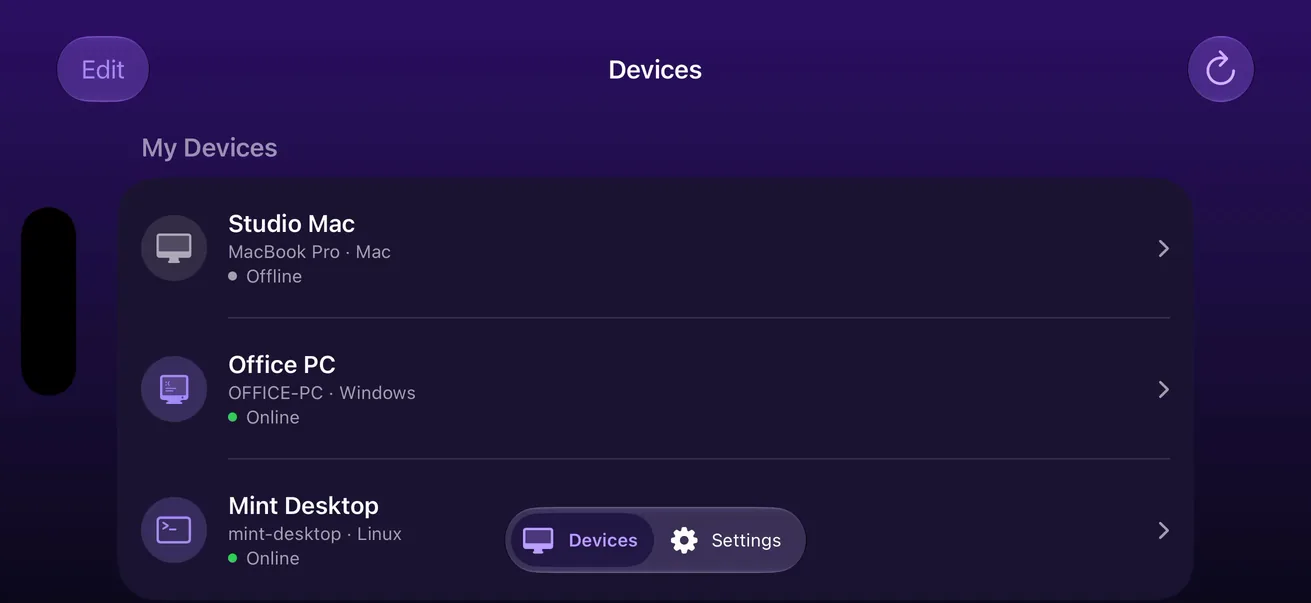
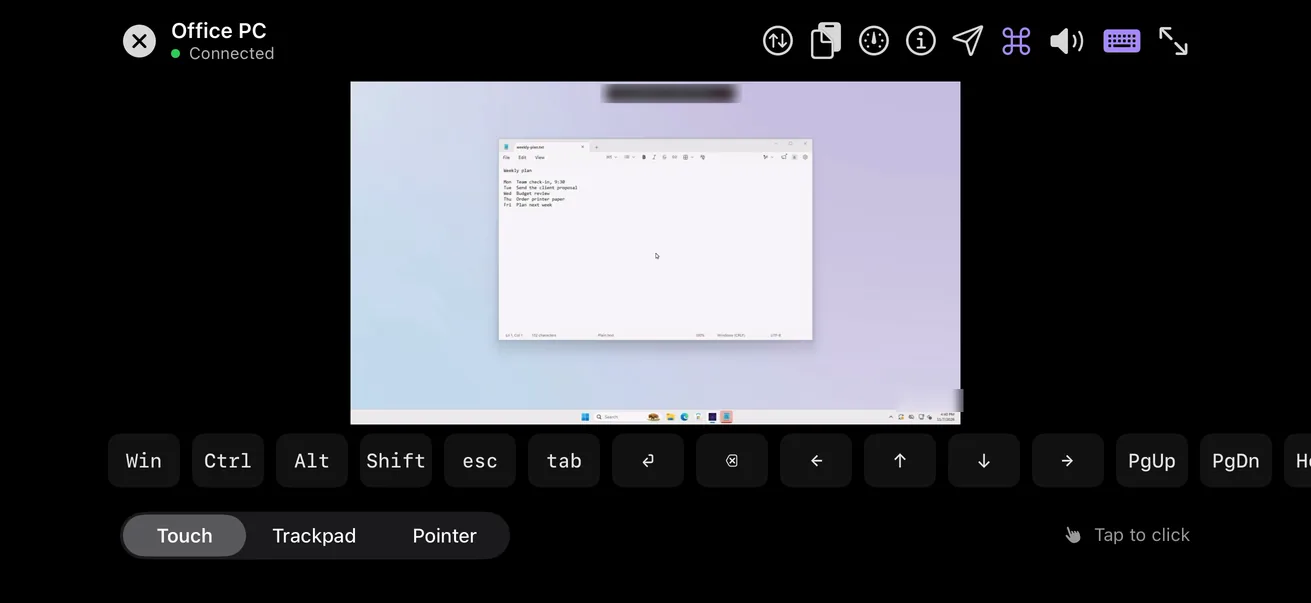
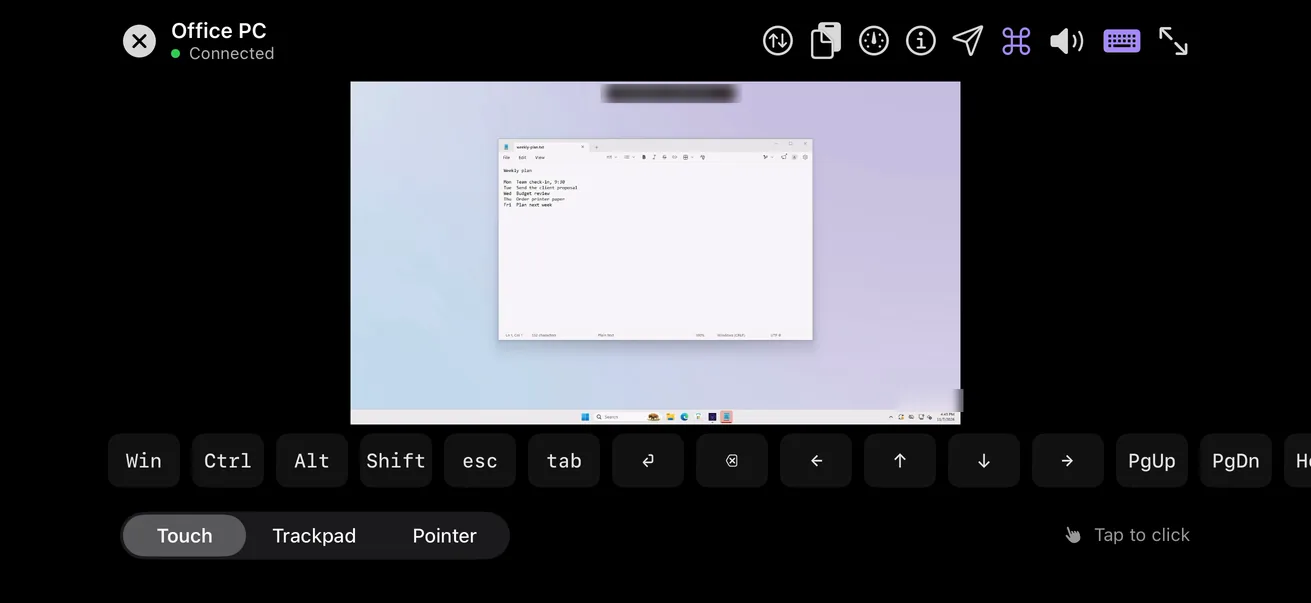
Watch this part 1:10On an iPhone, iPad or Android phone, sign in to Scry with the account you used on the PC. The PC appears under My Devices with its Windows computer name beneath and a green dot beside Online; one tap and its desktop fills the phone.
Windows keys, clicks and right-clicks
Watch this part 1:31CtrlCCopies the selection
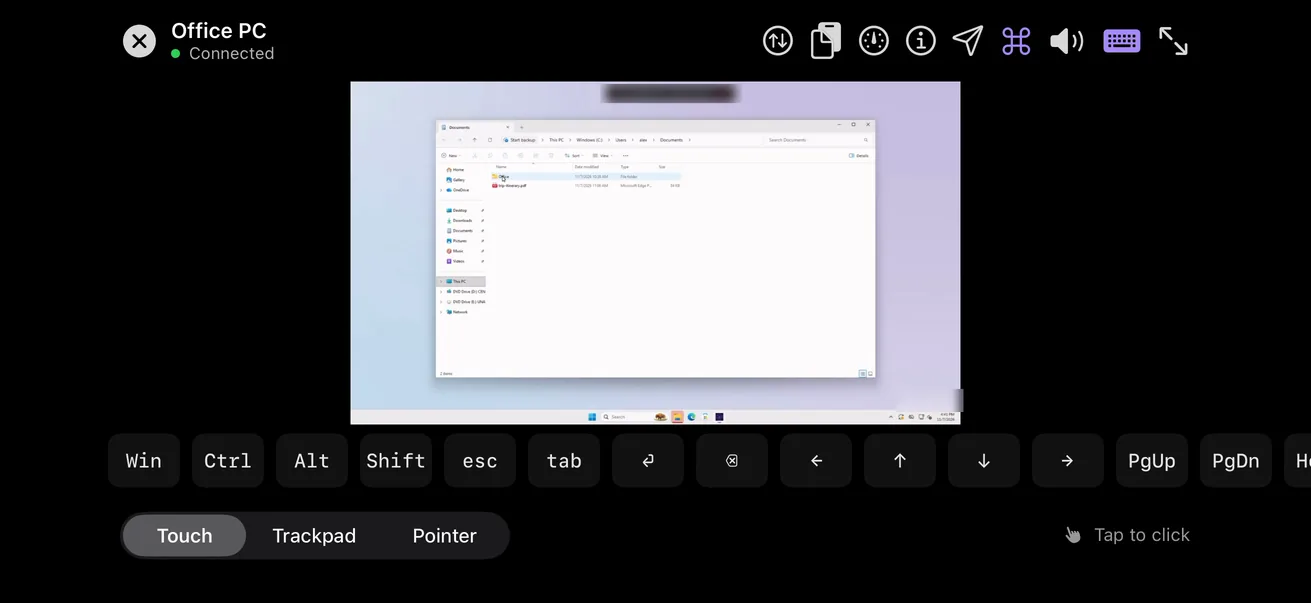
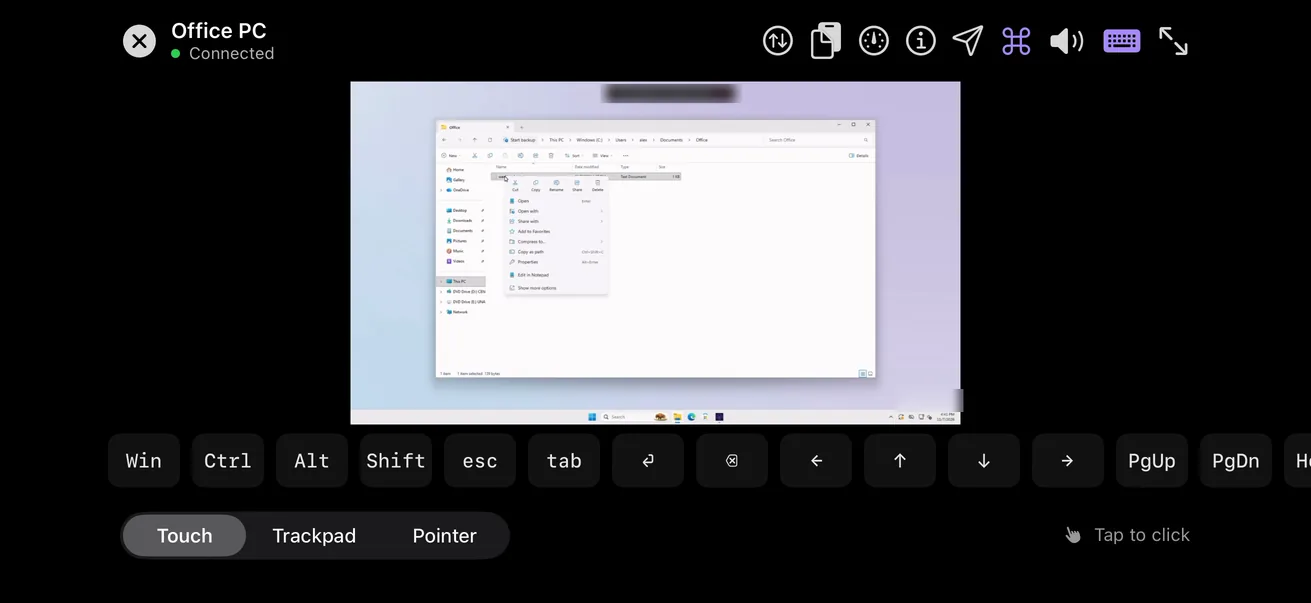
- Connected to a PC, the key bar's first four keys read Win, Ctrl, Alt and Shift. Each one stays on after a tap and goes out with the next key, so Ctrl then C copies and Alt then Tab switches windows.
- A double-tap opens what's under your finger, and a press and hold brings up the right-click menu, as on a touchscreen.
Send a file to the PC
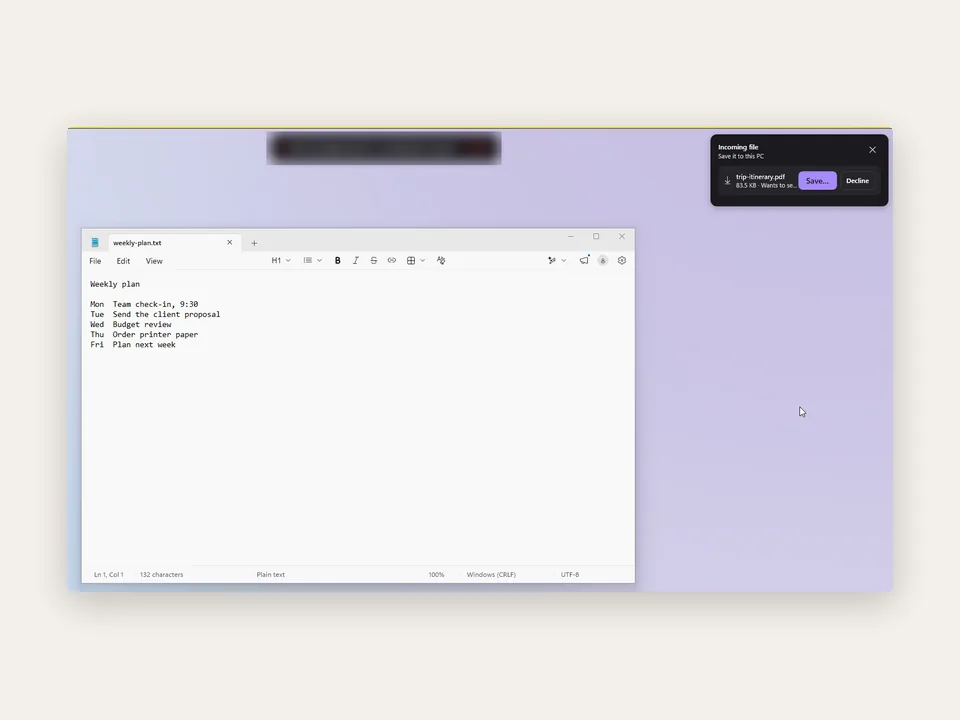
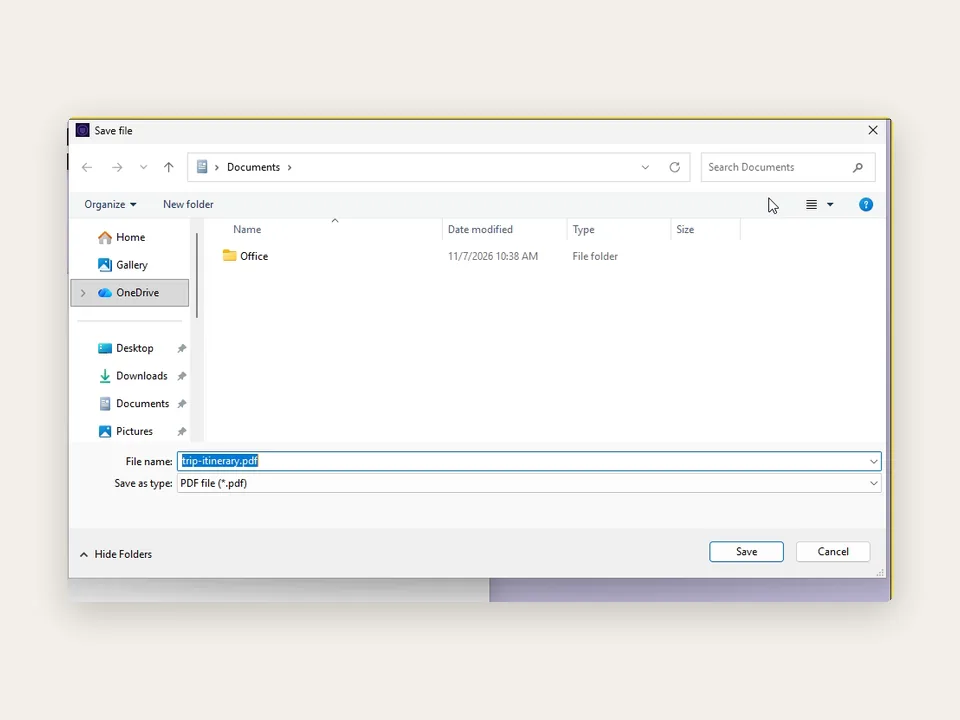
Watch this part 2:29Choose a file in Scry on your iPhone or iPad, and the PC shows an Incoming file card in the corner with Save… and Decline. Save… opens Windows' own Save dialog, where you pick the folder and click Save, from the phone or at the PC.
Unlock a locked PC with Ctrl+Alt+Del
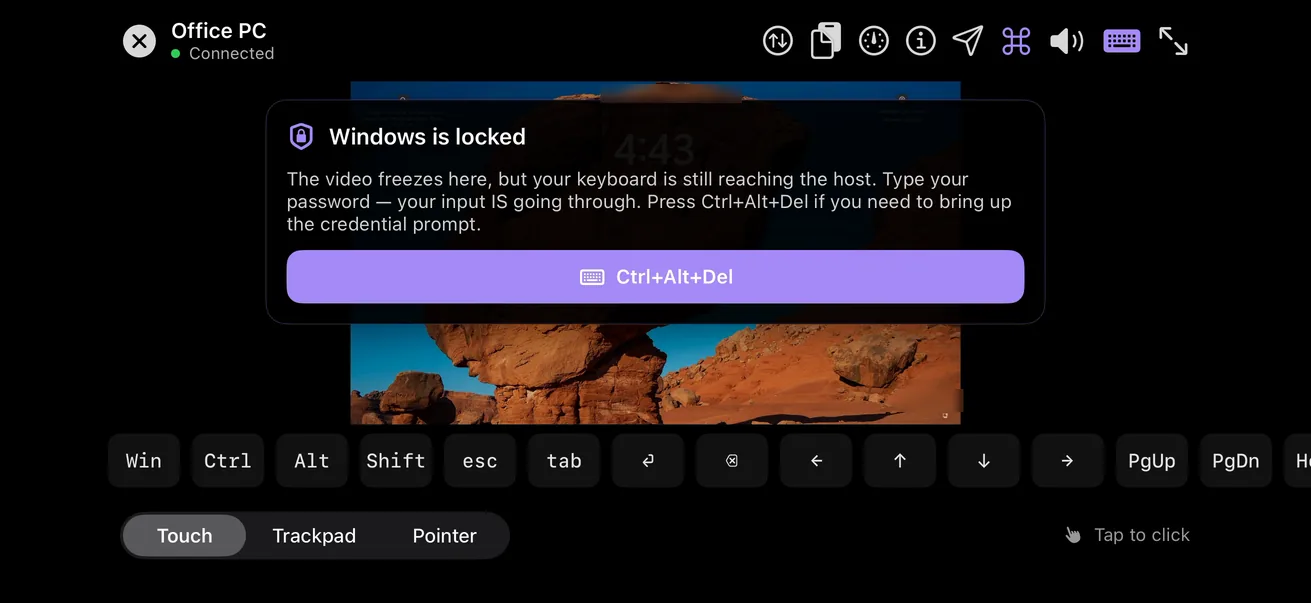
Watch this part 3:12Connect to a locked PC and Scry shows a Windows is locked card over its lock screen. The card's Ctrl+Alt+Del button has Scry's background service send Windows' own secure Ctrl+Alt+Del, which brings up the password box; type the password on the phone's keyboard, and the desktop returns.
Other ways to reach a PC from a phone
Microsoft's and Google's free tools, each with its catch.
What Scry can’t do on a PC
- It won't install on Windows on Arm; only x64 PCs are supported.
- A sleeping PC stays out of reach until someone wakes it, and Scry has no setting that keeps it awake.
- When the PC restarts, it can be reached again only once someone signs in to Windows.
- Your phone does the controlling; Scry doesn't make the phone itself reachable from the PC.
FAQs
Can I control my Windows PC from my phone?
Yes. Install Scry on the PC, choose Yes at Windows' admin prompt, and sign in to Scry on your iPhone, iPad or Android phone with the same account. The PC then appears on the phone; tap it to open its desktop.
Does it work on Windows 10 Home or Windows 11 Home?
Yes. Scry doesn't check the Windows edition and doesn't rely on Remote Desktop, which Microsoft reserves for Pro, Enterprise and Education PCs.
Do I need to turn on Remote Desktop in Windows?
No. Scry installs its own background service, Scry.Host, so Remote Desktop can stay off in Windows' Settings.
What's the difference between Scry and Microsoft's Windows App?
Microsoft's free Windows App reaches a PC running Pro, Enterprise or Education with Remote Desktop turned on, and needs port forwarding or a VPN away from home. Scry is paid, also reaches Home editions, and connects from anywhere without router changes.
Can I reach my PC when I'm away from home?
Yes, on Wi-Fi or mobile data, with no port forwarding. The connection goes directly when the networks allow it and through our relay when they don't, and it's end-to-end encrypted either way.
Which versions of Windows does Scry support?
Windows 10 and Windows 11 on 64-bit (x64) PCs.
Does Scry work on a Windows on Arm laptop?
No. Scry for Windows is built only for x64 PCs, and there's no Arm version.
What is Scry.Host, and why does Windows ask about it?
Scry.Host is the background service that lets your phone reach the PC, including at the lock screen. Installing a service needs an administrator's yes, so the first time Scry opens, Windows asks, naming Bravely Studios LLC as the verified publisher.
How do I send Ctrl+Alt+Del from my phone?
When the PC is locked, Scry shows a Windows is locked card with a Ctrl+Alt+Del button. Tap it to bring up Windows' password box, then type the password on the phone.
Can I unlock the PC from my phone?
Yes. Connect, tap Ctrl+Alt+Del on the card Scry shows over the lock screen, type the password, and you're at the desktop.
Will Scry wake my PC from sleep?
No. There's no Wake-on-LAN in Scry, so if you'll want the PC from your phone, set Windows never to sleep while it's plugged in.
Can I reach the PC once it has restarted?
Once someone signs in to Windows, yes. Until then the PC isn't reachable from the phone.
Is there a Windows key on the phone?
Yes. Connected to a PC, the key bar starts with Win, Ctrl, Alt and Shift, and further along has Esc, Tab, Home, End, Page Up, Page Down and the arrow keys.
How do I press Ctrl+C or Alt+Tab from the phone?
Tap Ctrl and then C, or Alt and then Tab. A modifier you tap waits for the next key and goes out with it; tap it twice quickly to keep it held until you tap it again.
Can I right-click on the PC from my phone?
Yes. Press and hold where you'd right-click, and Windows' menu opens there.
Can I send files from my iPhone or iPad to the PC?
Yes, up to five at a time. The PC shows an Incoming file card, and choosing Save… opens Windows' Save dialog for each one.
Can I get text from the PC onto my phone?
Yes. Select it on the PC and use Scry's clipboard button twice: Copy Selection has the PC copy it, and Copy Host Clipboard brings the PC's clipboard to the phone. Only text comes across.
Can I hear the PC's sound on my phone?
Yes. The PC's sound plays on the phone from the start of the session, and the speaker button mutes it.
Will someone at the PC see that I'm connected?
Yes. A bar on the PC's screen names the account in control for as long as the session lasts, and its End button closes the session from the PC's side.
Can I use an iPad or an Android phone instead of an iPhone?
Yes. Scry for iPad runs on iPadOS 17 or later and Scry for Android on Android 8.0 or later, with the same key bar and Ctrl+Alt+Del button.
Is the connection to my PC encrypted?
Yes, end to end between the phone and the PC, so our servers never see the PC's screen.
My PC has two monitors. Can I see both from my phone?
One at a time. The display button in the session moves to the other monitor, and on an iPhone or iPad a long press on it lists both.
Can I control more than one PC?
Yes. Install Scry on each PC with the same account, and they all appear in one list on the phone.
Sources, with the date each was read
- Microsoft Learn: Enable Remote Desktop on your PC (2026-11-10)
- Microsoft Learn: Connect to Windows devices and apps with Windows App (2026-11-11)
- Microsoft Support: Power settings in Windows 11 (2026-11-11)
- Google: Set up remote access to your computer (2026-11-10)
- Google: Chrome Remote Desktop on Android (2026-11-11)

Scry
Remote desktop, anywhere
$9.99/mo, or every premium Bravely utility for $95.99/yr or $399 once.
Updated . Facts about other companies’ products were read on their own pages on the dates shown and can change.