Download Markd.ly

Mac · Markdly.dmg · 8.6 MB · macOS 14 or later

Windows · Markdly-Setup.exe · 136 MB · Windows 10 (version 1809 or later) or Windows 11, 64-bit (x64)

Linux · Markdly.deb · 75 MB · 64-bit (x64) Linux with GTK 4, WebKitGTK 6.0 and FUSE 2

iPhone & iPad · iOS 17 or later, on iPhone and iPad

Android · Android 8.0 or later

Download for Linux (.deb)

Can’t install the .deb? Download the AppImage · 76 MB

Install Markd.ly

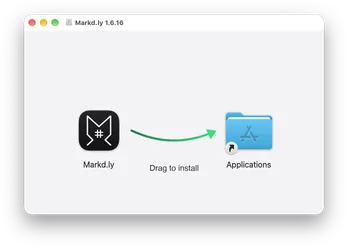
The Markd.ly disk image window: drag the Markd.ly icon along the arrow onto the Applications folder to install.
  1. Open

    Open Markdly.dmg from your Downloads folder.

  2. Drag

    Drag Markd.ly into your Applications folder.

  3. Launch

    Open Markd.ly from Applications. macOS checks the signature once, then it opens.

  4. Sign in

    Sign in with your Bravely Account and take the short tour.

  1. Open

    Open Markdly-Setup.exe from your Downloads folder.

  2. Allow

    If Windows shows a warning, choose More info, then Run anyway. The installer is signed by Bravely Studios LLC.

  3. Launch

    Markd.ly installs for you, with no administrator prompt, and opens on its own.

  4. Sign in

    Sign in with your Bravely Account and take the short tour.

  1. Open

    Open Markdly.deb from your Downloads folder and choose Install.

  2. Launch

    Open Markdly from your app menu. It keeps itself up to date.

  3. Sign in

    Sign in with your Bravely Account and take the short tour.

  1. Open

    Find Markdly.AppImage in your Downloads folder.

  2. Allow

    Right-click it, open Properties, and allow it to run as a program.

  3. Launch

    Double-click it. It adds itself to your app menu and keeps itself up to date.

  4. Sign in

    Sign in with your Bravely Account and take the short tour.

Go to Markd.ly

Can’t install or something not working?

  • The download did not start

    Download Markdly.dmg again (8.6 MB).

  • Markd.ly does not open

    Drag Markd.ly into your Applications folder and open it from there. macOS checks the signature once, then it opens.

  • Word, EPUB, LaTeX or slide export failed

    On Mac and Windows those four are converted on our server. Check that you’re online and signed in, then try again. HTML and PDF export work offline.

  • A document isn’t on my other device

    Only documents you add to your cloud library move between devices. Open it, choose Add to Cloud, then sign in on the other device with the same account, the same way (Apple, Google or email).

  • Still stuck?

    Contact us and tell us what you see.

  • The download did not start

    Download Markdly-Setup.exe again (136 MB).

  • Windows shows a warning

    Choose More info, then Run anyway. The installer is signed by Bravely Studios LLC.

  • The preview says it’s unavailable

    The preview needs the Microsoft Edge WebView2 Runtime. Windows 11 and up-to-date Windows 10 PCs already have it; otherwise install it from Microsoft and reopen Markd.ly.

  • Word, EPUB, LaTeX or slide export failed

    On Mac and Windows those four are converted on our server. Check that you’re online and signed in, then try again. HTML and PDF export work offline.

  • A document isn’t on my other device

    Only documents you add to your cloud library move between devices. Open it, choose Add to Cloud, then sign in on the other device with the same account, the same way (Apple, Google or email).

  • Still stuck?

    Contact us and tell us what you see.

  • The download did not start

    Download Markdly.deb again (75 MB).

  • Can’t install the .deb?

    Use the AppImage instead. It needs GTK 4, WebKitGTK 6.0 and FUSE 2 on your system. Download the AppImage (76 MB).

  • The AppImage won’t start

    Right-click it, open Properties, and allow it to run as a program. If it still won’t open, install FUSE 2.

  • Word, EPUB, LaTeX or slide export failed

    On Mac and Windows those four are converted on our server. Check that you’re online and signed in, then try again. HTML and PDF export work offline.

  • A document isn’t on my other device

    Only documents you add to your cloud library move between devices. Open it, choose Add to Cloud, then sign in on the other device with the same account, the same way (Apple, Google or email).

  • Still stuck?

    Contact us and tell us what you see.

  • On an older iPhone or iPad?

    Markd.ly needs iOS 17 or later.

  • Word, EPUB, LaTeX or slide export failed

    On Mac and Windows those four are converted on our server. Check that you’re online and signed in, then try again. HTML and PDF export work offline.

  • A document isn’t on my other device

    Only documents you add to your cloud library move between devices. Open it, choose Add to Cloud, then sign in on the other device with the same account, the same way (Apple, Google or email).

  • Still stuck?

    Contact us and tell us what you see.

  • On an older Android phone?

    Markd.ly needs Android 8.0 or later.

  • Word, EPUB, LaTeX or slide export failed

    On Mac and Windows those four are converted on our server. Check that you’re online and signed in, then try again. HTML and PDF export work offline.

  • A document isn’t on my other device

    Only documents you add to your cloud library move between devices. Open it, choose Add to Cloud, then sign in on the other device with the same account, the same way (Apple, Google or email).

  • Still stuck?

    Contact us and tell us what you see.

Need Markd.ly somewhere else?

Your first few minutes

Export a document

  1. On your Mac, Windows PC or Linux machine, open the document.
  2. Choose Export and pick HTML, PDF, Word (DOCX), EPUB, LaTeX or reveal.js slides.
  3. On Mac and Windows, Word, EPUB, LaTeX and slides need a connection. HTML and PDF work offline.

Open a document on another device

  1. Open the document and choose Add to Cloud.
  2. On your other device, sign in with the same account, the same way, and open your Cloud Library.
  3. Pick the document. If both copies have changed, choose which one to keep.

Drop in a snippet

  1. On Mac, Windows or Linux, open Settings and find Snippets: start from the ones there, or add your own.
  2. In a document, type a snippet’s trigger and press Tab.
  3. The whole block drops in, with the date, the time or the cursor filled in.

What happens next

Sign in with your Bravely Account (Apple, Google or email). A short tour shows you how to bold a word, Preview, Split and Add to Cloud. Then try every feature free for 24 hours with no card, or pick a plan. No system permissions are needed.

Sign in with your Bravely Account (Apple, Google or email). A short tour shows you how to bold a word, Preview, Split and Add to Cloud. Then try every feature free for 24 hours with no card, or pick a plan. No system permissions are needed.

Sign in with your Bravely Account (Apple, Google or email). A short tour shows you how to bold a word, Preview, Split and Add to Cloud. Then try every feature free for 24 hours with no card, or pick a plan. No system permissions are needed.

Sign in with the same Bravely Account you use on your computers. After a short tour, try every feature free for 24 hours with no card, or pick a plan. Already bought Markd.ly? It’s unlocked here too.

Sign in with the same Bravely Account you use on your computers. After a short tour, try every feature free for 24 hours with no card, or pick a plan. Already bought Markd.ly? It’s unlocked here too.

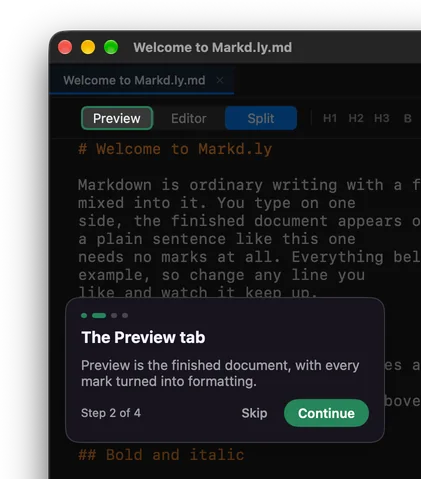
Step 2 of Markd.ly’s first-run tour: The Preview tab. Preview is the finished document, with every mark turned into formatting.
Markd.ly’s trial chip: 24-Hour Trial, 19h 40m left, See offers

24-Hour No-Card Trial

Try every feature free for 24 hours. No card needed.

When the 24 hours are up, you can add 24 more hours, once.

When the trial ends, the editor locks until you buy. Your files stay where you saved them.