Tag a window
- Press Ctrl+Shift+` (or choose Tag a Window in Terminal Tags).
- Click the window you want to label.
- Type a name. Click the color dot to change the color.
 Download Terminal Tags
Mac · TerminalTags.dmg · 6 MB · macOS 14 or later, on Apple silicon or Intel
Windows · TerminalTags-Setup.exe · 72 MB · Windows 10 or 11 (x64)
Linux · TerminalTags.deb · 41 MB · 64-bit (x64) Linux with GTK 4, on an X11 desktop
Terminal Tags runs on Mac, Windows and Linux. Download it on the computer whose windows you want to tag.
Terminal Tags runs on Mac, Windows and Linux. Download it on the computer whose windows you want to tag.
Thank you for downloading Terminal Tags. Did your download not start? Click here to try again.
Can’t install the .deb? Download the AppImage · 41 MB
Or: Download for Linux (.deb) · 41 MB
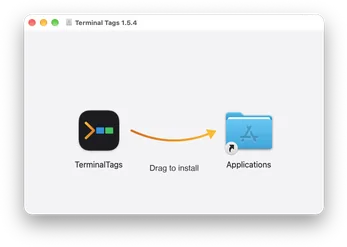
Open TerminalTags.dmg from your Downloads folder.
Drag Terminal Tags into your Applications folder.
Open Terminal Tags from Applications and sign in with your Bravely Account.
Allow Accessibility in System Settings when Terminal Tags asks, then tag your first window.
Open TerminalTags-Setup.exe from your Downloads folder.
If Windows shows a warning, choose More info, then Run anyway. The installer is signed by Bravely Studios LLC.
Terminal Tags installs and opens on its own. Sign in with your Bravely Account.
Tag your first window. After that, Terminal Tags lives in your tray.
Open TerminalTags.deb from your Downloads folder and choose Install.
Terminal Tags shows up in your app menu and keeps itself up to date. Open it and sign in.
Tag your first window. After that, Terminal Tags lives in your tray and its tag-list window.
Find TerminalTags.AppImage in your Downloads folder.
Right-click it, open Properties, and allow it to run as a program.
Double-click it and sign in with your Bravely Account.
Press Ctrl+Shift+`, click a window and name it.
Download TerminalTags.dmg again (6 MB).
Drag Terminal Tags into your Applications folder and open it from there. macOS checks the signature once, then it opens.
Open System Settings, then Privacy & Security, and allow Terminal Tags under Accessibility.
Terminal Tags lives in the menu bar at the top right of your screen, not in the Dock.
A tag lasts as long as its window. After you quit Terminal Tags or restart, tag your windows again. Turn on Launch at login in Settings so it’s running whenever you sign in.
Contact us and tell us what you see.
Choose More info, then Run anyway. The installer is signed by Bravely Studios LLC.
Terminal Tags lives in the tray at the bottom right of your screen. Click its icon to tag a window or open Settings.
A tag lasts as long as its window. After you quit Terminal Tags or restart, tag your windows again. Turn on Launch at login in Settings so it’s running whenever you sign in.
Contact us and tell us what you see.
Download TerminalTags.deb again (41 MB).
Use the AppImage instead, for other 64-bit (x64) distros. It needs GTK 4 and FUSE 2. Download the AppImage (41 MB).
Terminal Tags tags windows on an X11 desktop. On a Wayland session, native Wayland windows can’t be tagged: sign in to an X11 session instead.
A tag lasts as long as its window. After you quit Terminal Tags or restart, tag your windows again. Turn on Launch at login in Settings so it’s running whenever you sign in.
Contact us and tell us what you see.
Mac
macOS 14 or later, on Apple silicon or Intel
Windows
Windows 10 or 11 (x64)
Linux
64-bit (x64) Linux with GTK 4, on an X11 desktop
Sign in with your Bravely Account, then allow Accessibility in System Settings (Screen Recording is optional). Terminal Tags walks you through tagging your first window, then you choose: try everything free for 24 hours with no card, or buy it. It lives in your menu bar; turn on Launch at login in Settings so it’s running whenever you sign in.
Sign in with your Bravely Account. That’s all the setup Windows needs. Terminal Tags walks you through tagging your first window, then you choose: try everything free for 24 hours with no card, or buy it. It lives in your tray; turn on Launch at login in Settings so it’s running whenever you sign in.
Sign in with your Bravely Account. On an X11 desktop there’s nothing else to set up. Terminal Tags walks you through tagging your first window, then you choose: try everything free for 24 hours with no card, or buy it. It lives in your tray and its tag-list window; turn on Launch at login in Settings so it’s running whenever you sign in.
Terminal Tags runs on Mac, Windows and Linux. Download it on the computer whose windows you want to tag.
Terminal Tags runs on Mac, Windows and Linux. Download it on the computer whose windows you want to tag.