Post your first sticki
- Open Sticki.ly and sign in with your Bravely Account.
- Type anything you want to keep handy, then post it.
- It shows up on every other device signed in to the same account the same way.
 Download Sticki.ly
Mac · Stickily.dmg · 13 MB · macOS 14 or later
Windows · Stickily-Setup.exe · 79 MB · Windows 10 (version 1809) or 11, 64-bit (x64)
Linux · Stickily.deb · 41 MB · 64-bit (x64) Linux with GTK 4. The tray icon needs a desktop that shows tray icons; Auto Sticki’s shortcuts need an X11 desktop.
iPhone & iPad · iOS 17 or later, on iPhone and iPad
Android · Android 8.0 or later
Thank you for downloading Sticki.ly. Did your download not start? Click here to try again.
Can’t install the .deb? Download the AppImage · 41 MB
Or: Download for Linux (.deb) · 41 MB
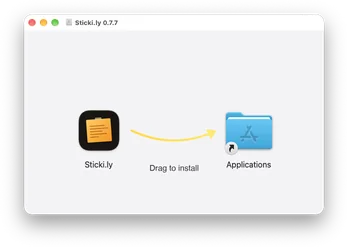
Open Stickily.dmg from your Downloads folder.
Drag Sticki.ly into your Applications folder.
Open Sticki.ly from Applications. macOS checks the signature once, then it opens.
Sign in, then look for Sticki.ly in your menu bar. It has no Dock icon.
Open Stickily-Setup.exe from your Downloads folder.
If Windows shows a warning, choose More info, then Run anyway. The installer is signed by Bravely Studios LLC.
Sticki.ly installs just for you, with no administrator prompt. Open it and sign in with your Bravely Account.
Sticki.ly lives in the system tray, down by the clock. Click its icon to open your stickis.
Open Stickily.deb from your Downloads folder and choose Install.
Sticki.ly shows up in your app menu and keeps itself up to date. Open it and sign in.
Click its icon in the system tray. On a desktop without tray icons it opens as a window.
Find Stickily.AppImage in your Downloads folder.
Right-click it, open Properties, and allow it to run as a program.
Double-click it and sign in with your Bravely Account.
Click its icon in the system tray. On a desktop without tray icons it opens as a window.
Download Stickily.dmg again (13 MB).
Drag Sticki.ly into your Applications folder and open it from there. macOS checks the signature once, then it opens. It has no Dock icon: look for it in the menu bar.
Turn Auto Sticki on in Sticki.ly’s Settings. Then open System Settings, then Privacy & Security, then Accessibility, and allow Sticki.ly.
Sign in the same way on every device (Apple, Google or email). Different sign-in methods can make two separate accounts. Changes usually arrive within a minute.
Contact us and tell us what you see.
Download Stickily-Setup.exe again (79 MB).
Choose More info, then Run anyway. The installer is signed by Bravely Studios LLC.
It lives in the system tray, down by the clock. If you don’t see its icon, open the hidden icons with the arrow next to the tray.
Sign in the same way on every device (Apple, Google or email). Different sign-in methods can make two separate accounts. Changes usually arrive within a minute.
Contact us and tell us what you see.
Download Stickily.deb again (41 MB).
Use the AppImage instead, for other 64-bit (x64) distros. Download the AppImage (41 MB).
Sticki.ly needs a desktop that shows tray icons. Without one it opens as a window, and closing the window quits it.
The shortcuts need an X11 desktop. Send Clipboard in the Auto Sticki panel always works. For one-press paste, install xdotool.
Sign in the same way on every device (Apple, Google or email). Different sign-in methods can make two separate accounts. Changes usually arrive within a minute.
Contact us and tell us what you see.
Sticki.ly needs iOS 17 or later. You can also use it in a computer’s browser at stickily.bravely.dev.
Sign in the same way on every device (Apple, Google or email). Different sign-in methods can make two separate accounts. Changes usually arrive within a minute.
Contact us and tell us what you see.
Sticki.ly needs Android 8.0 or later. You can also use it in a computer’s browser at stickily.bravely.dev.
Sign in the same way on every device (Apple, Google or email). Different sign-in methods can make two separate accounts. Changes usually arrive within a minute.
Contact us and tell us what you see.
Mac
macOS 14 or later
Windows
Windows 10 (version 1809) or 11, 64-bit (x64)
Linux
64-bit (x64) Linux with GTK 4. The tray icon needs a desktop that shows tray icons; Auto Sticki’s shortcuts need an X11 desktop.
iPhone & iPad
iOS 17 or later, on iPhone and iPad
Android
Android 8.0 or later
Web
A current browser; tested in Chrome
Sign in with your Bravely Account and post your first sticki. Sticki.ly lives in your menu bar, with no Dock icon. Then try every feature free for 24 hours with no card, or start a plan with 7 days free. Want it there every time? Turn on Launch Sticki.ly at login in Settings. For Auto Sticki, turn it on in Settings; the Mac asks for Accessibility the first time you use its shortcut.
Sign in with your Bravely Account and post your first sticki. Sticki.ly lives in the system tray, down by the clock. Then try every feature free for 24 hours with no card, or start a plan with 7 days free. Want it there every time? Turn on launch at login in Settings.
Sign in with your Bravely Account and post your first sticki. Sticki.ly sits in the system tray if your desktop shows tray icons, and opens as a window if it doesn’t. Then try every feature free for 24 hours with no card, or start a plan with 7 days free. Want it there every time? Turn on launch at login in Settings.
Sign in with the same account you use on your other devices and make your first sticki. Then try every feature free for 24 hours with no card, or start a plan.
Sign in with the same account you use on your other devices and make your first sticki. Then try every feature free for 24 hours with no card, or start a plan.