Use case · agent workflows

Run multiple Claude Code sessions on Mac and Windows

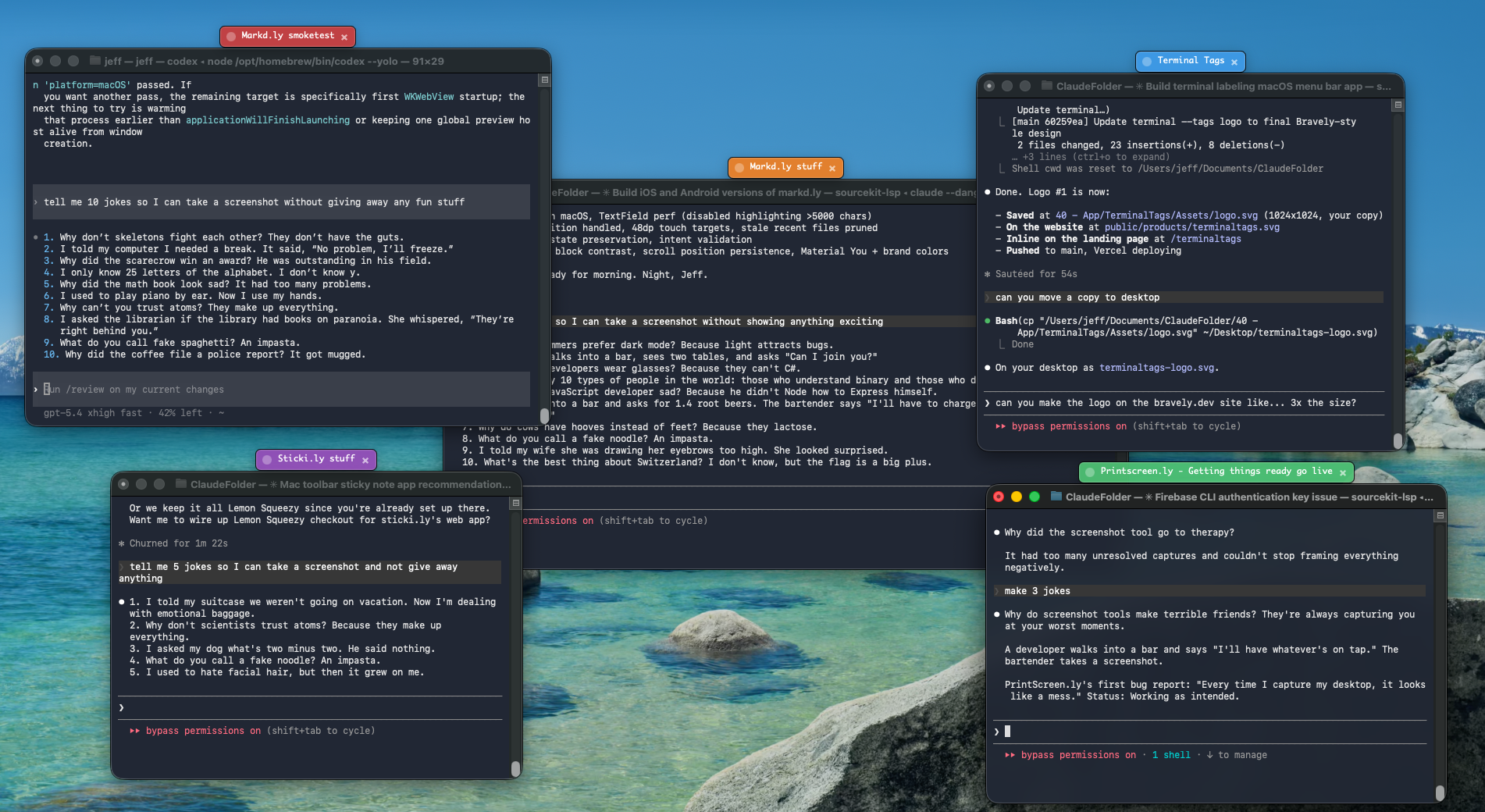
Three Claude Code windows side-by-side and you can't tell them apart from the dock. Open a fourth and you lose the thread. Terminal Tags fixes that by sticking a colored, persistent label on every window and giving you a saved launcher per session so spawning the next one takes a click.

Desktop with multiple terminal windows running Claude Code, each labeled with a different colored tag so the user can see which session is which.

One tag per session. Red is the refactor branch, blue is the bugfix, green is the docs PR.

Why this gets hard so fast

Running one Claude Code session is fine. Running two is fine. The trouble starts at three: the OS task switcher shows you a row of nearly identical black terminals, all titled some flavor of “node” or “Terminal,” and you have to read the prompt to remember which repo you're even in. Cmd+Tab past the wrong one and you start confidently typing into the wrong session.

Tabs help inside one terminal app but they don't survive Mission Control, virtual desktops, or accidentally Cmd+Tab'ing away. And the agent itself doesn't volunteer which world it's living in — it just answers your question, in whatever repo it happened to be started in.

What you actually want is a permanent, glanceable identity on every Claude Code window so “which session is this” becomes a half-second question, plus a way to spawn the next one without re-typing the same setup every time.
How Terminal Tags solves it

The 4-step setup

  1. Install Terminal Tags.

    Free download for Mac (Developer ID signed + notarized) and Windows (Trusted Signing). Grant the one-time accessibility / screen-recording prompt so the app can draw labels on top of other windows.
  2. Tag your first Claude Code window.

    Open Claude Code in your normal terminal. Hit the global hotkey, click the window, pick a color, type a name. Repeat for the second session. You can run as many tagged windows as you want on the free tier.
  3. Save a profile per session.

    From the menu bar / system tray, create a saved profile per Claude Code variant. Set the working directory to the repo, set any env vars, pick the tag color in advance. With Pro, click the profile and a tagged session spawns — no more re-typing the same setup every time.
  4. Glance to switch.

    Look for the red label to find the refactor session. The blue one is the bugfix. No more accidentally pasting into the wrong Claude Code window.

Stop losing track of your Claude Code windows.

Free for unlimited window tagging. Pro adds saved profiles and one-click agent launching for the times you spin up sessions all day.

Get Terminal Tags

Mac · Windows · one license, both desktops

Keep reading